Hello again! Today we will make a logo
Create a new PSD file (622X288) and fill the background with a radial gradient (#ececec-#b2b1b1).

Let's add some text, I used the Calibri font size 72px. Select the type tool and type "LOREM" (style - bold). On an another layer, type "IPSUM" (style - regular).
Now, select the text layer "LOREM" and go to Layer-Layer Style-Drop shadow. Set the following settings:
Opacity 26%, Distance 1px, Size 6px.
Move to Gradient overlay and fill the layer with a linear gradient #cd0000-#ee1800
Select the next layer "IPSUM" and set the same settings but don't fill it with a different gradient. Fill it with a color #303030.
Add some text near the right-bottom corner of our text. Font: Calibri, Size: 18pt, Style: Bold.
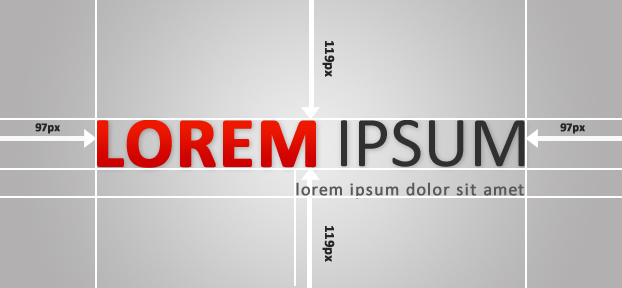
And now, make sure that our logo is placed exactly in the center. See the picture above.
That's all!

Download PSD from here.