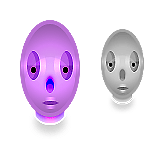
Step one: Start with a large white canvas, in your layers window make a new layer set. Name it Custom Head Mascot Web Graphic.
Create a new layer then draw a 30 x 22 pixels, #7400FF ellipse using your ellipse tool. Use the fixed size setting under ellipse options to make the exact circle.
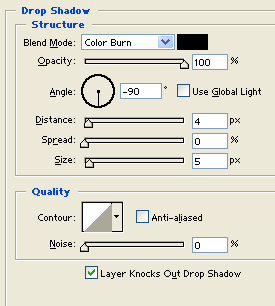
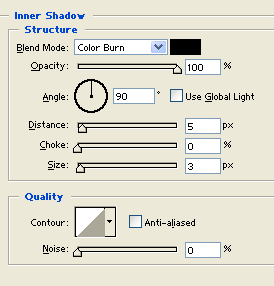
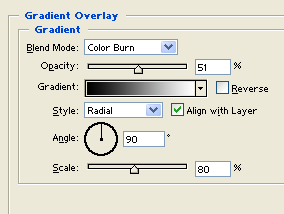
Add the following layer styles:
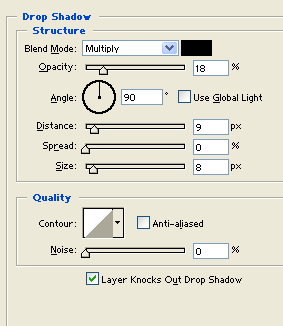
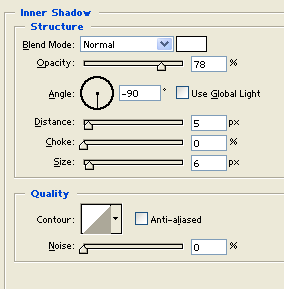
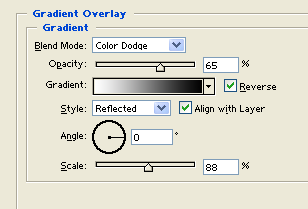

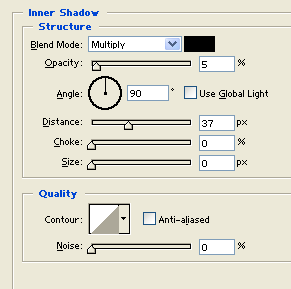
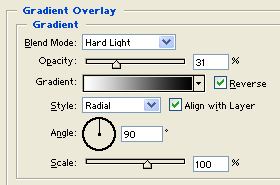
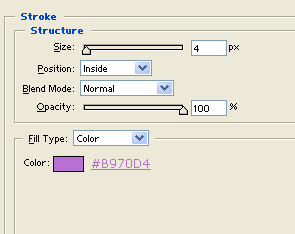
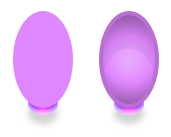
Step two: Now make the head, first create a new layer then draw a 60 x 97 pixels, #DF87FF ellipse using your ellipse tool. Use the fixed size setting under ellipse options to make the exact circle.
Add the following layer styles:
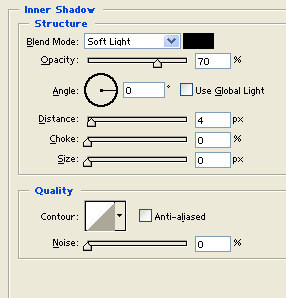
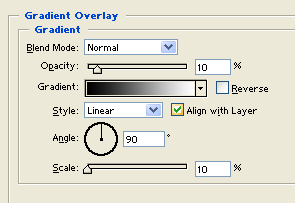
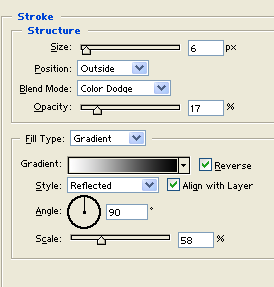
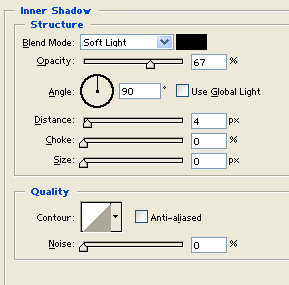
Step three: Create a new layer then draw a 13 x 29 pixels, black ellipse using your ellipse tool. Use the fixed size setting under ellipse options to make the exact circle.
In your layers window set the layers blending mode to soften light and add the following layer styles:
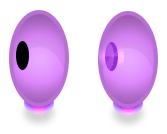
Step four: Duplicate your glassy ellipse from step four.

Step five: In a new layer add two black circles. This will complete the eye structure of your mascot.

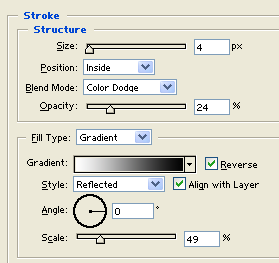
Step six: In a new layer create a 8 x 14 pixels, black ellipse. This will be the nose like structure.
Add the following layer styles:
Step seven: Create a new layer then draw a 25 x 12 pixels, black ellipse. Use your ellipse tool to make the ellipse so you can use the fixed size setting under ellipse options to make the exact shape.
Add the following layer styles:
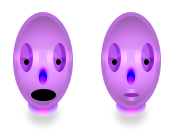
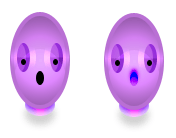
Final Image: Custom Head Mascot Web Graphic.