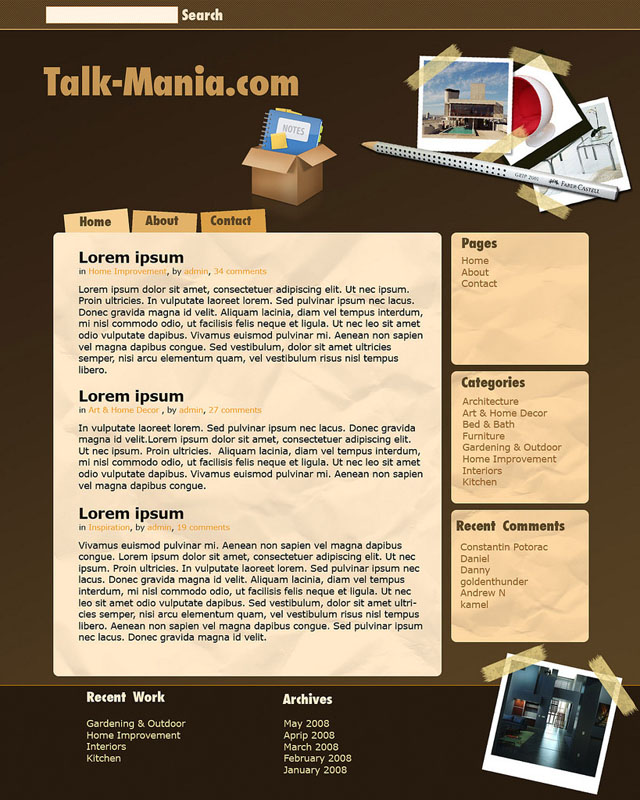
1. Open a new document and fill the background with a linear gradient #2b1d10 to #5a4425.

2. Make a rectangular selection and fill it with the color #866236. Open the Layer Style Window and add the next settings. Now we are going to make the search bar. Make a smaller rectangular selection, fill it with the color #fff3e2, then add a 1 pixel stroke using the color #e7a461. I used a carbon pattern which I downloaded from www.brusheezy.com You can also find some cool patterns on www.stock-textures.com and some very good brushes on www.photo-shop-brush.com. Write the word ‘Search’ next to the bar you have just created.
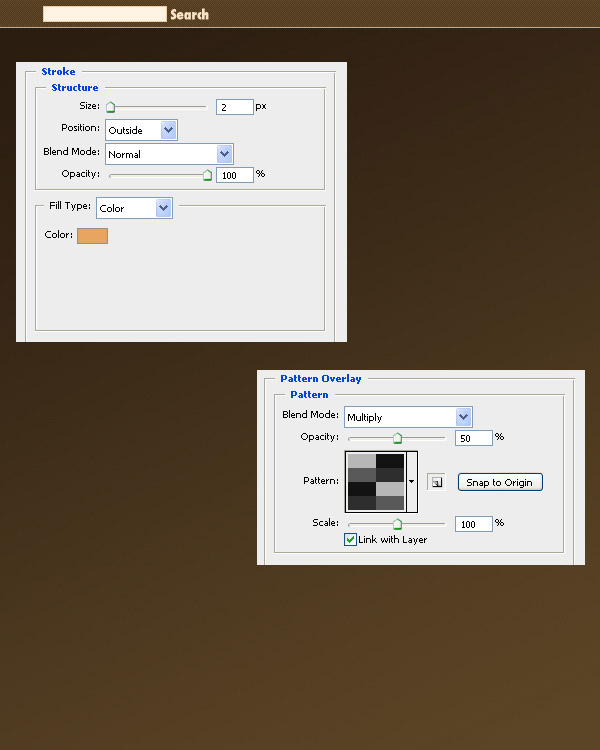
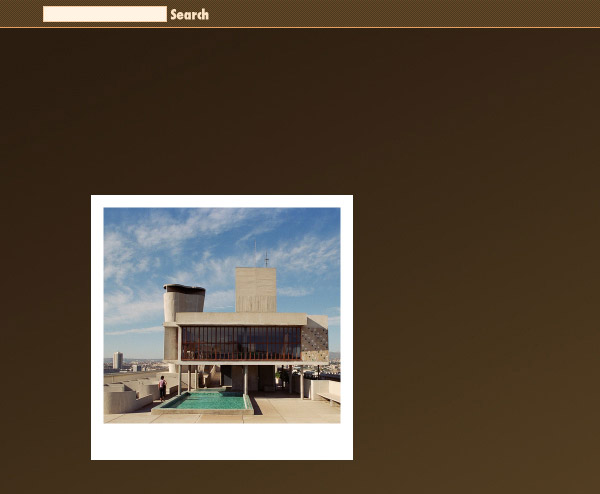
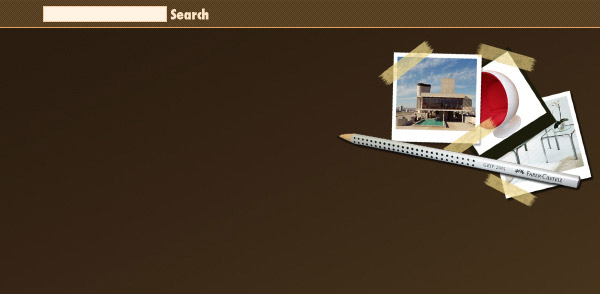
3. Make a rectangular selection, fill it with white, then put a photo inside this rectangle. You can find nice photos on Flickr or Deviantart. Make 2-3 photos like this, then make some scotch tapes. Follow the next link to read a tutorial about this www.photoshopstar.com. Arrange the photos and the scotch tapes to obtain a nice header. I also added a pencil. Add a little of shadow to all the header elements.
4. Write the title of the site using the color #c69755. I added a nice box which I downloaded from www.theiconlab.com.
5. Follow this link flyupload.flyupload.com and download a paper texture. Open the image in Photoshop, then go to Edit > Define Pattern. You can close the image now.
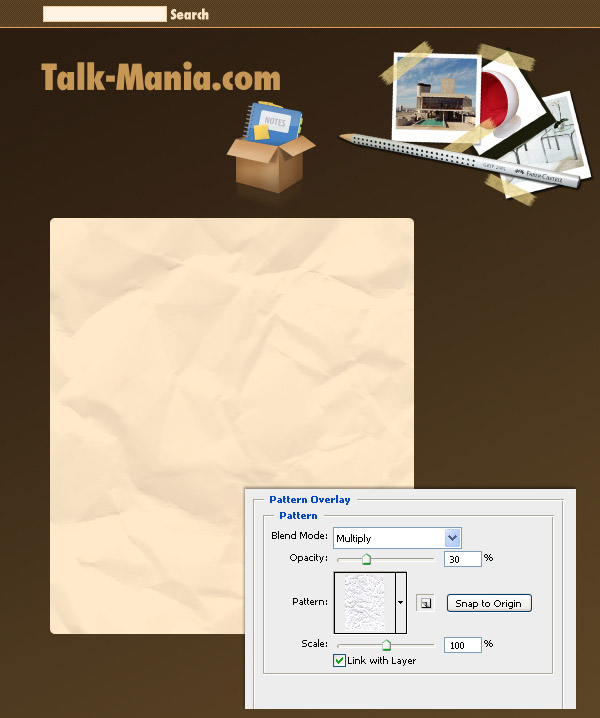
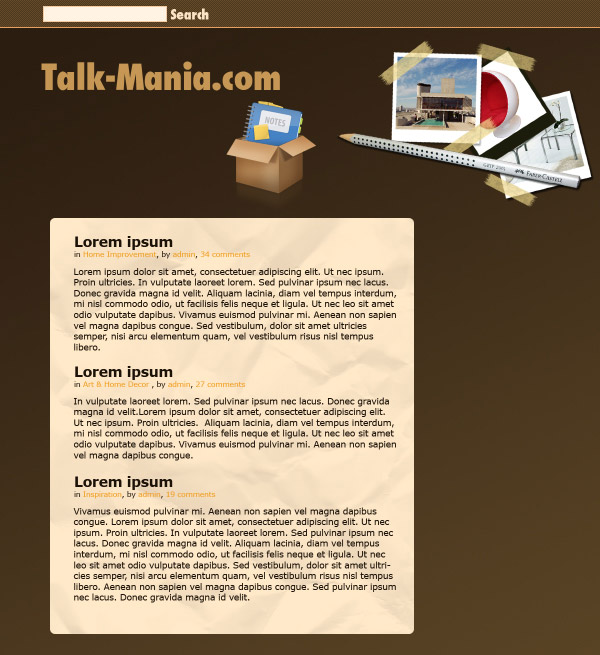
6. Make a rounded rectangle with the radius of 10 pixels and the color #ffe9c8. Now add the content. I used the font Verdana, the sizes 18 and 28 pixels, the colors #1c1208 (for the text) and #f39b17 (for the links).
7. Now we are going to create the sidebar. Make a smaller rounded rectangle using the color #fdd8a3 and the same radius of 10 pixels. Then open the Layer Style and add a Pattern Overlay using the same paper texture.
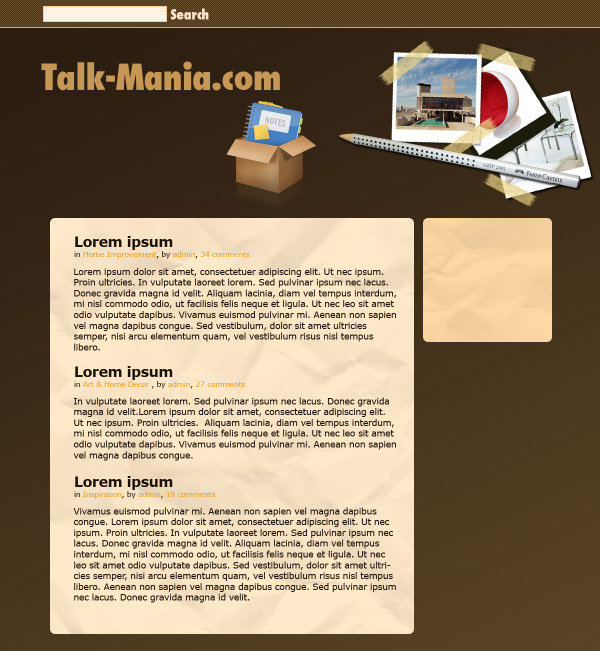
8. Duplicate this rounded rectangle two times, place them bellow the first rounded rectangle, then add the content of the sidebar. I used the color #5c4627 for the titles and the color #9c662f for the links.
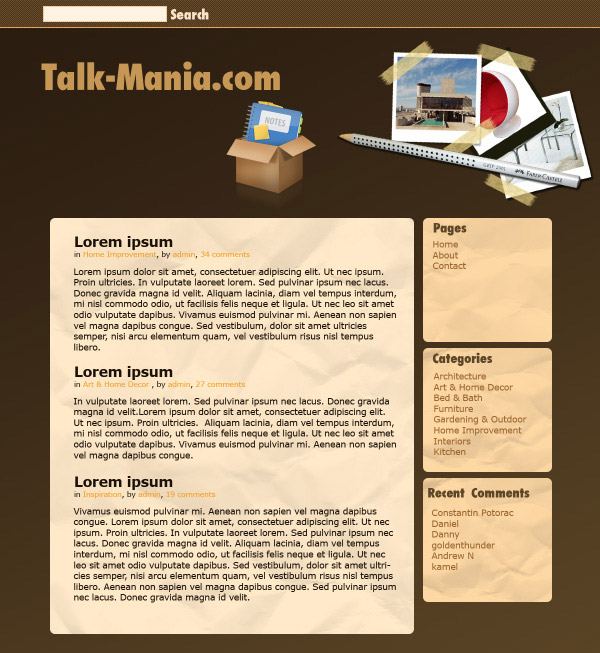
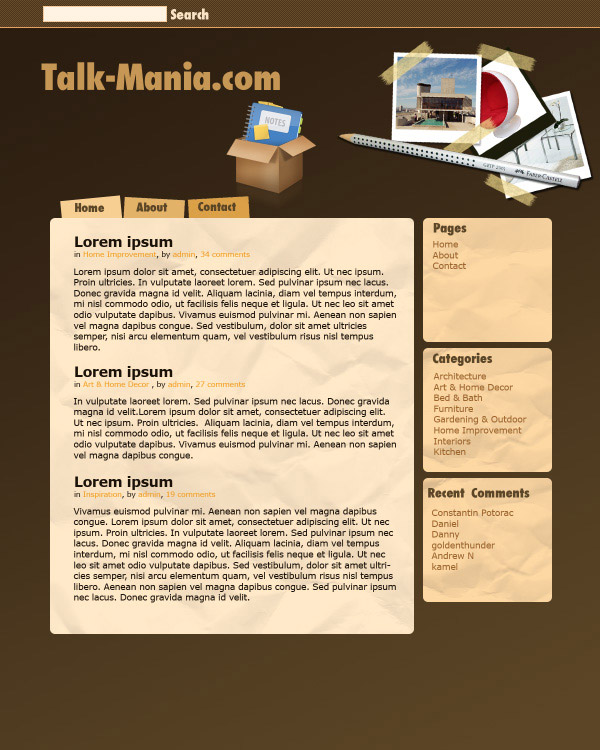
9. Now we are going to create the menu. Make a rectangular selection and fill it with the color #f7cf93. Use Free Transform (Ctrl + T) to rotate it. Repeat this step two times and use different colors. Then add the text using the color #5c4627.
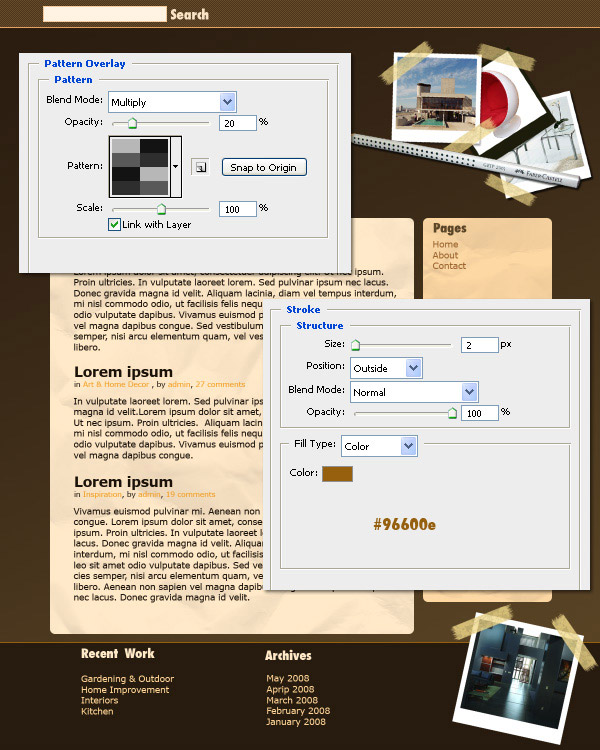
10. Now the footer. Make a rectangular selection and fill it with the color #2d1f11. Open the Layer Style window and use the settings from the next image. I used a carbon pattern from brusheezy.com I added another photo like those from the header. Here is the link to the original photo flickr.com.
Now write the content for the footer. I used the color #ffe9c8 for the titles and #fed596 for the links.
This is my final layout.