

Today we're going to create some very simple buttons. I'm basically giving you the know-how to create the style. You can then apply it to what ever size button you want.
For the tutorial, i will present it as a mini-menu, but we'll only be working on one button. So let's get started.
Create a new canvas size 70x15.
Fill in the background with any colour, and open up the blending options. Use these settings.
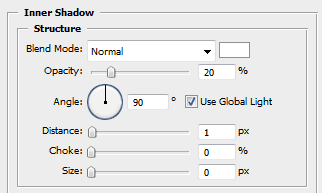
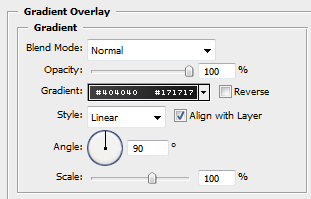
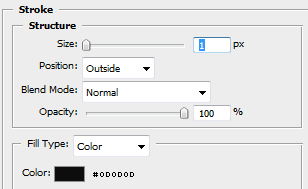
That's it! You've got your button. Now we can add some little icons, and of course text.
I created this little arrow (don't take notice of the black beneath it, it's a drop shadow.)

I used the font Silkscreen, and added the same drop shadow to it than the arrow.

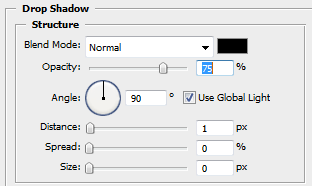
That's really it! I created a little menu with the button to see what it could look like. Notice how i changed the colour of the arrow and gradient for the portfolio. This would be for a rollover effect.

Hope that wasn't too hard. Have fun!
