Open a picture in Photoshop. I'll use one that has a friend of mine on it.

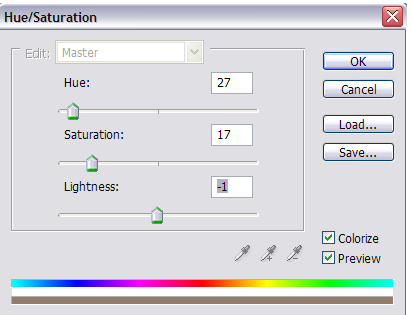
Now go to Image> Adjustments > Hue/Saturation. Check the Colorize box and give in these values:
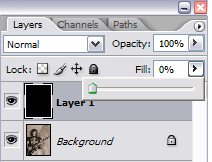
Add a new layer (Layer > New > Layer) and fill it in with solid colour. Now change the Fill to 0%.
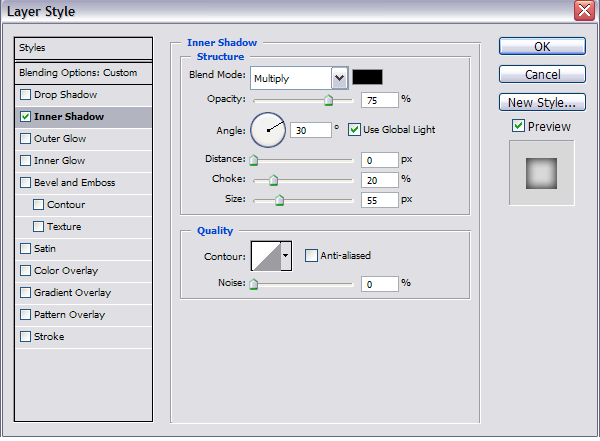
After that go to Layer > Layer Style > Inner Shadow and give in these values:
Add a new layer again and select some stain/splatter brushes. I have such here.
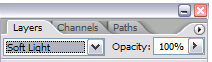
Apply them as you like and set the blending mode to Soft Light.
My final result: