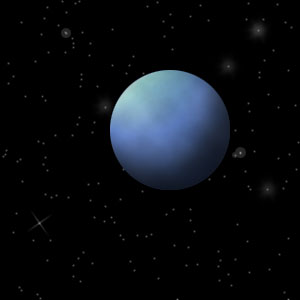
We start with the image we created earlier, which is a starry night sky:
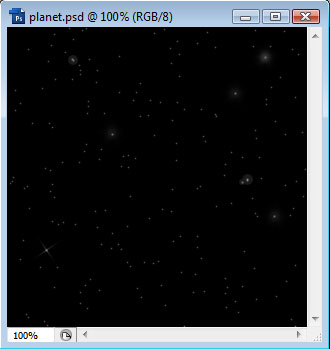
We will then make a perfect circle selection with the Elliptical Marquee tool and holding Shift as we size:

We then choose two colors in our palette that we want our planet to be. Then we goto Filter > Render > Clouds.
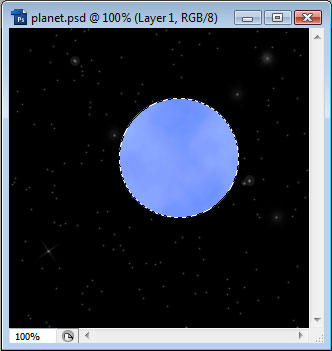
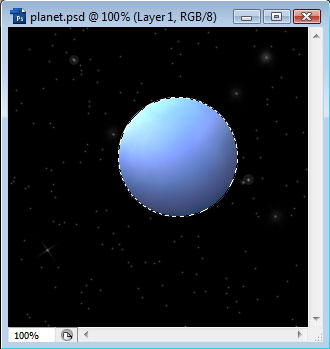
Next, we want to give our Planet some depth, so goto Filter > Distort > Spherize (with the selection still in place):
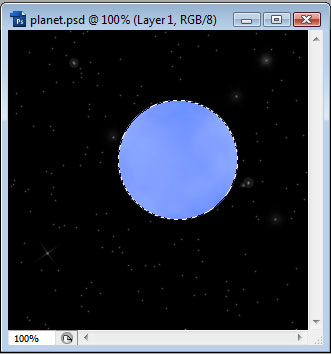
And then we can goto Filter > Render > Lighting Effects. You're encouraged to play around with the settings to get the right effect you want. For this example, I used a Spotlight with 67 Intensity.
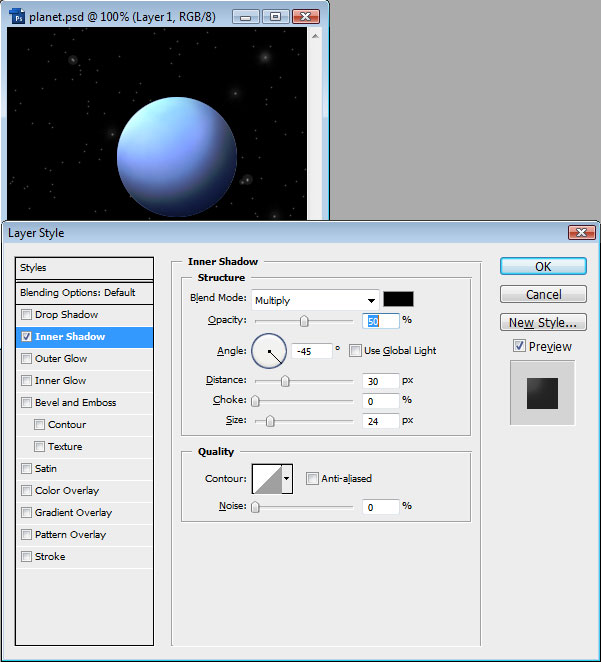
We can now deselect our planet and then open up the Layer Styles for it. We want to add an Inner Shadow, but change the angle to -45, and you may want to reduce the opacity and play with the Distance and Size:
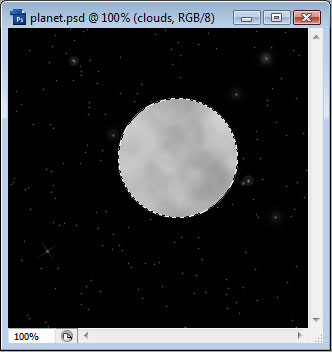
Now to add more texture to our Planet we can make the same selection as earlier, by Ctrl-clicking the planet layer, then revert our palette back to Black and White (press D), make a new Layer, and then we can goto Filter > Render > Clouds.
Now all we need to do is set this new Layer's Blend Mode to Multiply, and we should have something like this: