


1. Create a new document
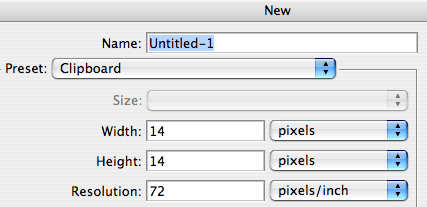
In Photoshop, create a new document 14 x 14px size with transparent background.
2. Draw shape outline
Use the Pencil tool, select 1px brush from the palette. Pick a dark gray color and start drawing the outline of the page icon. To draw a straight line, first click at the starting point, then hold down shift key and click at the ending point.
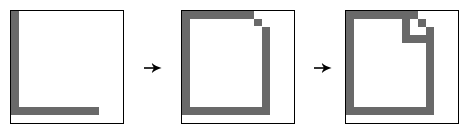
Tips: At any time if you want to erase the pixels, use the Eraser tool, select Pencil mode and 1px brush size.
3. Base gradient
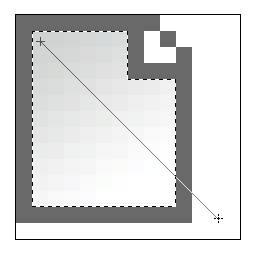
Make a selection of the empty cutout by the Magic Wand tool. Create a new layer. Set your foreground color to light gray and background to white. Use Gradient tool, drag from top corner to lower corner diagonally.
4. Highlight and shadow
Create a new layer. Draw a 1px white inner top border to create the highlight effect. Then, draw a medium gray inner bottom border.

5. Group all layers
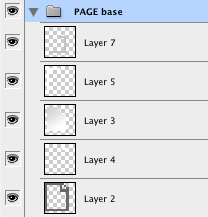
In the Layers palette, select all layers and press Cmd+G to group all layers in a folder.
6. Draw a pencil
Again, start drawing the outline first and then fill the inner area with either solid color or gradient. When you are done, group these layers in a separate folder.

Tips: If you want to have consistent color throughout the icon set, store the colors that you have used in the color swatches.
7. Re-use them
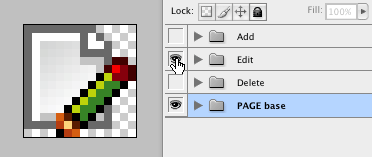
Here shows how I re-used the layer groups to create entire collection:

8. Export for web
After you've done entire set, toggle (invisible / visible) the layer groups and save them for web (Cmd+Alt+Shift+S).
Too lazy to do this tutorial? You can download my free mini icon set.
