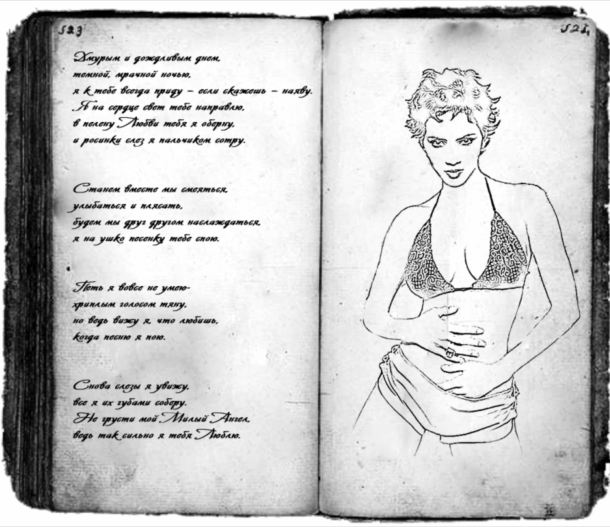
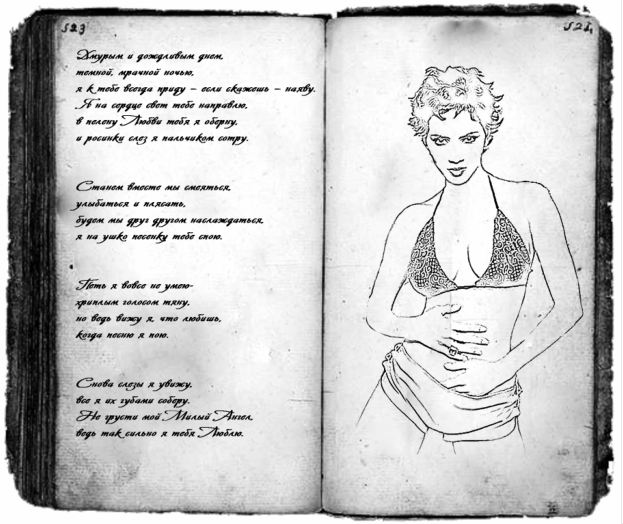
I wish to share a small secret on creation of effect of the old book with your image.
In advance I apologize for all possible inconveniences brought in a lesson. So, we will start:
1. That it is necessary for us for a lesson:
- a photo with the image someone. I wish to notice, it is desirable that the character did not merge with a background and was to the utmost;
- a set of brushes "Old_Paper_Brushes_V_by_lailomeiel";
- a cursive (I used Avalon Medium)
2. We open a photo with the character: File-> Open … we specify a way to the necessary file and we press to "Open".
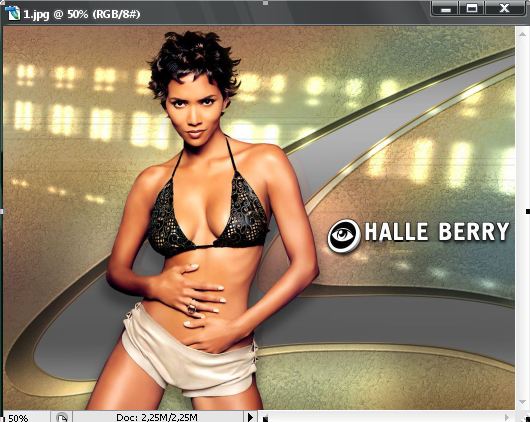
3. We decolour a photo: Image-> Adjustments-> Desaturate (Shift+Ctrl+U)
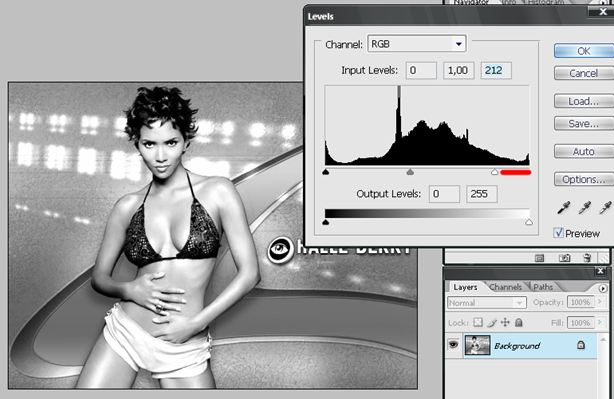
And we do it a bit more brightly: Image-> Adjustments-> Levels
For this purpose we move right cursor a little more to the left of the given position
4. We expose colours by default by pressing of key D.
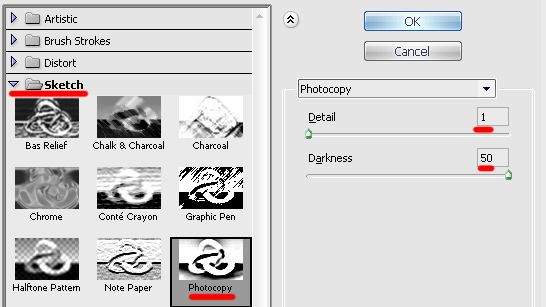
Further we open gallery of filters: Filter-> Filter Gallery …
And we apply filter Photocopy with options as is shown in a picture more low (depending on a photo, these options vary).
At the given stage our image looks so:
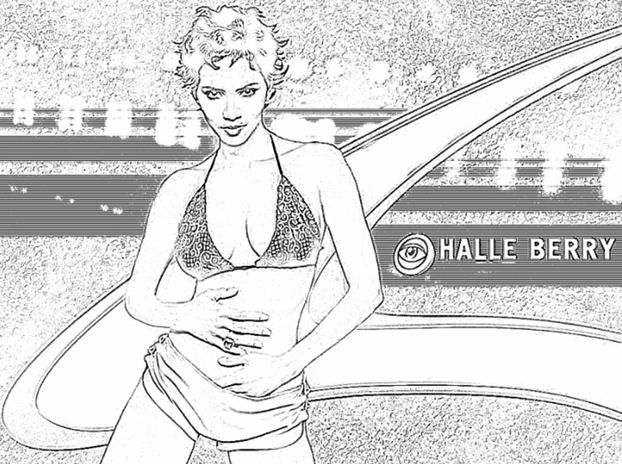
5. Now it is necessary for us to clean a background and undesirable stains on a body and model clothes. It is for this purpose chosen Eraser tool (E) and it is deleted all unnecessary.
After photo processing erase, we receive such image:
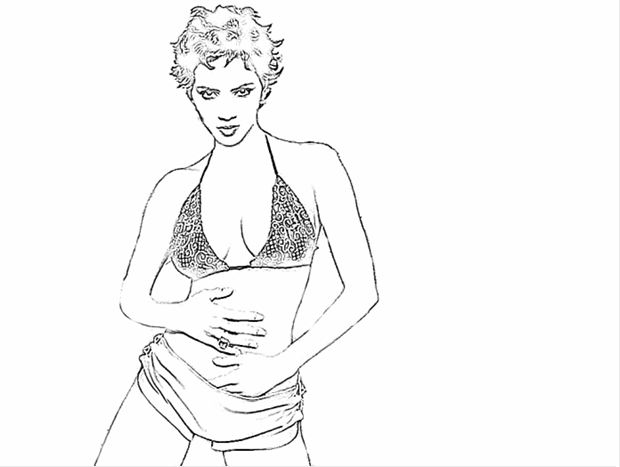
6. On it I finish processing of a photo and I pass to creation of the book with the written text.
* Next to be necessary for us the established brush and the text about which I spoke in the lesson beginning.
We create the new document (Ctrl+N) with parameters
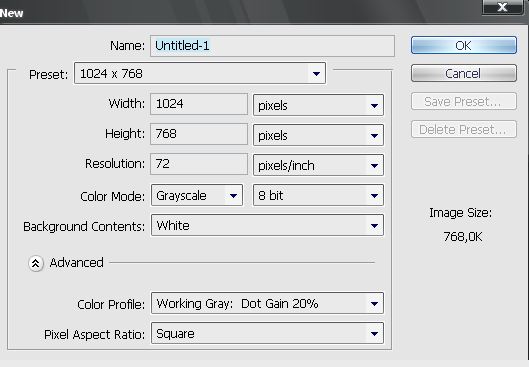
We Dump co colours by pressing of key D.
We choose a brush with options:
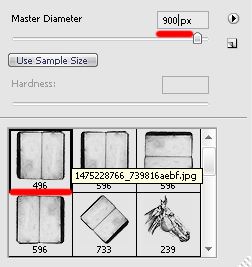
And on the center of the created document we put our book:
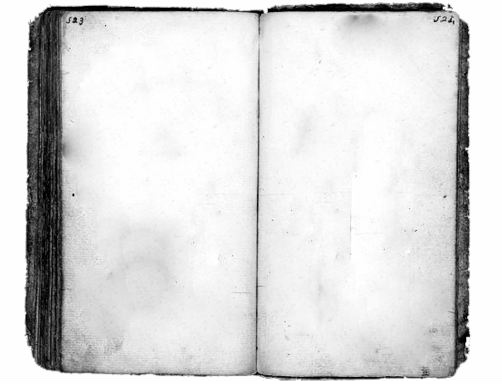
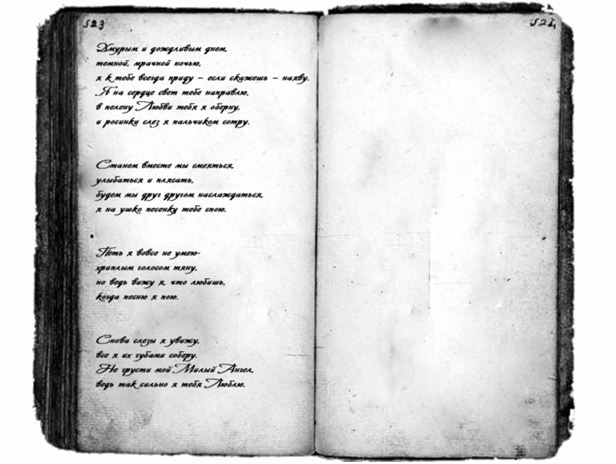
7. Further, a cursive by means of tool Type tool (T) we write any text on the left page of the book. For this purpose I used font Avalon Medium.
And here that I have received:
8. Further we unite both layers Layer-> Merge Down (Ctrl+E)
9. Then, we choose tool Move Tool (V) and we draw the image prepared earlier with model on the document with the book.
We have the girl on the right page of the book. We change a mode of mixing of layers on Darken.
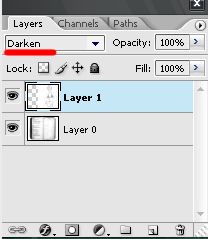
Thus, we get rid of a white background, and we still have only girl.
Further it is necessary for us to place correctly the character on book page. For this purpose we will pass in Edit-> Free Transform (Ctrl+T) and we will change position and the size of the girl.
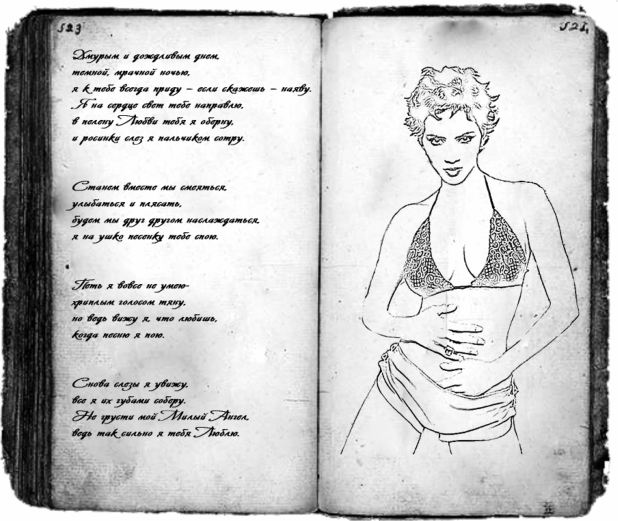
10. In the beginning of a lesson I advised to take a photo with model to the utmost, and itself have chosen a photo where at the character feet are cut off that slightly is evident the sudden termination. I have corrected it erase with the size of 100 pixels and softness of corners Hardness: 0%
11. Again we unite both layers Layer-> Merge Down (Ctrl+E) 12. And last stroke - is a little blur a photo.
For this purpose we will apply the filter Filter-> Blur-> Gaussian Blur … with radius Radius: 0,3 pixels.
Final result: