


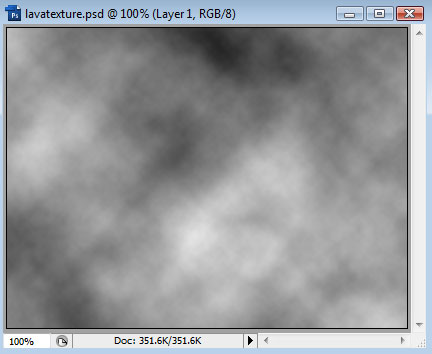
We will begin with a blank canvas of 400x300px. Press the D key to make sure our colors are Black and White (the default).Next, goto Filter > Render > Clouds. This will use the foreground and background colors to generate some random clouds:
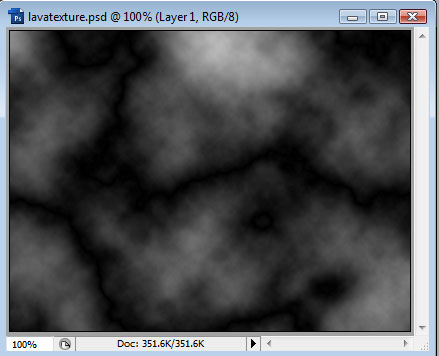
Now goto Filter > Render > Difference Clouds:
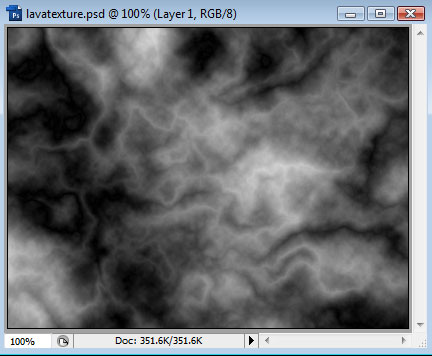
Repeat this filter until you get a texture you like. Press Ctrl+F to repeat the last filter. We should have something like this:
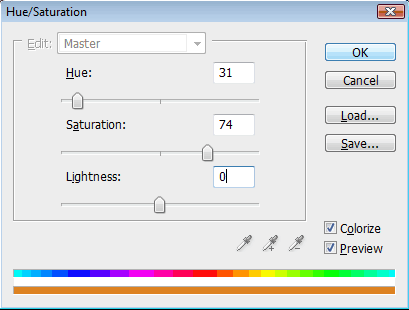
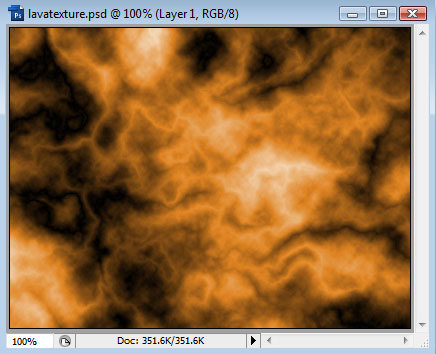
Now we want to change the color, so goto Image > Adjustments > Hue/Saturation. Check the Colorize option, and play with the sliders to get a color that looks like molten rock:
Once applied, we should have something like this:
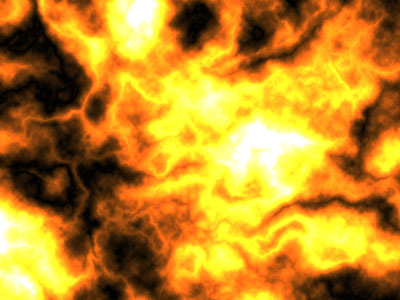
The next step is to duplicate the layer, so right-click it in the Layer Window and choose Duplicate Layer. Now experiment with changing the Blend Mode of the top layer to see which looks best. This is Color Dodge:
And this is Soft Light:
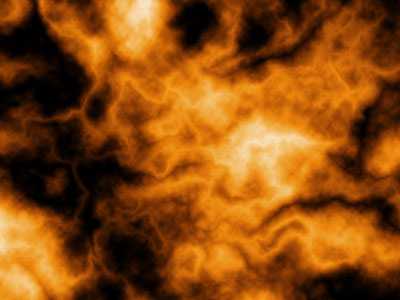
Experimenting with these settings and different colors, you can create an array of different textures.
