Step 1. Creating a background
Start with a new document with 400x700 px. Create a new layer and make a radial gradient going from dark green to a lighter green.

Now we are making a snowflake background. Load this snowflake brush set.
Create a new layer. Make your foreground color white. Choose Brush Tool (B), make Opacity=20%, select a snowflake brush you like most and set these parameters:
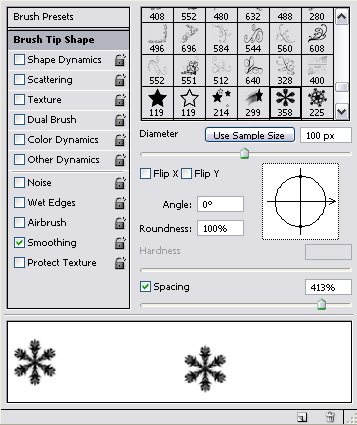


And you will get this result:

Now download these swirls custom shapes: Arabeski and Swirls.
Create a new layer with the following parameters:


Choose Custom Shape Tool (U) and select the biggest shape to create a bottom of the christmas tree.
Don't forget to use Shift to get proportional shape.

Now move this shape to the bottom of the card.

Create new layer with the same parameters, choose another swirl and repeat previous actions.

Now we have a silhouette of the Christmas tree. Next choose second type of custom shape you've downloaded and correct the silhouette. Use the same settings as before.
This is my result so far:

To make it more snowish add snowflakes. Download Christmas custom shape set here. Chose a snowflake, use the same parameters as before.

Add more snowflakes.

Put a big snowflake at the top of the Christmas tree:

Now to make our greeting card complete we should add greetings.
Create a new layer with the same parameters as before, except Drop Shadow, change it to:

Choose Horizontal Type Tool (T) with following settings:

And type your greetings.

That's all! Merry Christmas!
