Step 1
Create a new document (File -> New), then create a new layer (Layer -> New -> Layer, or Shift+Ctrl+N) and select the Rounded Rectangle Tool (radius is 5px) , draw a shape of your button and fill it with a solid colour.


Step 2
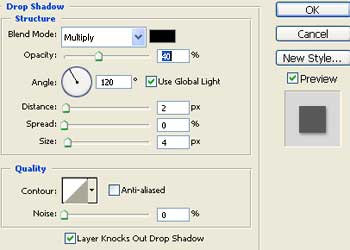
Right-click on the layer and choose blending options. Select Drop Shadow, and use these settings:

Step 3
Add your text to the button.

Step 4
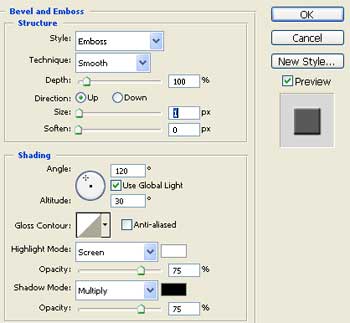
Right-click on the layer and choose blending options. Select Bevel and Emboss, and use these settings: