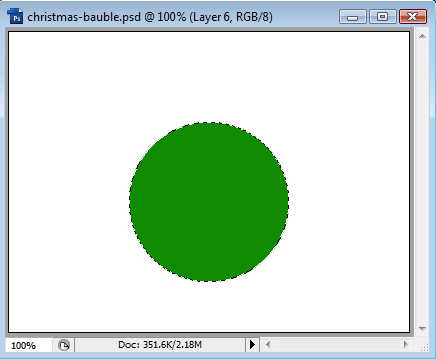
We will start with a blank canvas and draw a circle with the Elliptical Marquee tool, then fill with green (or the color of your choice) on a new layer.
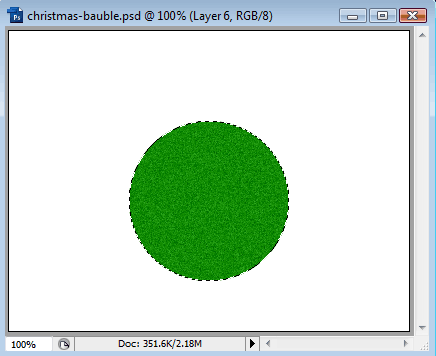
Next, let's add a bit of glitter - goto Filter > Noise > Add Noise. Choose Gaussian and 5%, or as much or little glitter as you want:
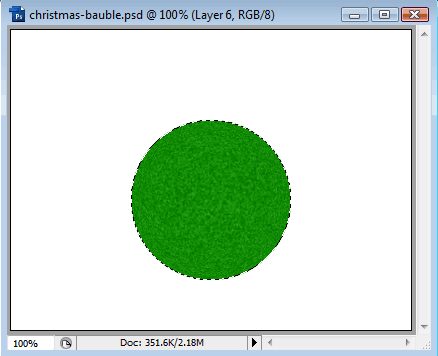
Now we want to give the Bauble a more spherical appearance. Goto Filter > Distort > Spherize. Choose 100%, Normal:
Now let's add a nice Christmassy background. I've gone for a standard red gradient:
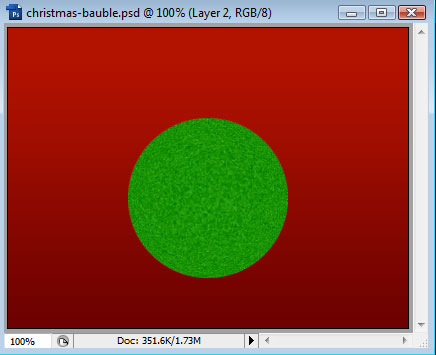
Next, make a circular selection like this:
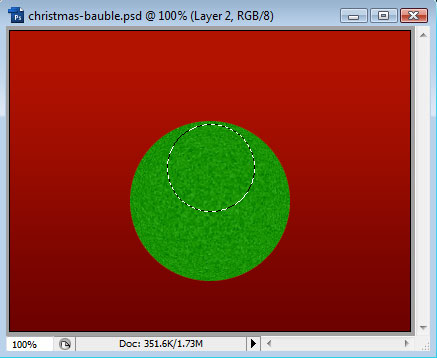
We are going to create a nice glare on the bauble to make it appear shiny and reflective. Choose the Gradient Tool and select White to White, but making one of the colors in the Gradient transparent. The gradient will look something like this:
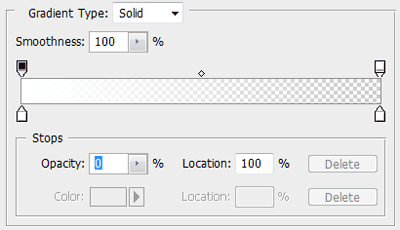
Now, making sure we choose Radial Gradient and after creating a new Layer, draw the gradient into our selection:
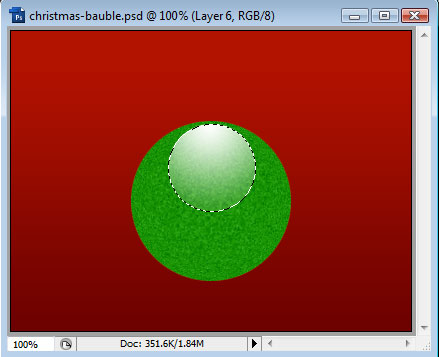
Then, Ctrl-Click the Bauble layer to make a selection of it and put another gradient like so:
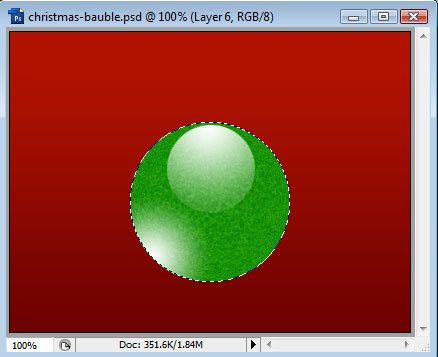
Now we change the Blend Mode of this layer to Overlay, and reduce the Opacity to 75% to achieve the following results:
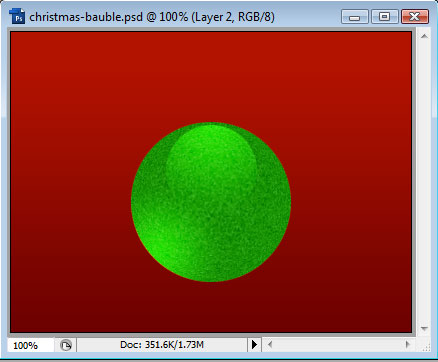
Next, create a new layer and draw a small square on top of the bauble like so (the new layer should be underneath the bauble layer):
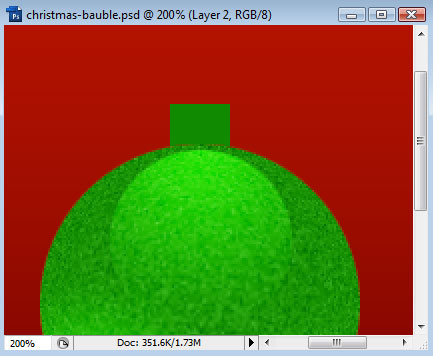
Now we want to use the Polygonal Selection tool to create a selection like so:
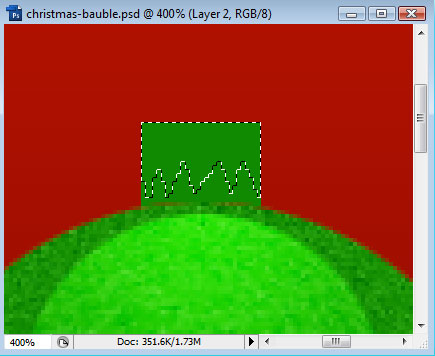
Create another new layer and fill the selection with a White. Then add the following Layer Styles through the Layer Blending Options window (right-click the layer, choose Blending Options):
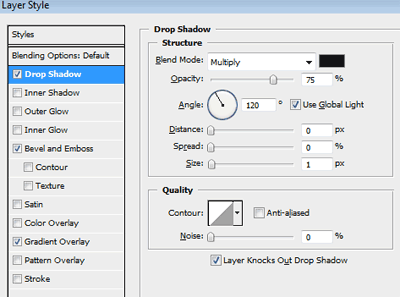
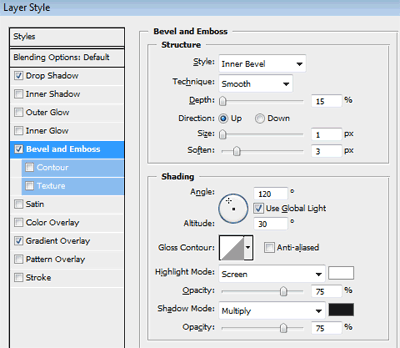
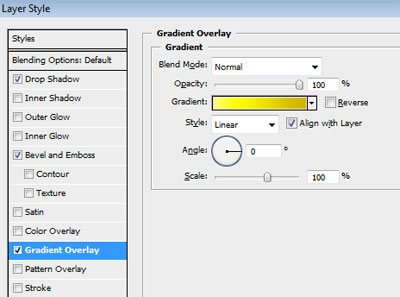
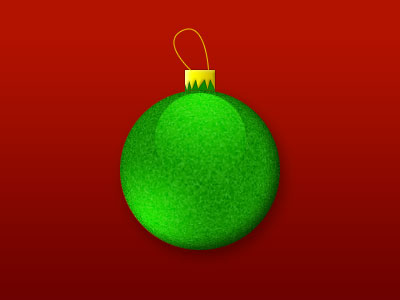
We should end up with something like this:
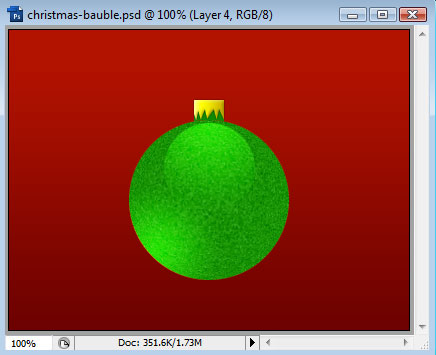
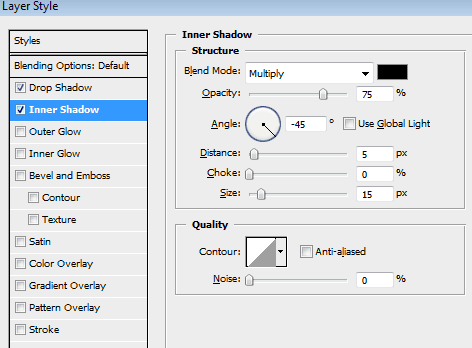
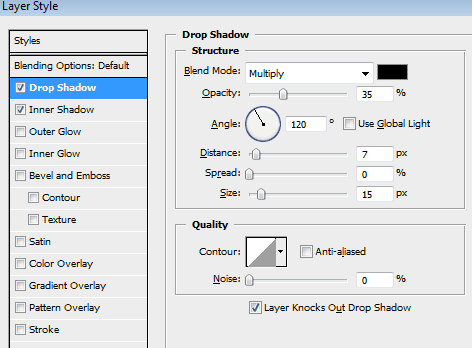
The bauble still looks a little flat, so let's give it more depth. Open up the Layer Styles for the bauble layer and add a Drop Shadow and an Inner Shadow:
Finally, use the Pen tool to draw the string, something like this:
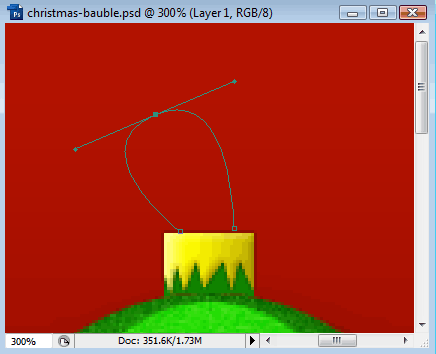
Then goto the Paths panel (Window > Paths), right-click the path we just created and choose to Stroke Path. Make sure your brush is set to 1-3px, and the foreground color is set to the color of your choice.
We should end up with something like this: