Step 1
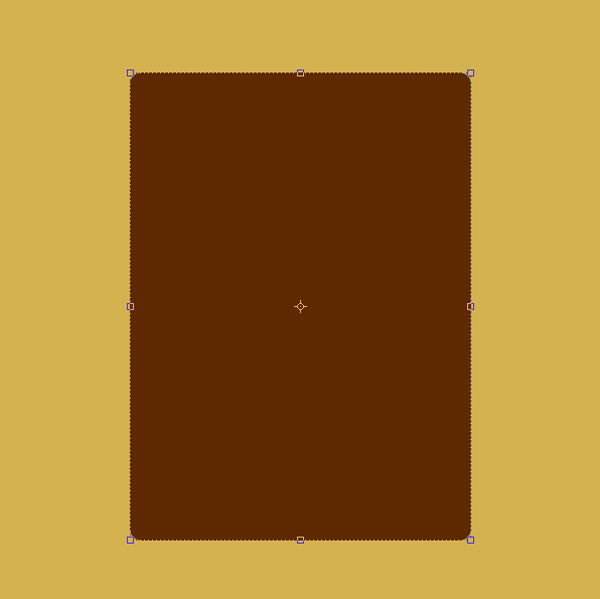
With Rounded Rectangle Tool draw new shape in new layer.
Step 2
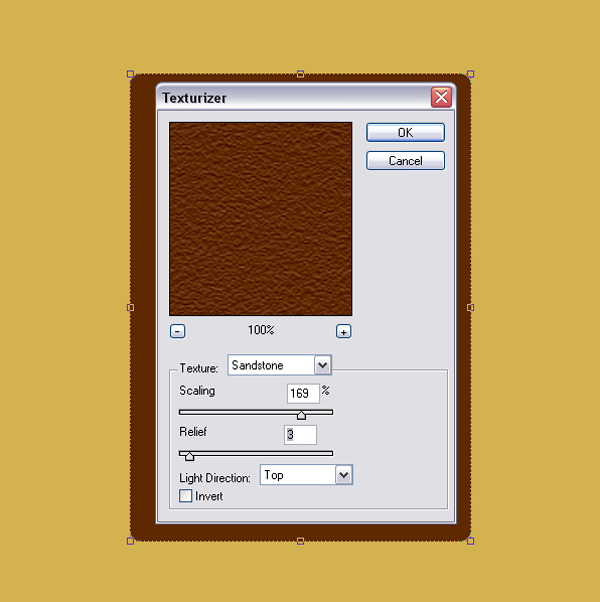
In Filter>Texturizer use Sandstone and give texture.
Step 3
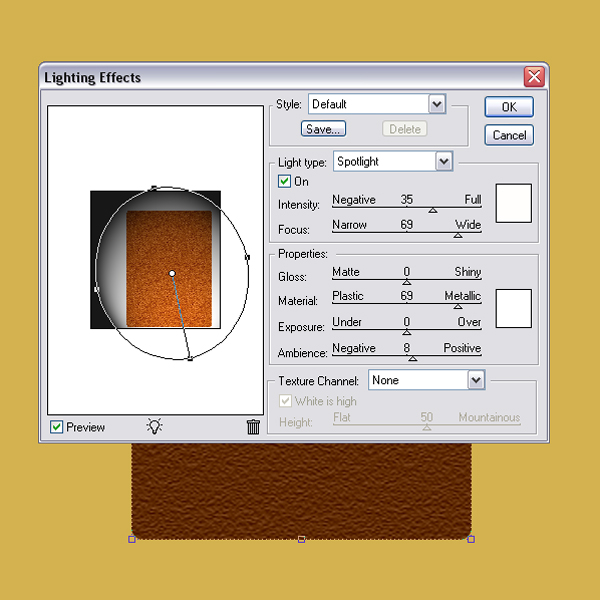
In Filter>Renden use Lighting Effects like this.
Step 4
After that go to Blending Options and give Bevel and Emboss.
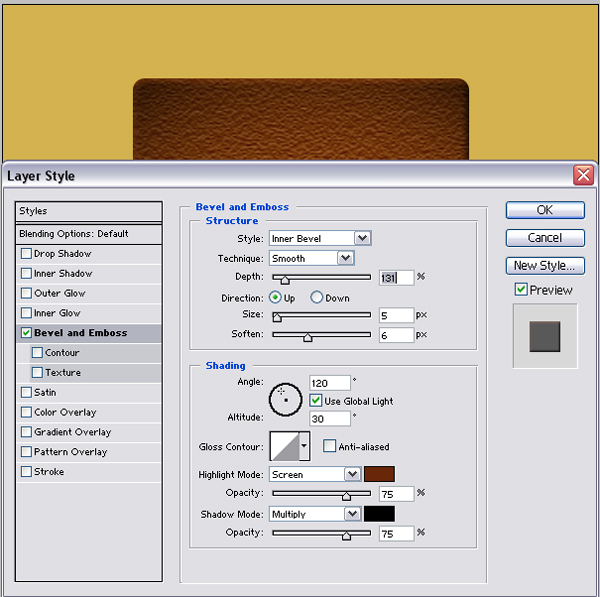
Step 5
Open new text layer and tipe.
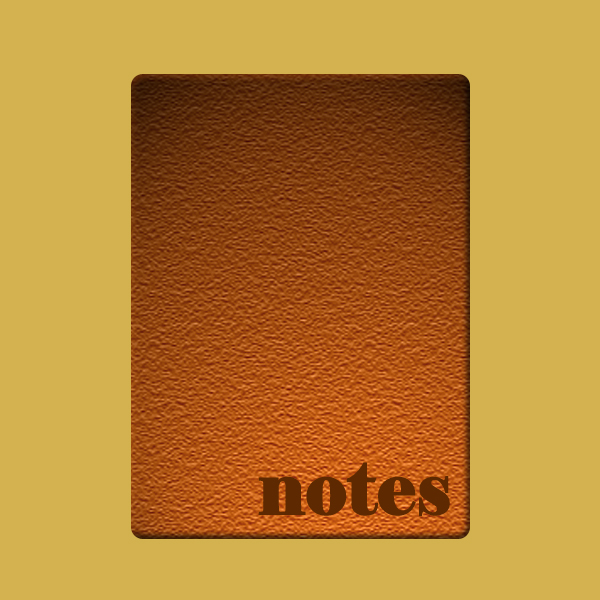
Step 6
Put Layer Fill at 0%.
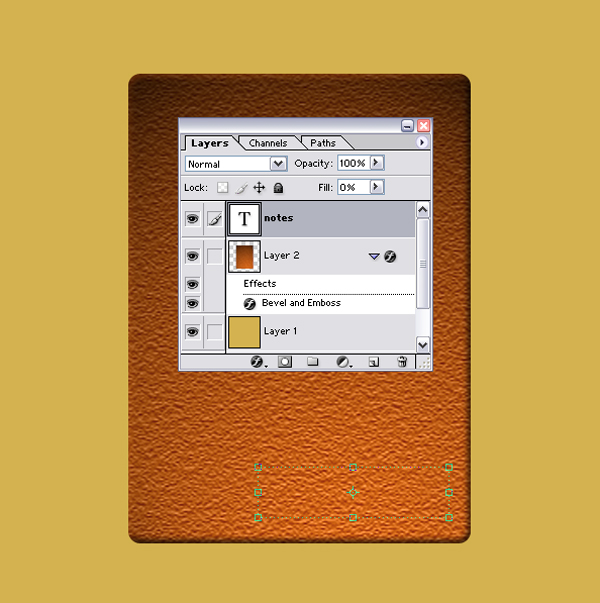
Step 7
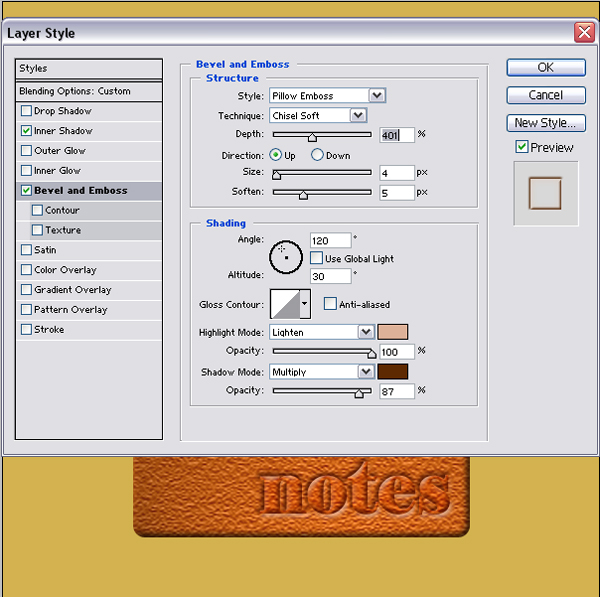
Then give Inner Shadow
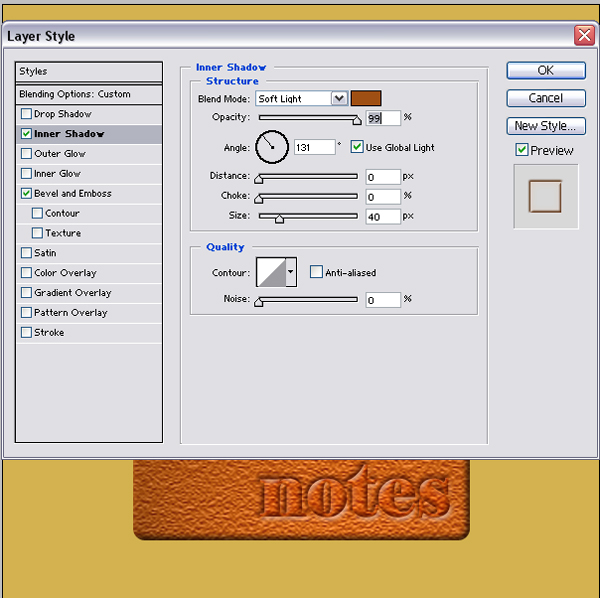
Step 8
and Bevel and Emboss
Step 9
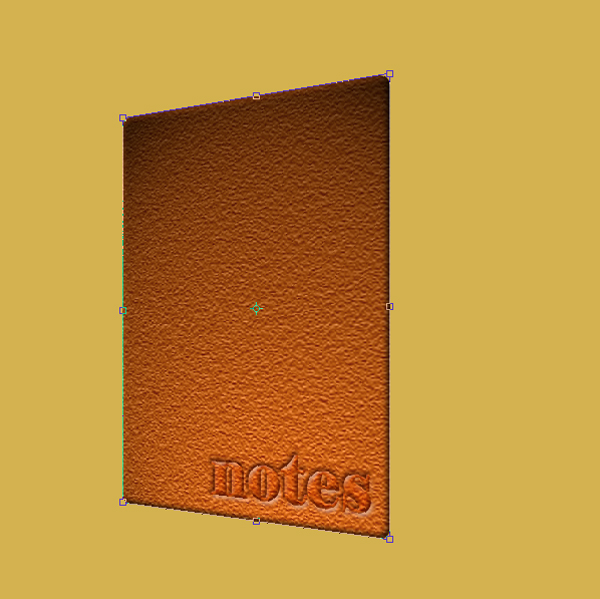
Merge both layer together and tranform with Skew Tranformation.
Step 10
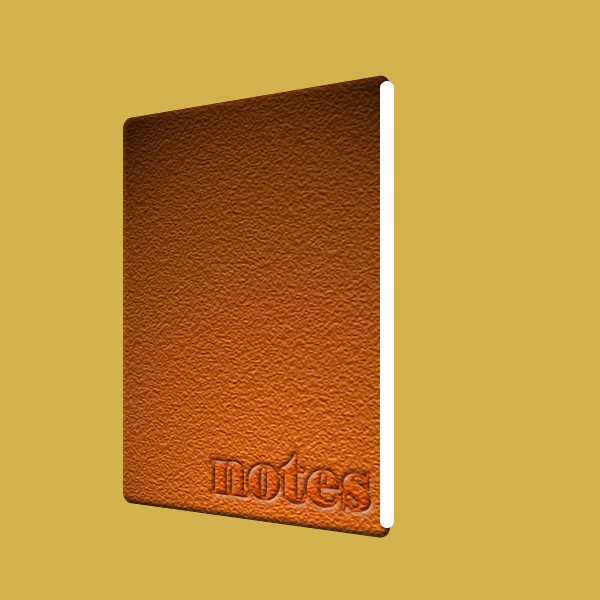
Open new layer and with Rounded Rectangle Tool draw new layer (paper)
Step 11
Put him behind.
Step 12
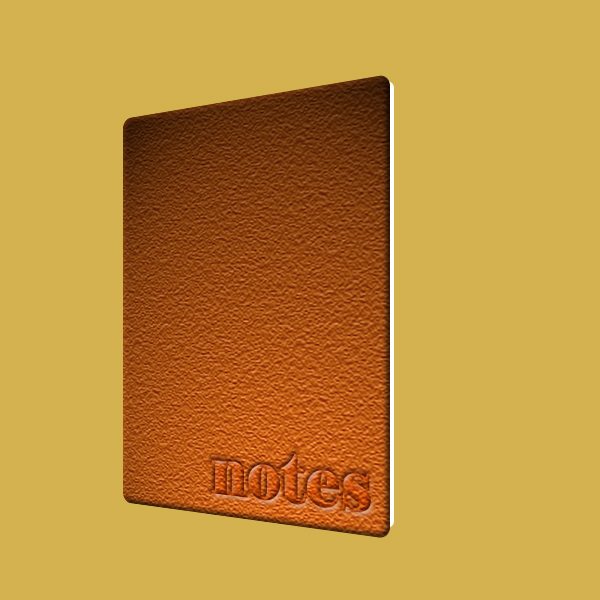
Then give some Gradient Overlay.
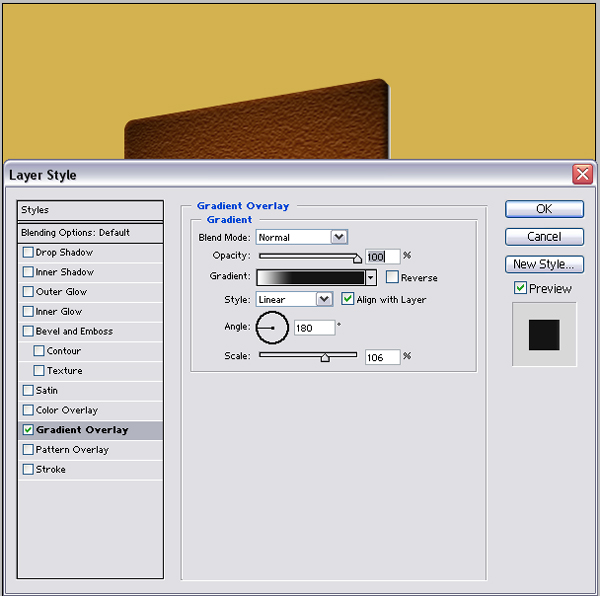
Step 13
Duplicate this layer for several times and every time give transformation for about 98%.
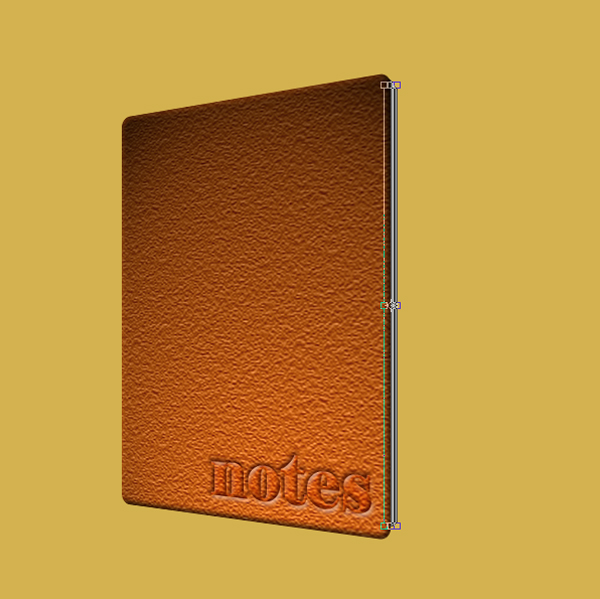
Step 14
Now we have some 3d effect. but is not over yet.
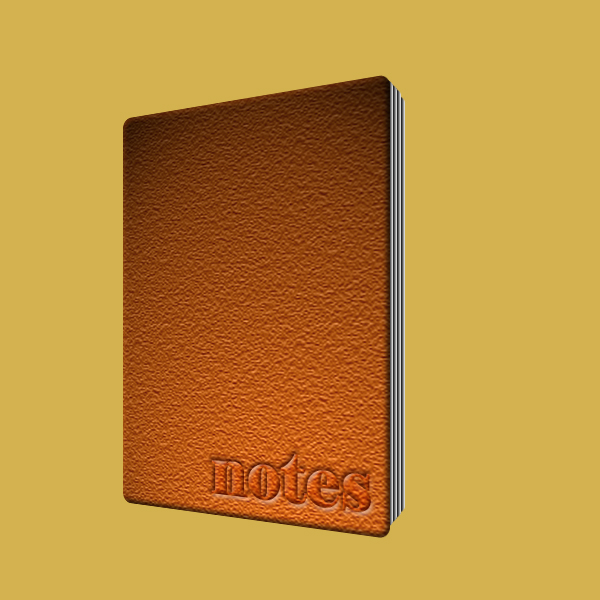
Step 15
Duplicate first layer.
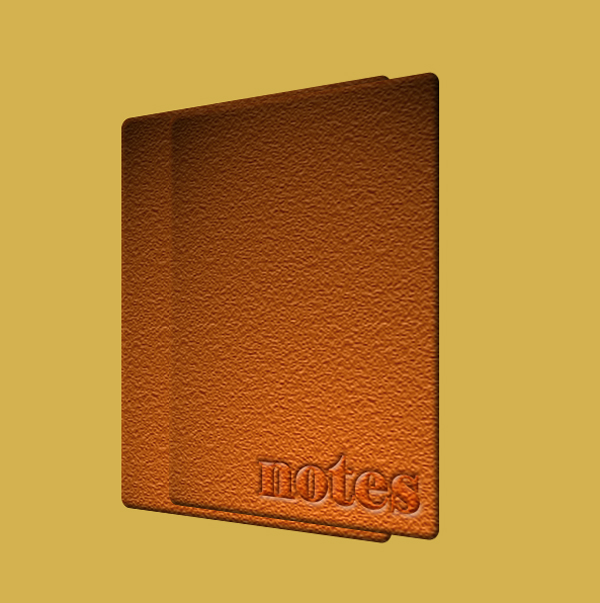
Step 16
Put him behind all layers. And now we have nice looking notebook. But...
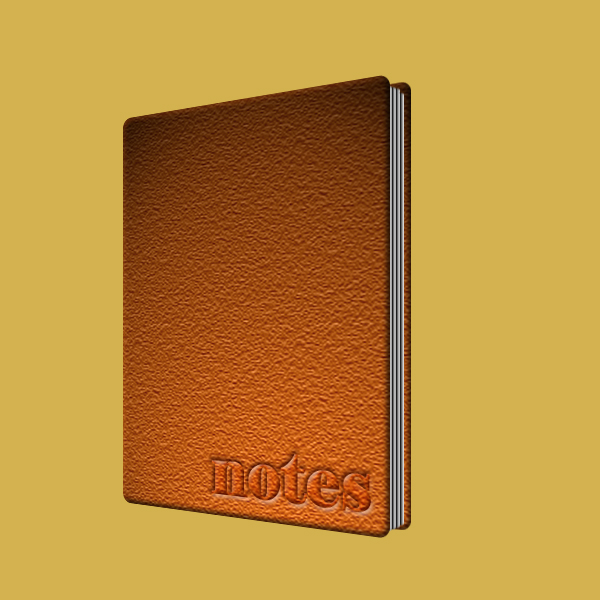
Step 17
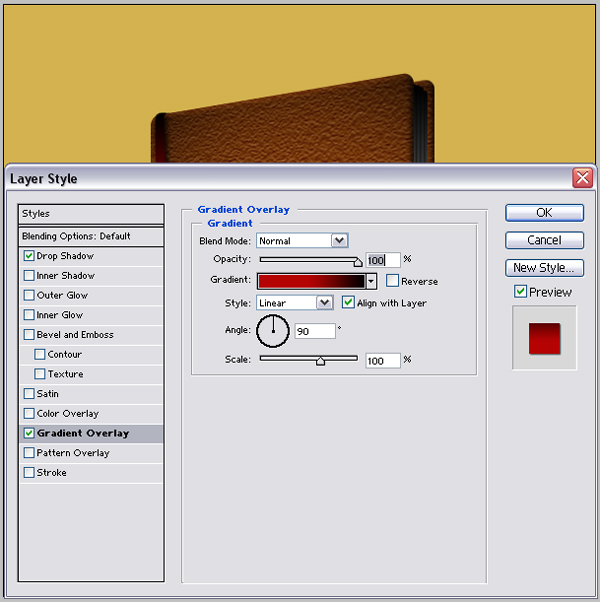
Select all duplicatet paper layers. merge them together. and give Gradient overlay like in picture.
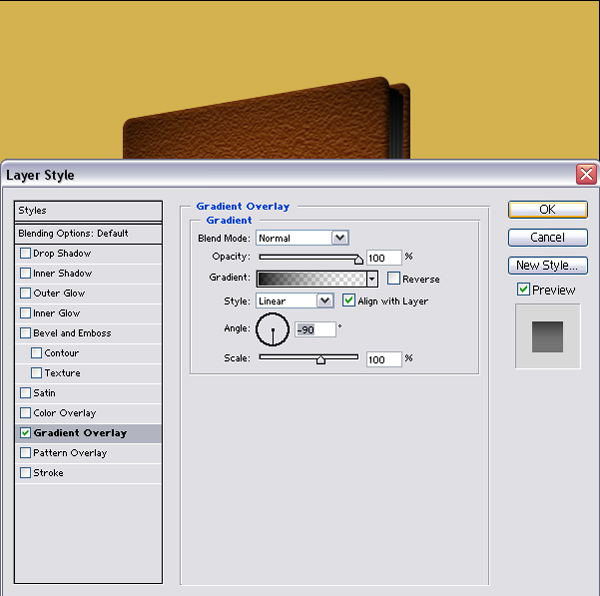
Step 18
Now we gone to make shadow. Draw new layer like in picture.
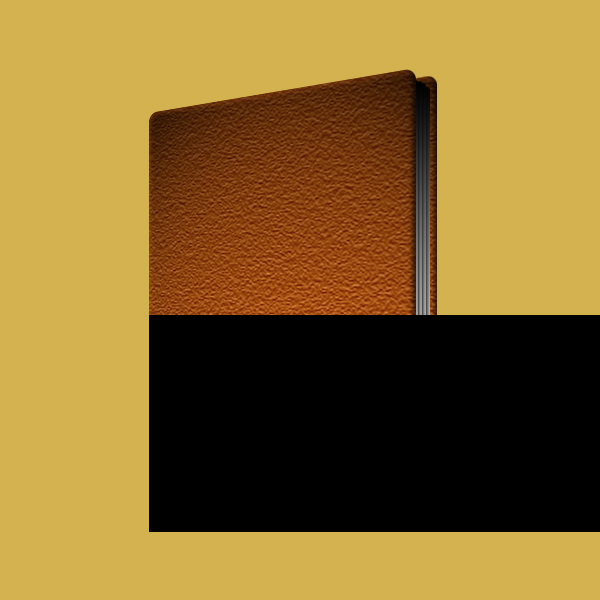
Step 19
In Filter>Blur use Gausian Blur
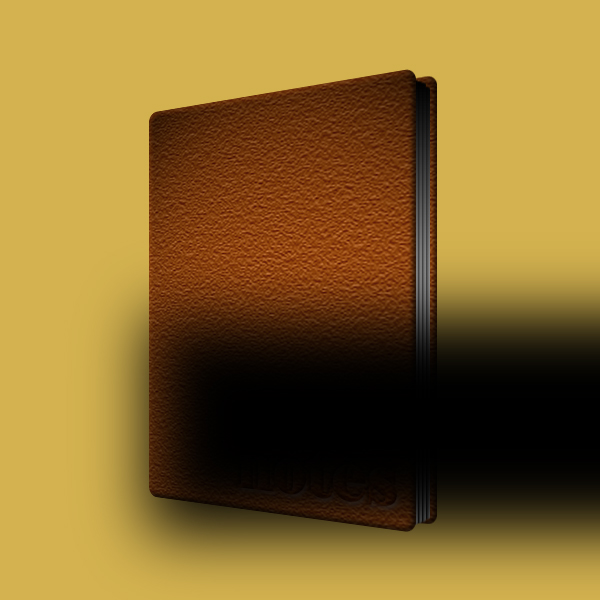
Step 20
Put shadow behind all layers.
Step 21
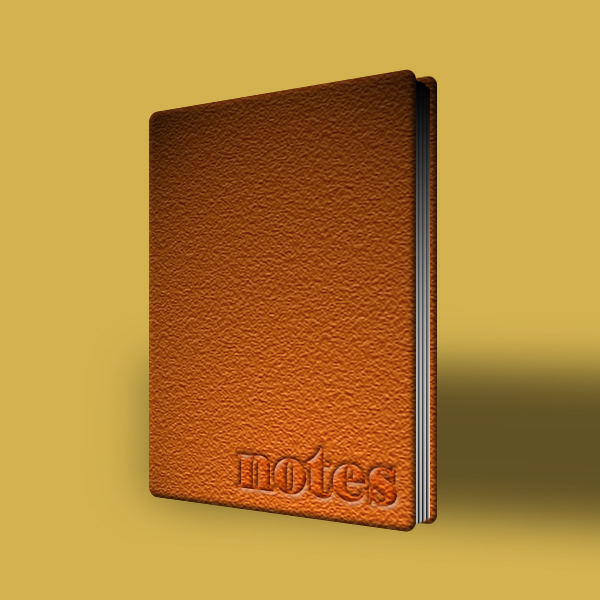
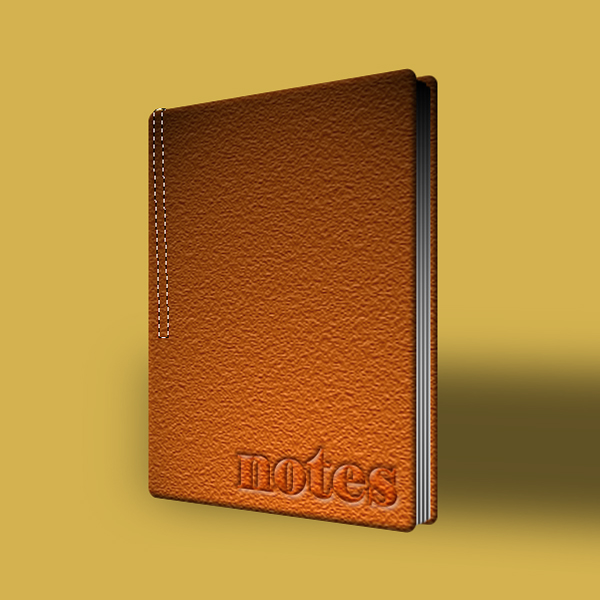
Then draw new layer. You can do this with Pen Tool.
Step 22
Give again Gradient Overlay.
Step 23
After all this, you can play with bacgroun to make bether perspective.
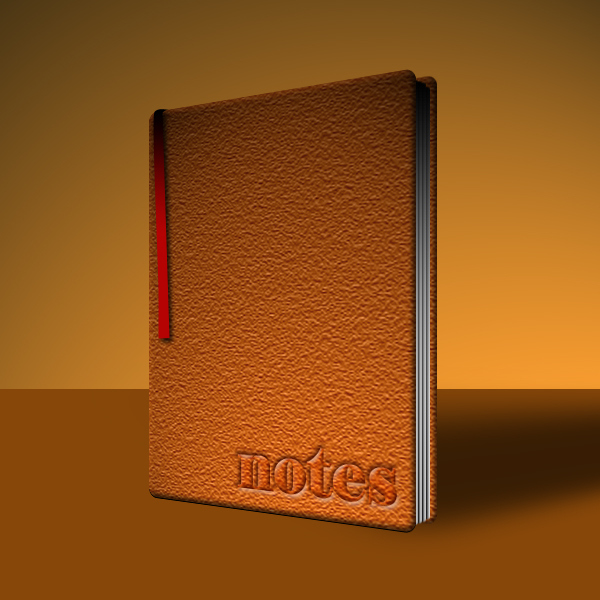
Finish.