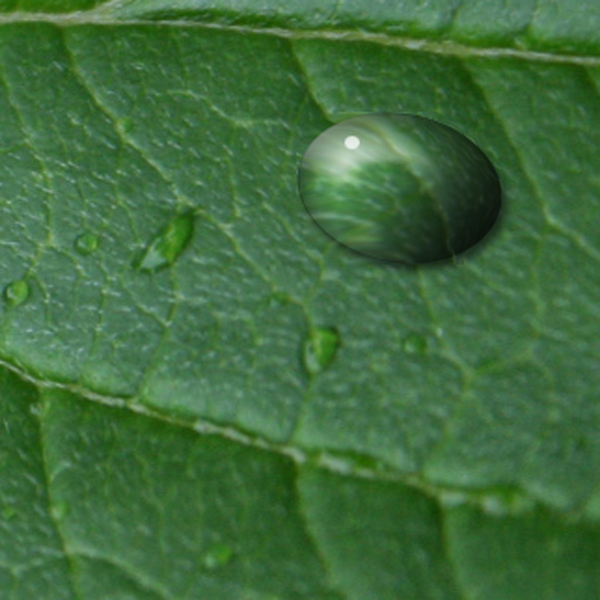
Step 1
Open new document 600x600 pixels. Make new Layer of leaf picture.
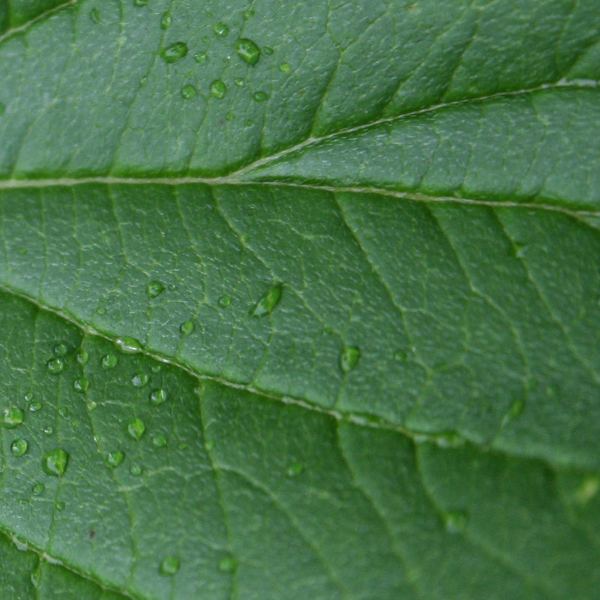
Step 2
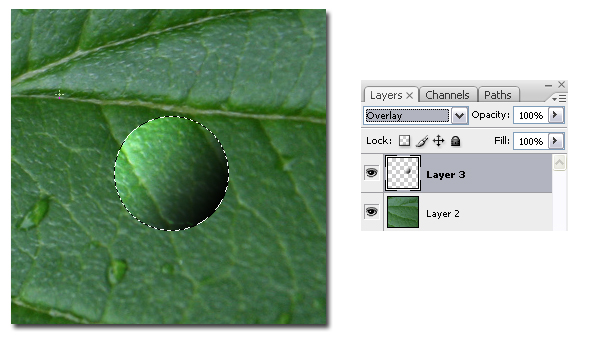
Open another new Layer. made circle.
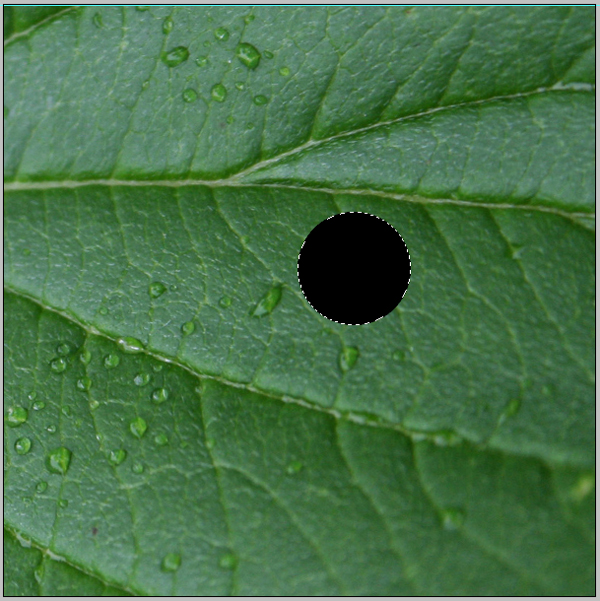
Step 3
Color him with Gradient Toll in black and white.
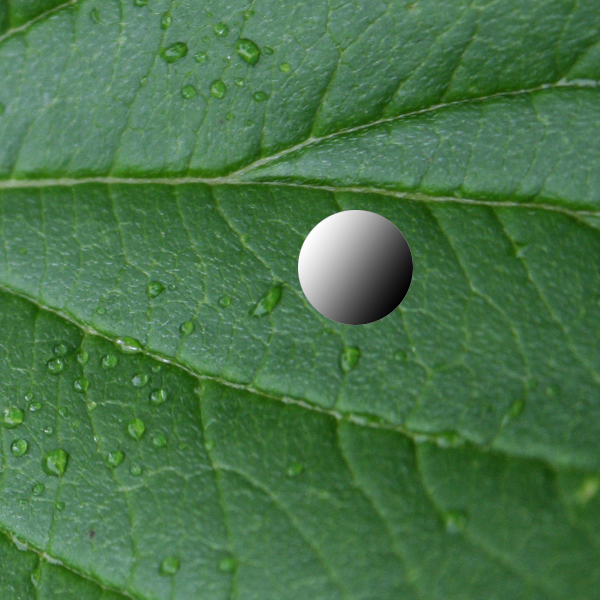
Step 4
Set the blending mode of the Layer in the Layers Palette to Overlay..
Step 5
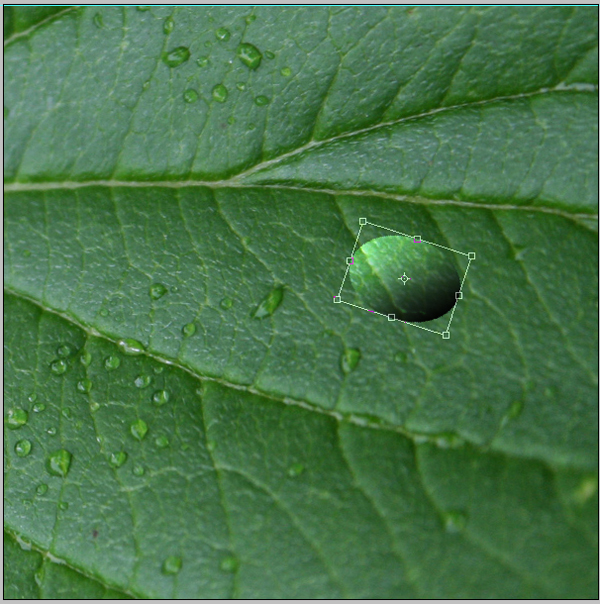
Transfom him to the specific position.
Step 6
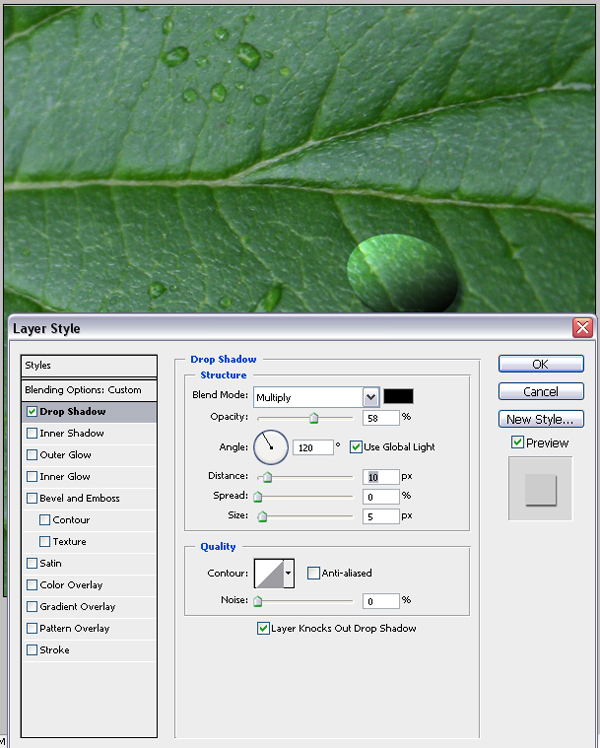
In Layer Option, firs use Drop Shadow like in picture.
Step 7
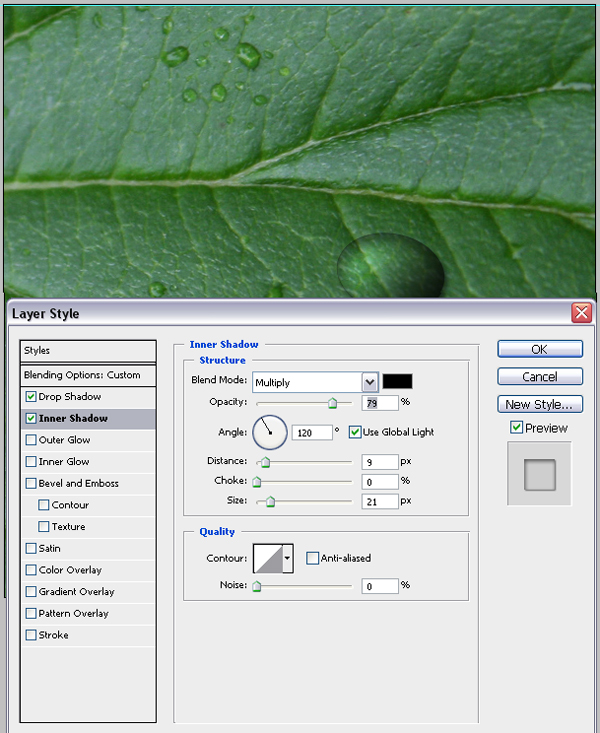
Then Inner Shadow.
Step 8
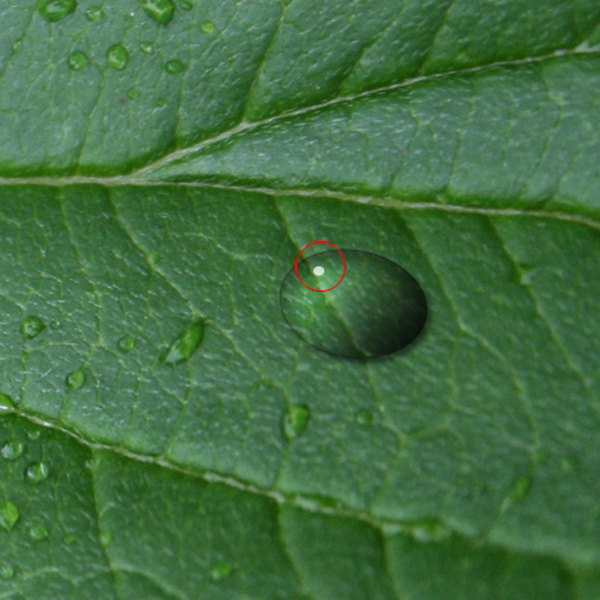
Draw a litlle mre effect. Just make new layer and color him in white.
You can reduce his opacity. We put at 70%.
Step 9
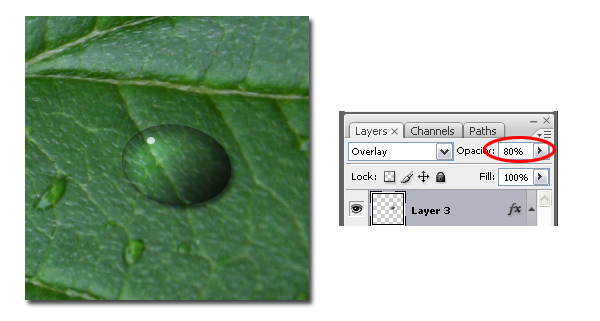
Now put opacity of water drop layer to 80%. This is depend of the lighting of your leaf bacground image.
Step 10
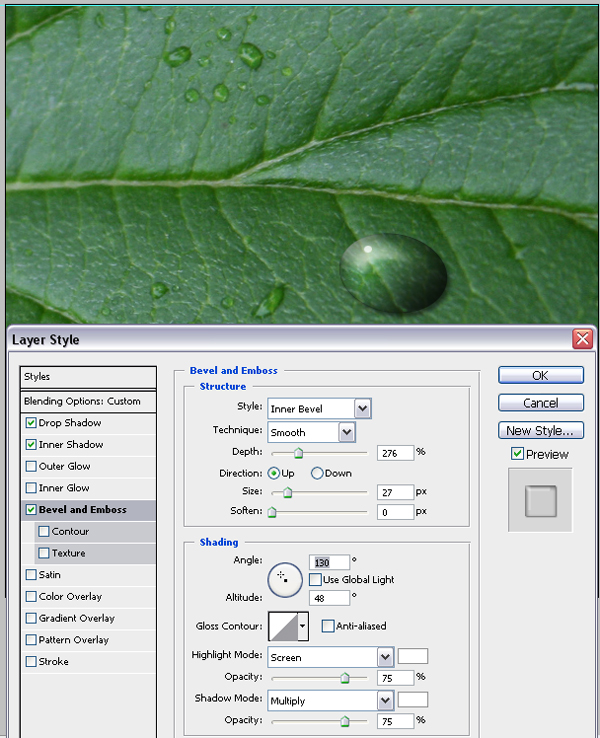
In Blending Option use Bevel and Emboss like in picture.
Step 11
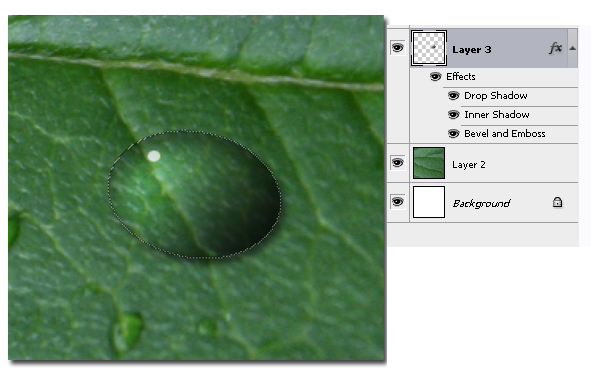
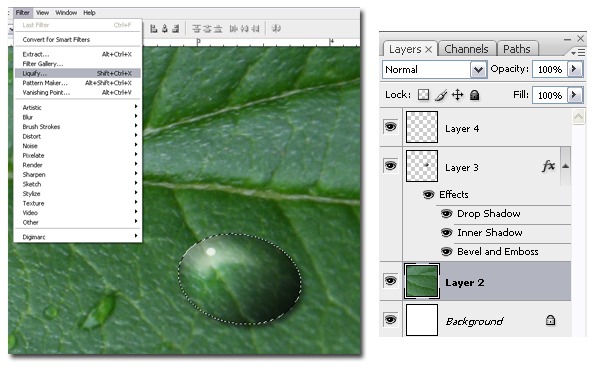
Now select water drop layer. Go to Select>Load selection>OK
Step 12
Change selection to Leaf Bacground Layer. Make sure that position of selected area stay same like drops.
Now go to Filter>Liqufy
Step 13
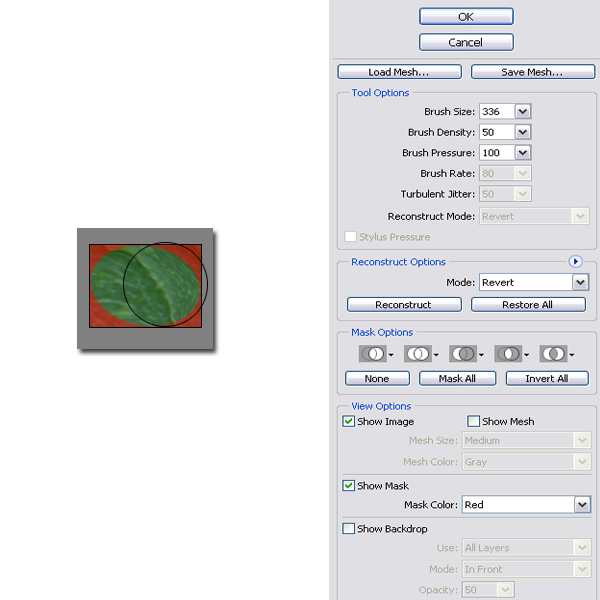
Here you can give to bacground area behind the drop, a nice effect:
Step 14
And this is what we get..