Please create a new document with the following sizes: 760x770 pixels.
I will select Rectangle Tool
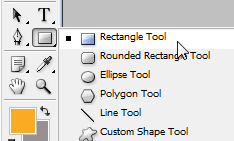
and i will create a rectangle with the following color #73052a:

Then i will select a image from my stock collection and i will place it on the red shape.

I will select Line Toll
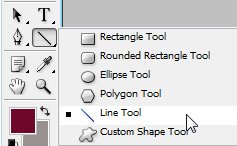
And with this tool i will create two thin lines:

I will select again Rectangle Tool and i will create some small rectangles at the top of the layout. i will use the following color #73052a and i will place them like in the following image.
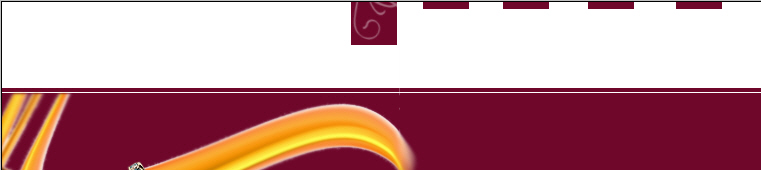
Then i will create a new small rectangle , but this time i will use a white color : #ffffff and i will place them like in the following image:

Then i will create another another shapes, and i will place them like in the following image:
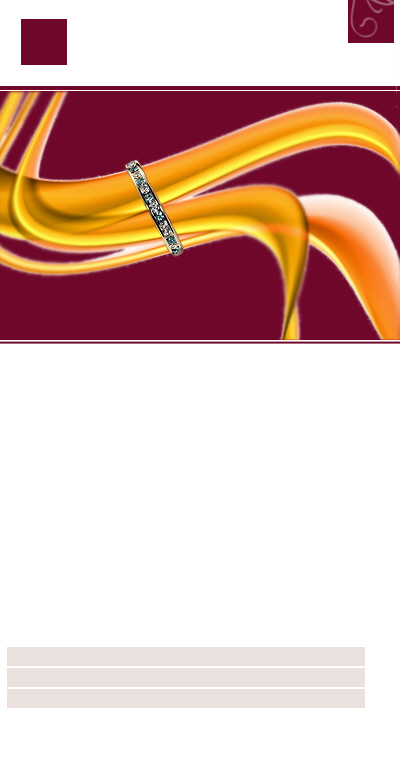
I will select Custom Shape Tool
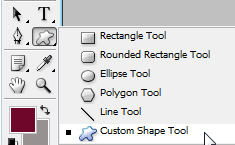
And i will choose the following custom shape:
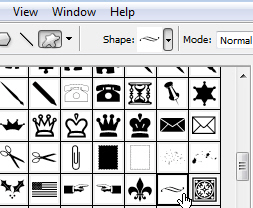
I will place this shape like in the following image:
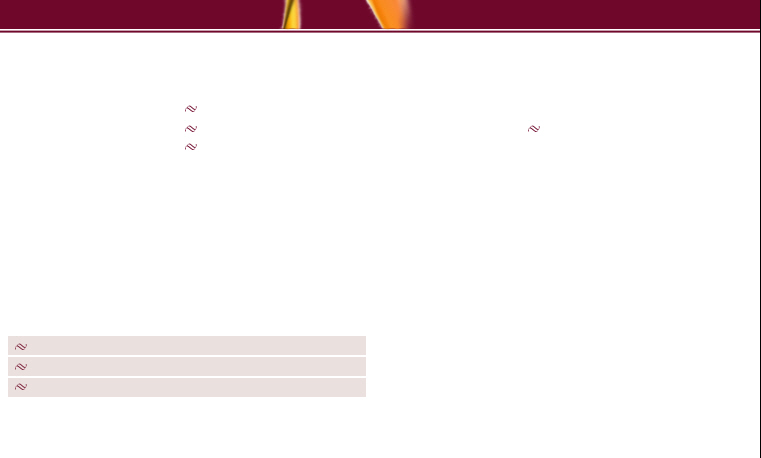
With Horizontal Type Tool i will add some text:
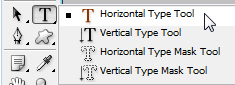
It took me some time to place the text, but believe me the text is the most important part in this tutorial.

Than i will add some images to this layout: