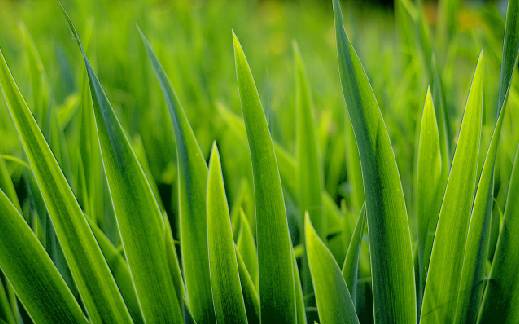
Step 1: Open any Image you like on the Photoshop canvas.
Step 2: Choose the Elliptical Marquee Tool as shown in the image below or just press the shortcut key M.
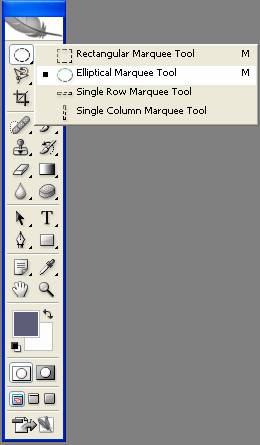
Set the Feather setting at 5 px and let the Style be Normal.

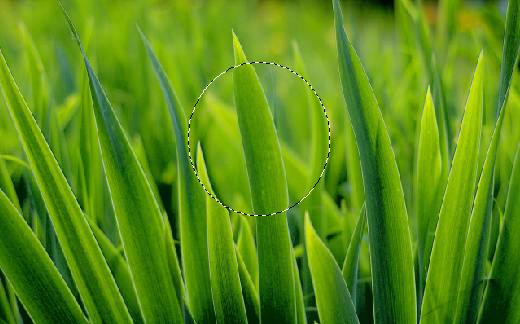
Now make a selection on your image to mark the portion of the image where you want the Crystal Ball Effect.
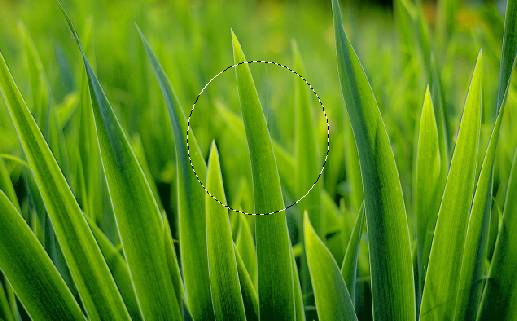
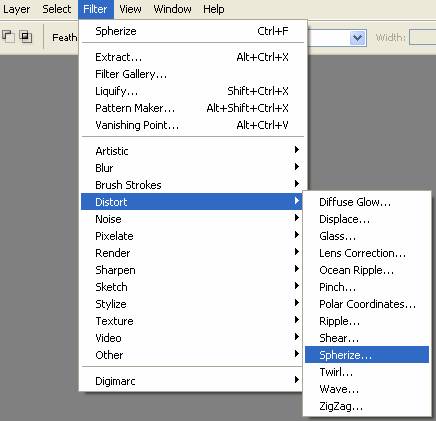
Step 3: Choose the Spherize option from the Distort set of options in the Filter Menu. This option will give you the Desired Effect.
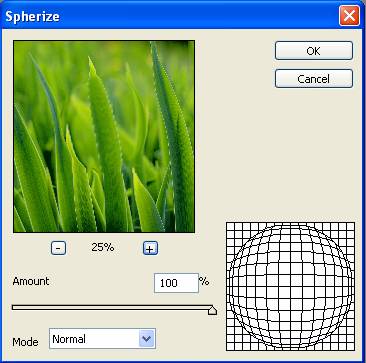
Now in the Dialog Box that appears set the Amount at 100 % and Mode as Normal.
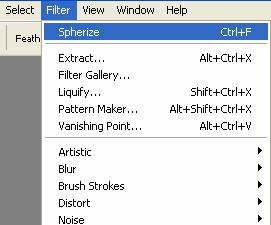
Note: If you are not satisfied by the effect you got before then again select the Spherize option from the Filter Menu.
Step 4: Again Select the Spherize option.
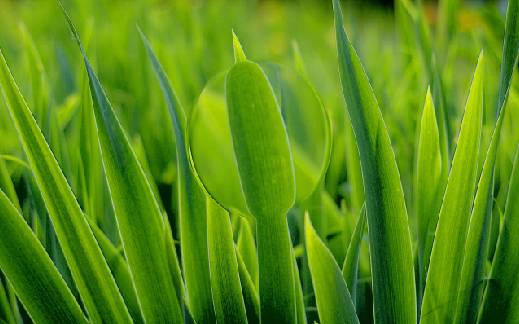
Step 5: Deselect the selection to see your final Image.
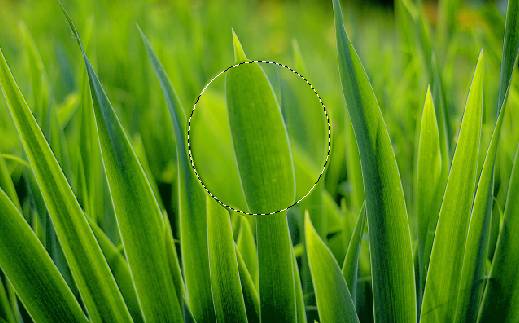
Here is my final image: