This tutorial explains how to create a slick cartoon Sun.
Some useful resources for you:
- Adobe Photoshop CS6 Classroom in a Book
- Photoshop CS6: Visual QuickStart Guide
- Photoshop CS6 For Dummies
- Adobe Photoshop CS6 Digital Classroom
- Photoshop CS6: The Missing Manual
- The Adobe Photoshop CS6 Book for Digital Photographers
- Adobe Master Class: Photoshop Inspiring artwork and tutorials by established and emerging artists
Subscribe to our newsletter and get useful tutorials and huge bundles with design freebies once in two weeks:
Create a new file ( File>New ) of 200x200 px and 72 dpi with the white background.
Next create a new layer, choose Ellipse Tool (U) and holding Shift draw a circle.

Apply the following settings:
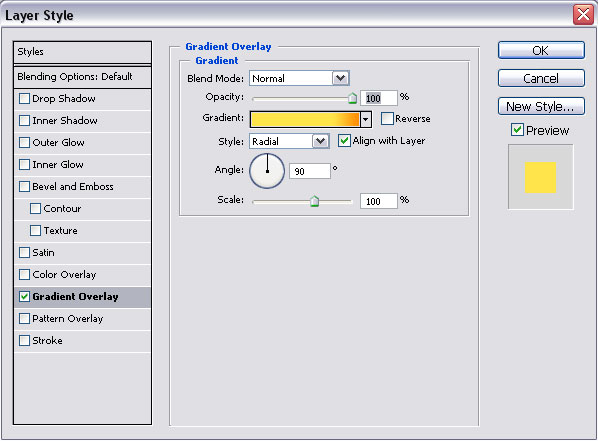
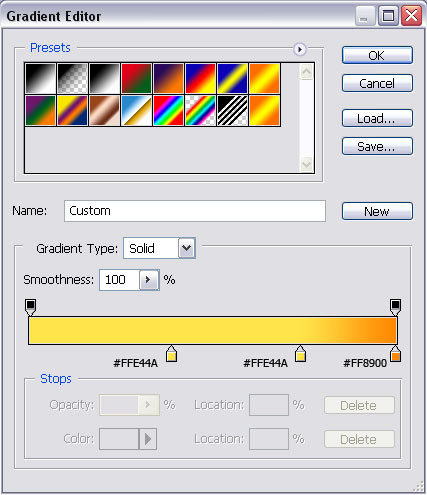
And this is my result so far:

Create a new layer, again choose Ellipse Tool (U) and draw a small ellipse at the top of our sun.

And apply the following settings:
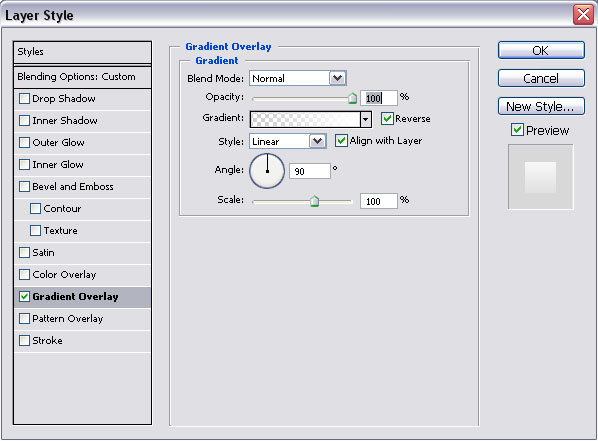
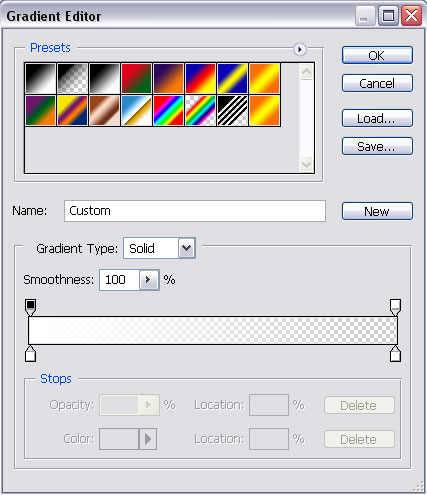
You will get something like this:

Next create a new layer and move it under "sun" layers. Set foreground color to #FFF088. Choose Brush Tool (B) and with this brush:
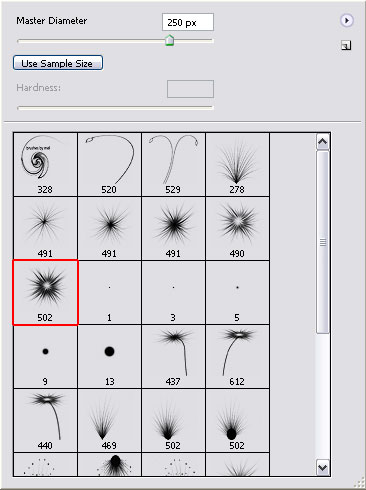
make sun rays:

You can download this brush set here.
Repeat this process couple of times to achieve a nice effect. Try to use another brush from this set.

Next we are going to create small sun rays. Again create a new layer. Also place it under our "sun" layer. Chose Custom Shape Tool (U) and create this shape:
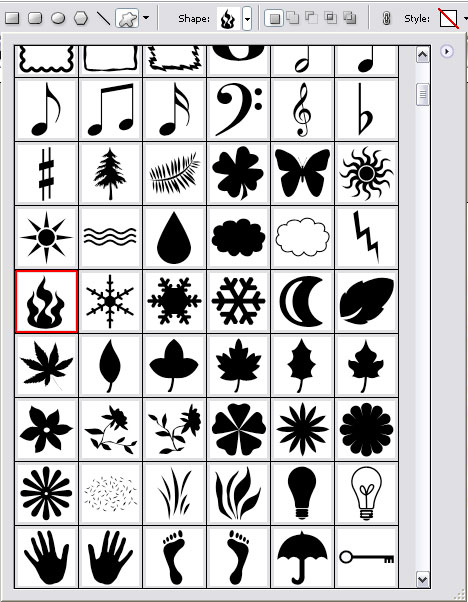

Press Ctrl+T and turn this shape:
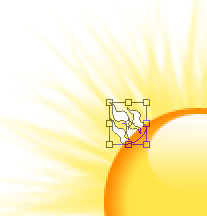
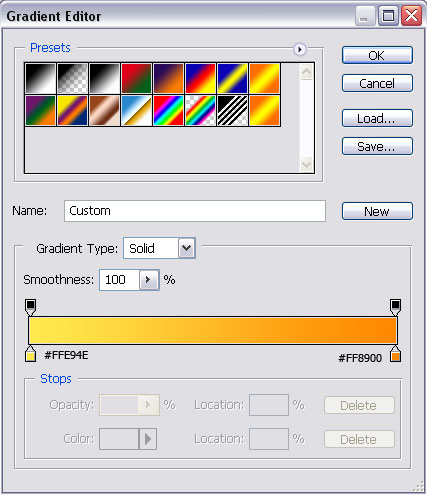
Next apply the following settings:
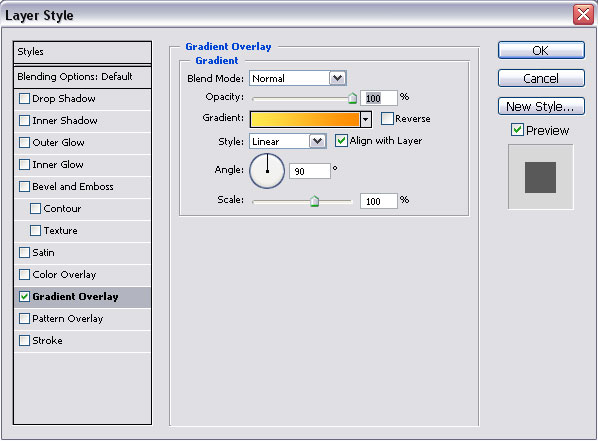
And we will get something like this:

Repeat the process until the entire circumference of the sun will not be filled. Change the degree of visibility of the custom shapes to archive more interesting effect.
And we are done. This is my cartoon Sun.