Step 1
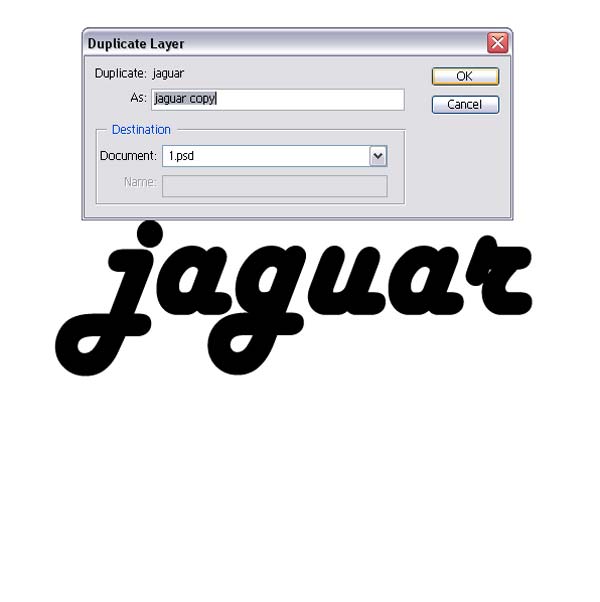
In document 600x600 px. type new text layer. We use Harlow font.

Step 2
Duplicate text layer.
Step 3
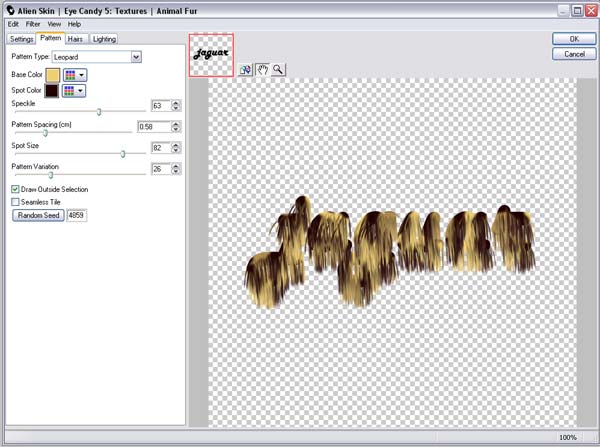
For this effect of animal fur, must to have Alien Skin Filter Plug-In. This is not problem. You can find him on internet as trial version.
You can see here how it look's. It' s very realistic effect.
Step 4
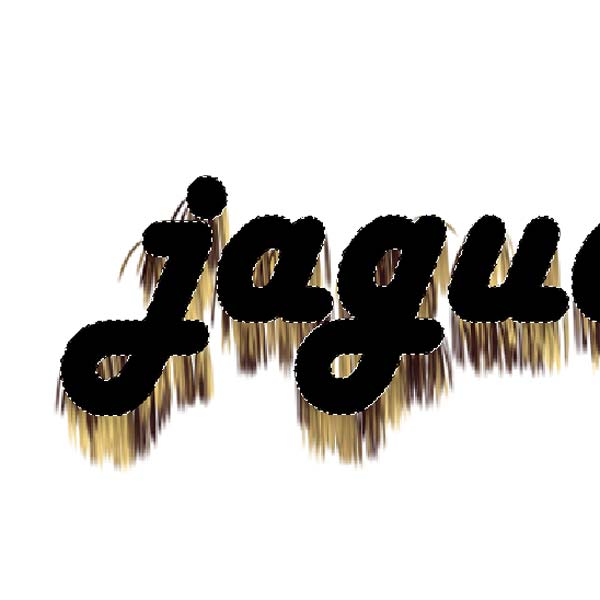
When we done with giving fur effect, go back to first layer. Use selection and select again layer with fur effect.
Step 5
Then use Eraser Tool to erase inner parts of layer like in picture.

Step 6
Ok. This is how it's looks.

Step 7
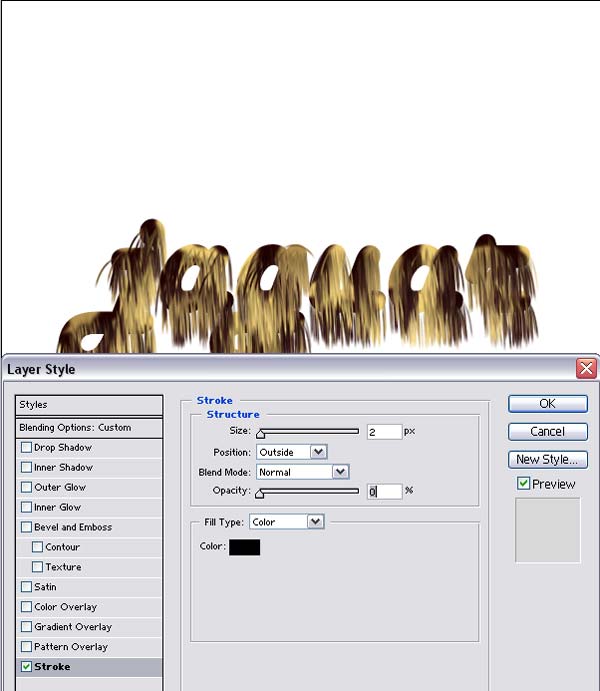
Now go back to first text layer. Put Fill on 0%. Then open Blending Option and start giving effect's like in next few steps.
First go to Stroke. Give size 2px and Opacity 0%.
Step 8
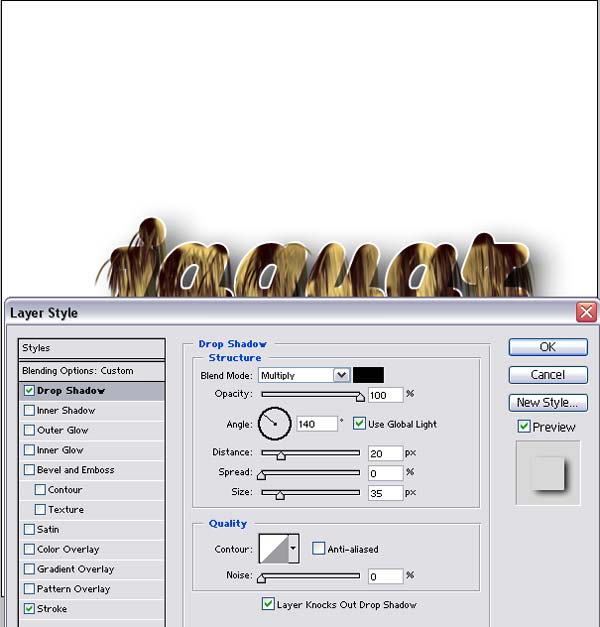
Then Drop Shadow.
Step 9
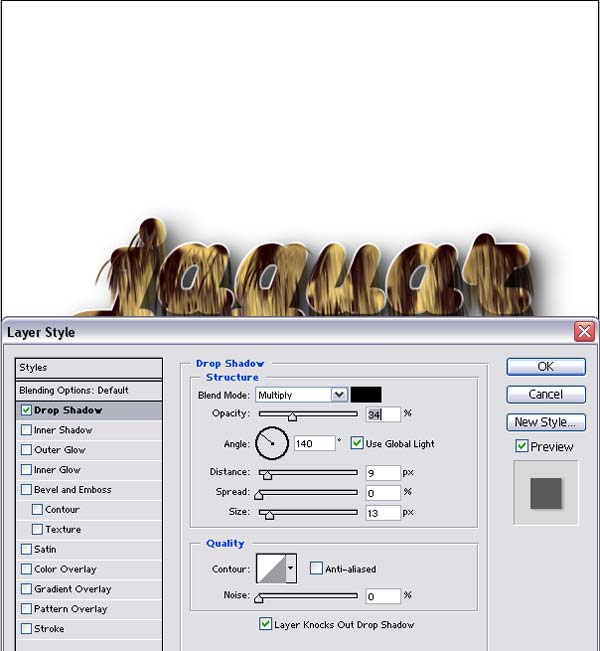
Repeat Drop Shadow on Fur Text Layer.
Step 10
When we finish with text effect's we gona start to making some background effect.
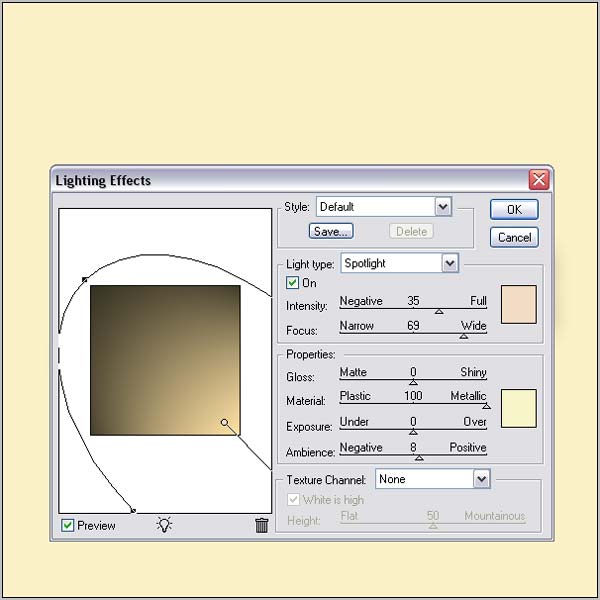
First open new layer, put him behind of all layers and color him.
Then go to Filter>Renden>Lighting Effects and do something like in picture.
Step 11
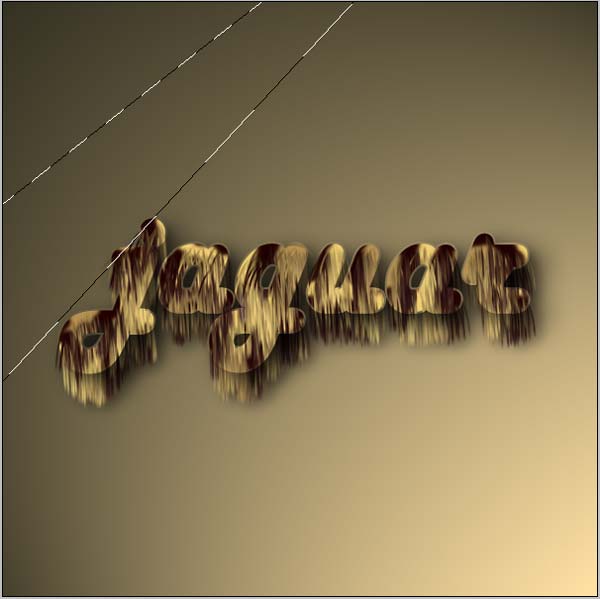
Open new layer, draw shape like in picture.
Step 12
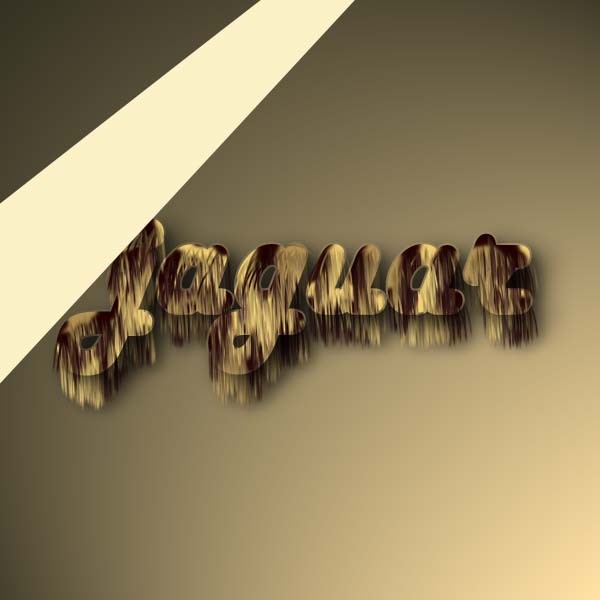
Color him
Step 13
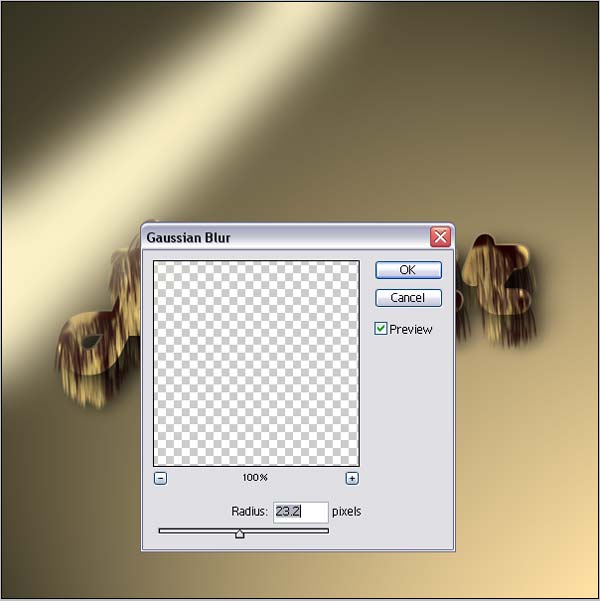
In Filter>Blur give Gausian Blur.
Step 14
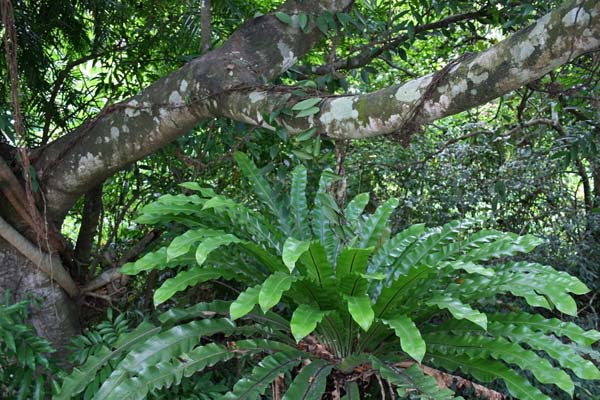
Now take some picture of jungle flora.
From this picture we can use some detail's, like tree and bush.
Step 15
Erase part of tree from picture and put him like in picture.
Step 16
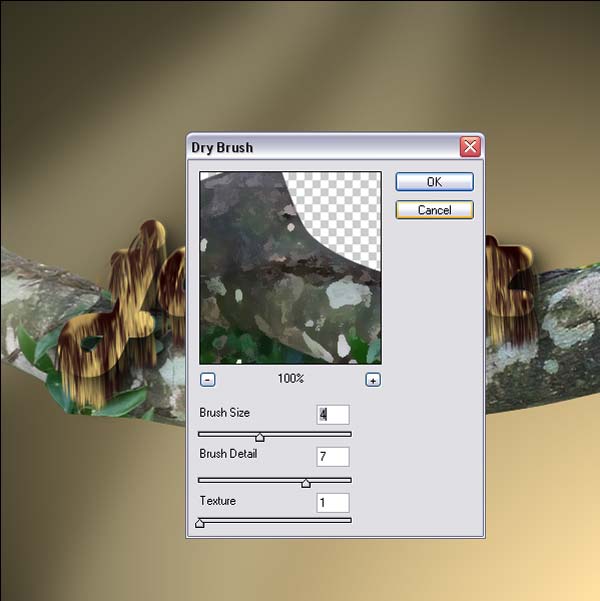
Then in Filter>Artistic>Brush give Dry Brush effect.
Then resize opacity of layer on 10-20%
Step 17
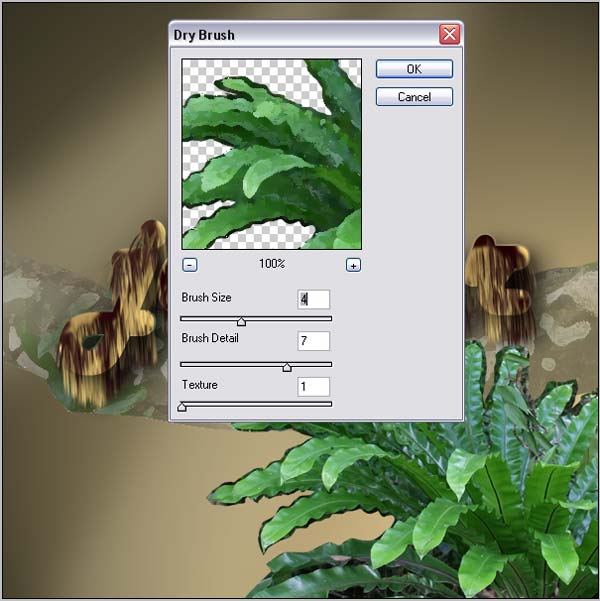
Repeat this step with bush.
Step 18
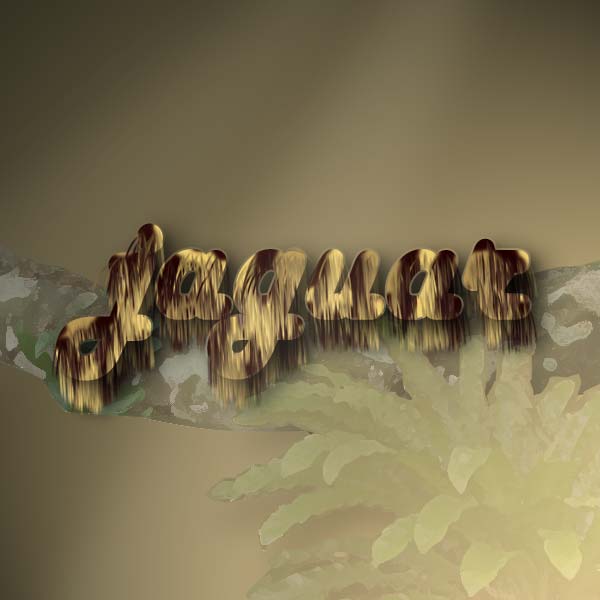
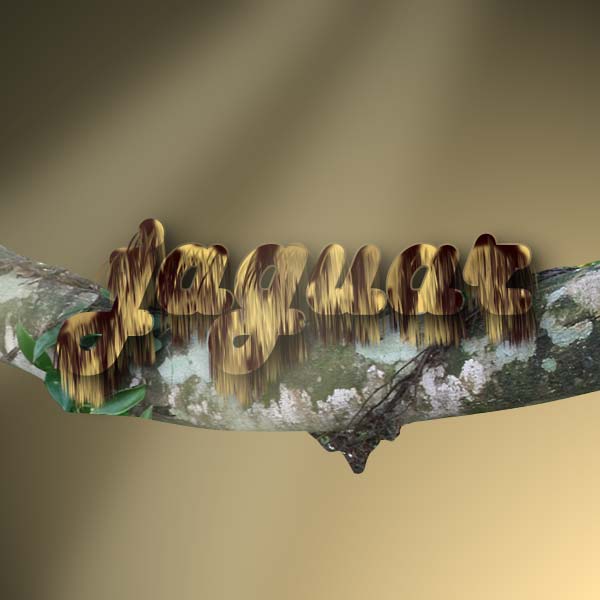
And we get some resting jaguar text effect.
Finish