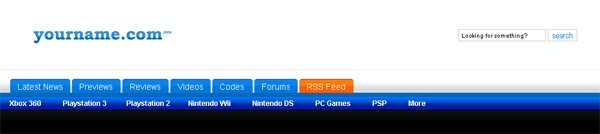
Step 1:
Let's start out by creating a new file. I used a 1000x180 pixels canvas set at 72dpi, and I filled my background with white color. Now create a new layer then draw a long rectangle with #0069BD color shade and 1000x32 px dimensions at the bottom end of your canvas.

Step 2:
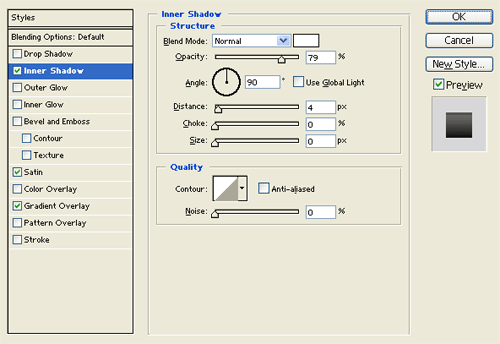
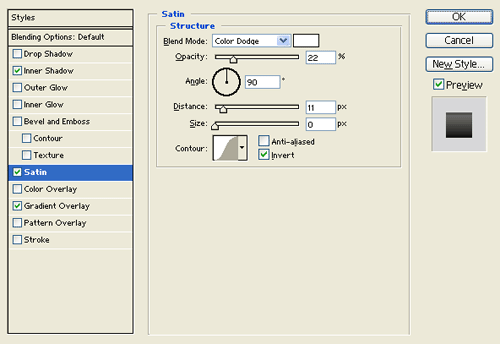
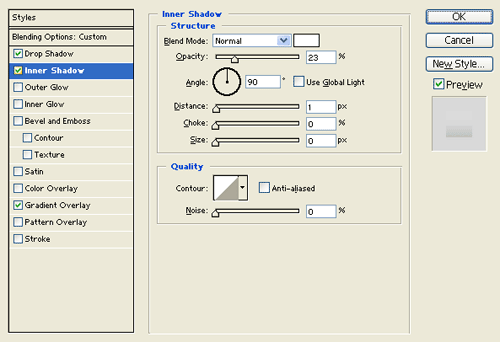
Under Layer Style(Layer > Layer Style) add an Inner Shadow, Satin and Gradient Overlay blending options to your long rectangle layer.

Step 3:
In a new layer draw a long black rectangle with 1000x40 px dimensions on top of the blue rectangle design.

Step 4:
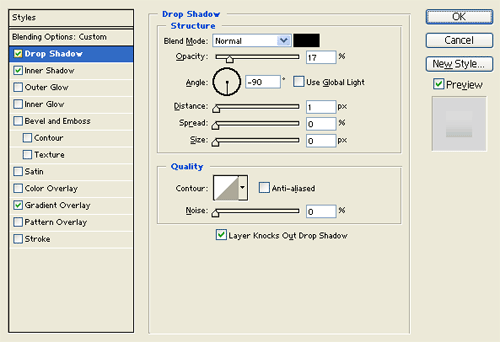
Under Layer Style(Layer > Layer Style) add a Drop Shadow, Inner Shadow and Gradient Overlay blending options to your black rectangle layer. Then set the layer's blending mode to Lighten at 58% opacity level.

Step 5:
Select the Horizontal Type Tool then set the font family to Arial, bold, 12 pt, none and white color shade. In a new text layer type your first set of navigation on the blue rectangle design.

Step 6:
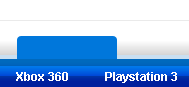
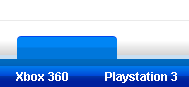
Make a new layer set and name it 'Tab'. In a new layer draw a small rounded rectangle with #0077DB color shade and 100x40 px dimensions. Then cut the bottom corners of the rounded rectangle layer, this will be the tab/button design.
Step 7:
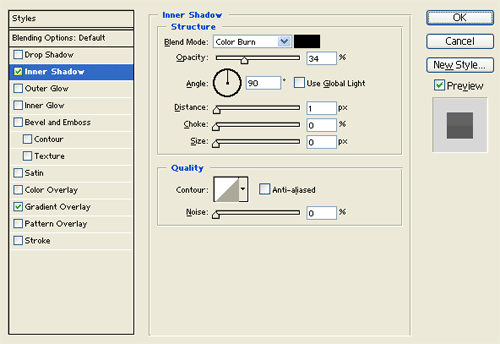
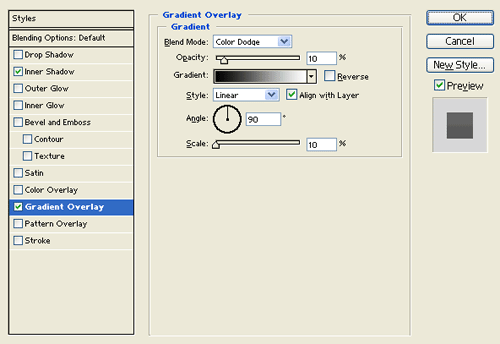
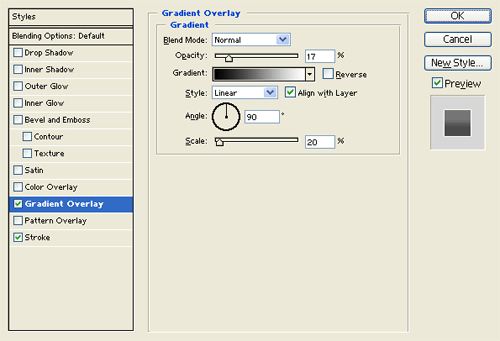
Under Layer Style(Layer > Layer Style) add an Inner Shadow and Gradient Overlay blending options to your tab layer.
Step 8:
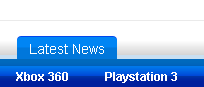
Type 'Latest News' on the tab using font arial, regular, 12 pt, none and white color shade.
Step 9:
Now add the rest of your navigation tabs by duplicate the original then just edit the text.

Step 10:
Select the Horizontal Type Tool then set the font family to Bookmark Old Style, bold, 12 pt, none and white color shade. In a new text layer type your website name above the navigation interface. Then under Layer Style(Layer > Layer Style) add a Gradient Overlay blending option.

Result: