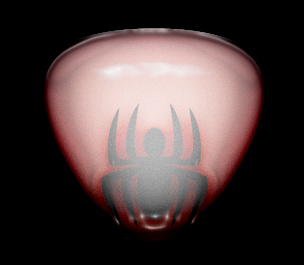
Step 1:
Let's start out by creating a new file. I used a 600x400 pixels canvas set at 72dpi, and I filled my background with black. Now make a new layer set and name it 'Spider Design'.
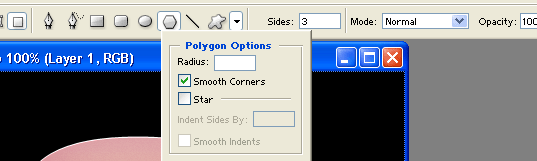
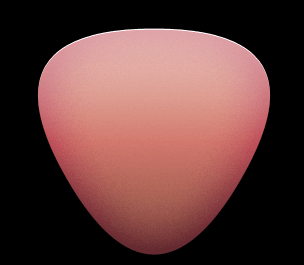
Select the Polygon Tool, above your screen under the options palette choose Fill Pixels, sides 3 with anti-aliased checked. Then open the Polygon Options Window and use the settings below. Now draw a pink polygon with #BE4E59 color shade and 234 px 227 px dimensions.

Step 2:
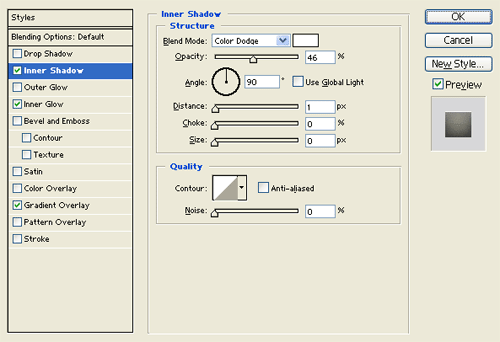
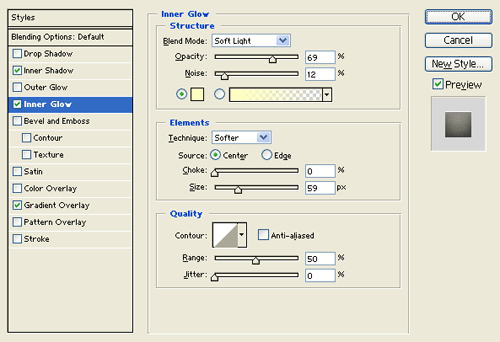
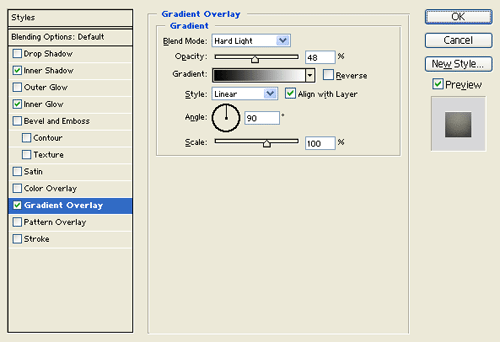
Under Layer Style(Layer > Layer Style) add an Inner Shadow, Inner Glow and Gradient Overlay blending options to your pink polygon layer.
Step 3:
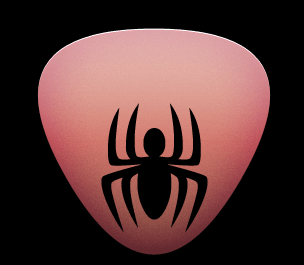
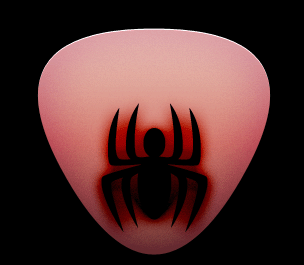
Select the Horizontal Type Tool then set the font family to Webdings, 160 pt, smooth and black color shade. In a new text layer type "!" which should be a spider icon, position it on the bottom end of the pink polygon.
Step 4:
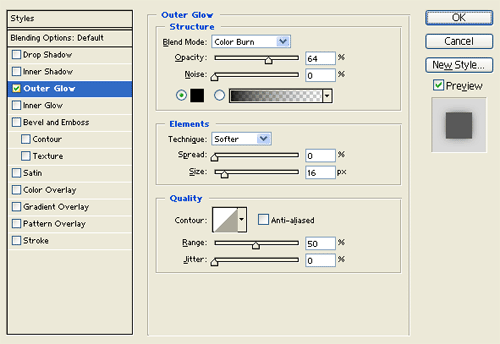
Under Layer Style(Layer > Layer Style) add an Outer Glow blending option to the black spider text layer.
Step 5:
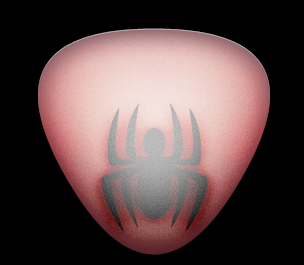
Now draw a whitepolygon with 234 px 227 px dimensions, same position as your pink polygon design.

Step 6:
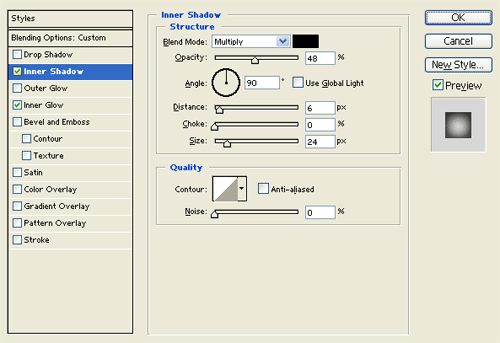
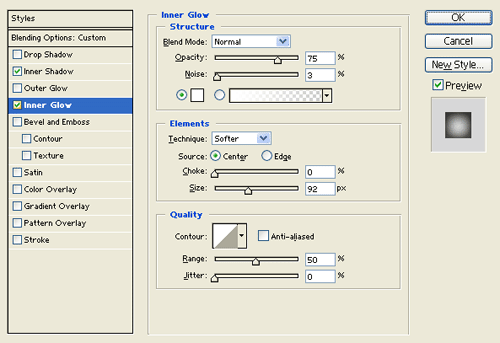
Under Layer Style(Layer > Layer Style) add an Inner Shadow and Inner Glow blending options to your white polygon layer. Then set the layer's blending mode to Darken.
Step 7:
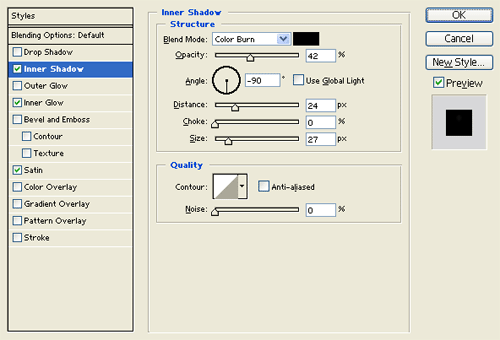
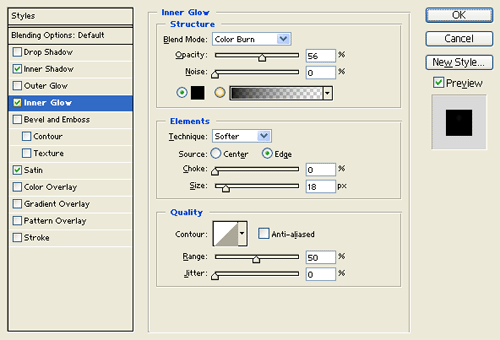
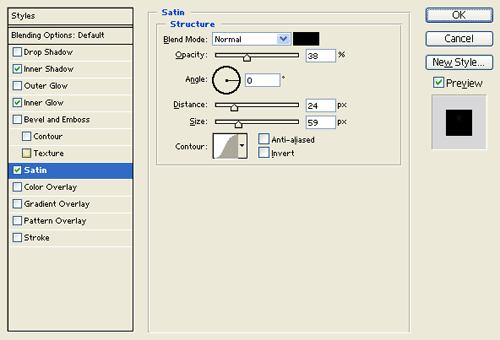
Highlight your 'Spider Design' layer set on the Layers Window then go to Layer > Merge Layer Set. Then under Layer Style(Layer > Layer Style) add an Inner Shadow, Inner Glow and Satin blending options to your spider polygon design layer.
Step 8:
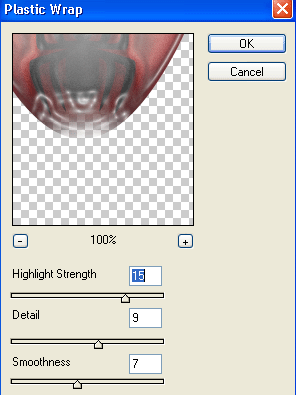
Duplicate the spider polygon design layer from step seven then go to Filter > Artistic and apply a Plastic Wrap filter, use the settings below.
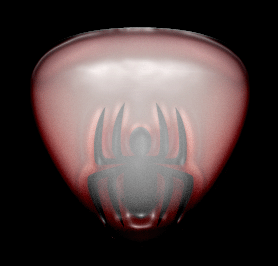
Then set the layer's blending mode to Darken.
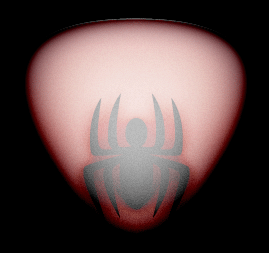
Result: