Step 1:
Start with a photo file you want to wrap in plastic, download the image below and open it in photoshop to follow through the tutorial.

Step 2:
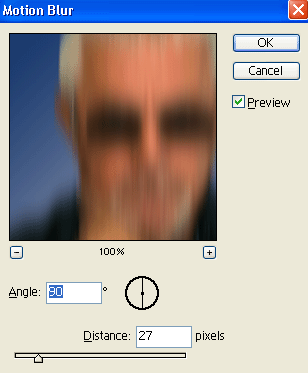
Now duplicate the photo layer then go to Filter > Blur, apply Gaussian Blur using the settings below.

Step 3:
Duplicate the original photo layer then go to Filter > Artistic, apply Plastic Wrap using the settings below.
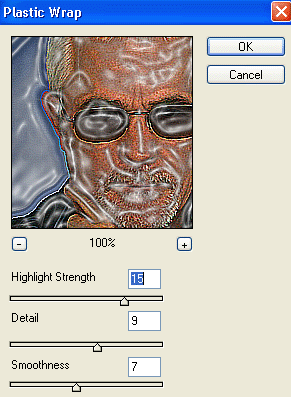
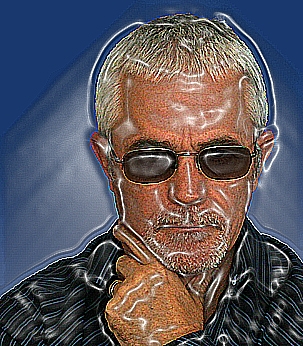
Now go back to Filter > Sharpen and apply Sharpen Edge. Do this three times so the image is very sharp.
Step 4:
Set the layer's blending mode of the Sharpened copy to Soft Light.

Step 5:
Using your Erase Tool with a large soft brush, erase the plastic wrap design around the body of your photo as shown below.
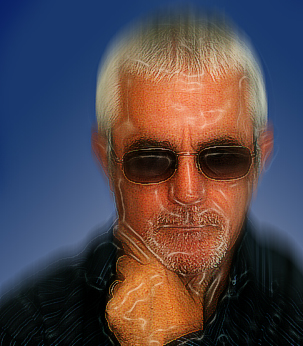
Result: