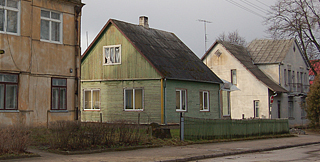
Let's start, open in Photoshop the photo you want to modify. I've chosen this one. Now it's the time for the night effect.
At first, select with the Magic Wand the areas with sunlight reflections (use Shift+left mouse button click to select multiple areas).
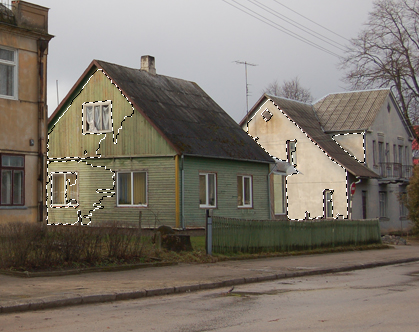
Right click on the selection - Layer via Copy. Go to Image - Adjustments - Brightness/Contrast and reduce the contrast and the brightness. Use the Clone Stamp and Eraser tools to improve the quality of the layer's borders.
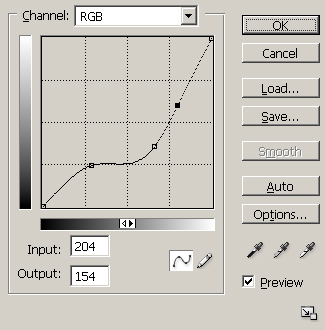
Duplicate the background layer, go to Image - Adjustments - Desaturate. Layer - Layer Style - Blending Options - Multiply. Set these settings in Image - Adjustments - Curves
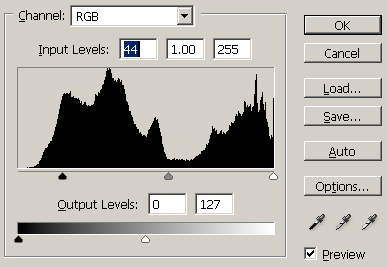
And these in Image - Adjustments - Levels
You can also try to use Image - Adjustments - Brightness/Contrast.
Search the web for an image of a street lamp and add it to the photo, remember to remove the odd area. Resize it using the Free Transform (Ctrl+t). Go to Filter - Render - Lens Flare, choose 105mm prime and set the brightness to 25-40 percent. Now try to remove the odd stuff of the flare.
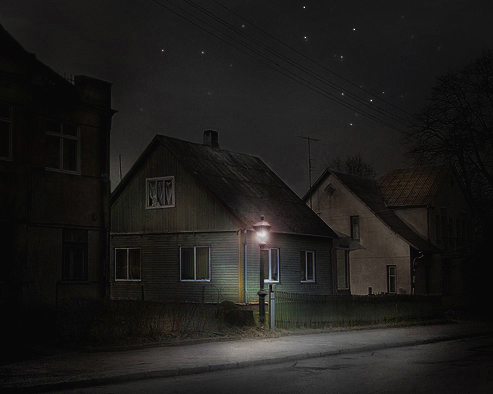
The most interesting part! Flatten image and then use Burn, Dodge, Sharpen and Sponge tools to make light effects. Duplicate the layer twice, go to Filter - Blur - Gaussian blur and slightly blur the layer. Set the blending options to Color Dodge. On the other layer, add some light area near the lantern using the Dodge tool and set its blending options to Color Dodge also. Search the Internet for night sky pictures, try to add some stars (use blending options to multiply the layers). You should get something like that