


Images Used
The following images were used in making this tutorial:
http://www.sxc.hu/photo/1095865
http://www.sxc.hu/photo/1166314
http://www.sxc.hu/photo/1139999
http://www.sxc.hu/photo/1140000
http://www.sxc.hu/photo/1139998
http://www.sxc.hu/photo/1104885
http://www.sxc.hu/photo/1104884
http://www.sxc.hu/photo/957019
http://www.sxc.hu/photo/957020
http://www.sxc.hu/photo/957016
http://www.sxc.hu/photo/1161709
http://www.sxc.hu/photo/1080080
http://www.sxc.hu/photo/1073897
http://www.sxc.hu/photo/1156891
http://www.sxc.hu/photo/1145070
http://www.sxc.hu/photo/1119039
Step 1
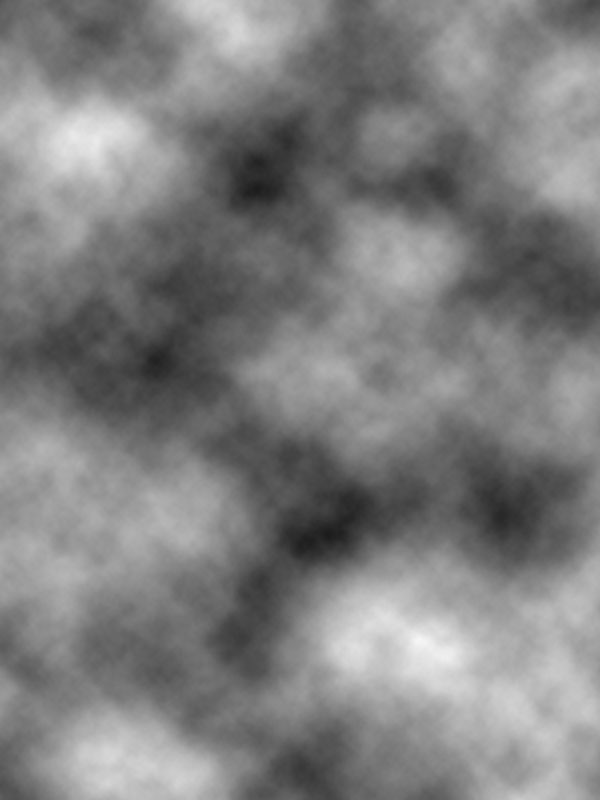
Create a new document (600X800px) and go to filter>render>clouds.
Step 2
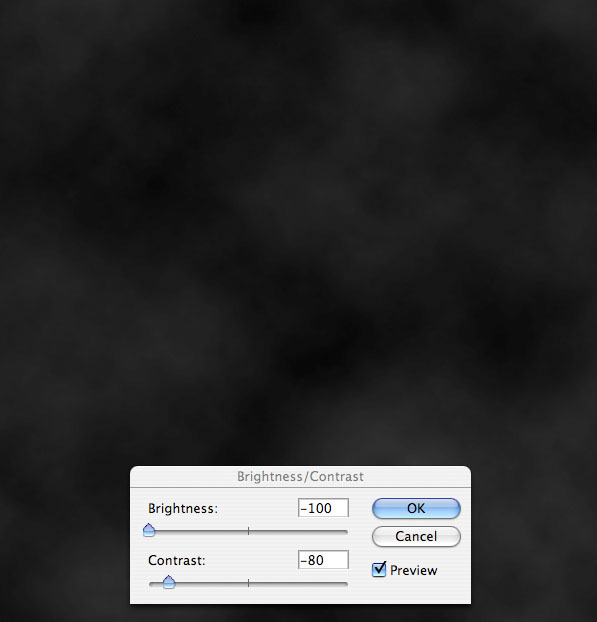
Now go to image>adjustments>brightness/contrast and reduce your brightness to -100 and your contrast to -80.
Step 3
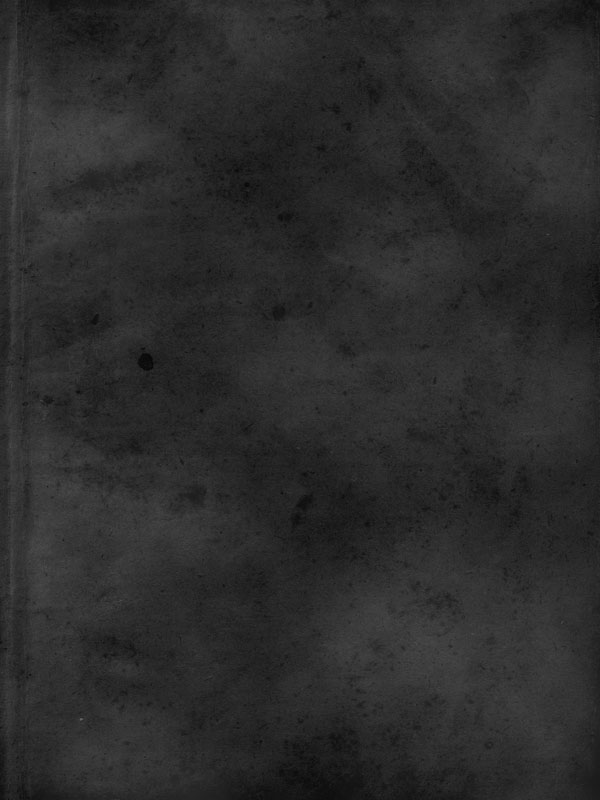
Now paste in a photo of some old paper or parchment. Make sure that your texture fills your entire canvas, and then go to image>adjustments>desaturate. Reduce this layer's opacity to around 30% to let the patterns of your clouds layer show through. Finally, set your parchment layer's blend mode to 'hard light' in order to bring out the details of the texture.
Step 4
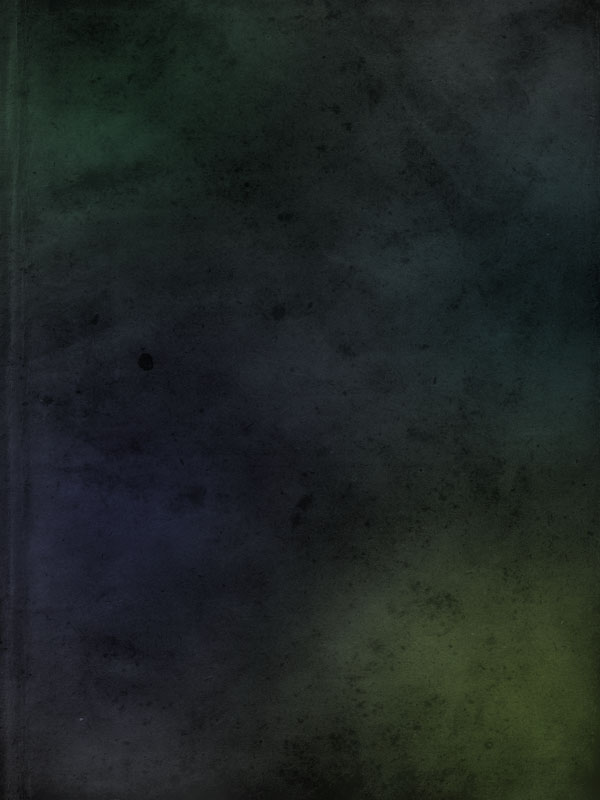
Now create a new layer called 'color spots', and use a large paintbrush (0% hardness) and paint in huge spots of color all over your canvas. I went with greens, blues, and purples to compliment each other.
Then reduce this layer's opacity to 50%, and set the layer's blend mode to 'overlay'.
Step 5
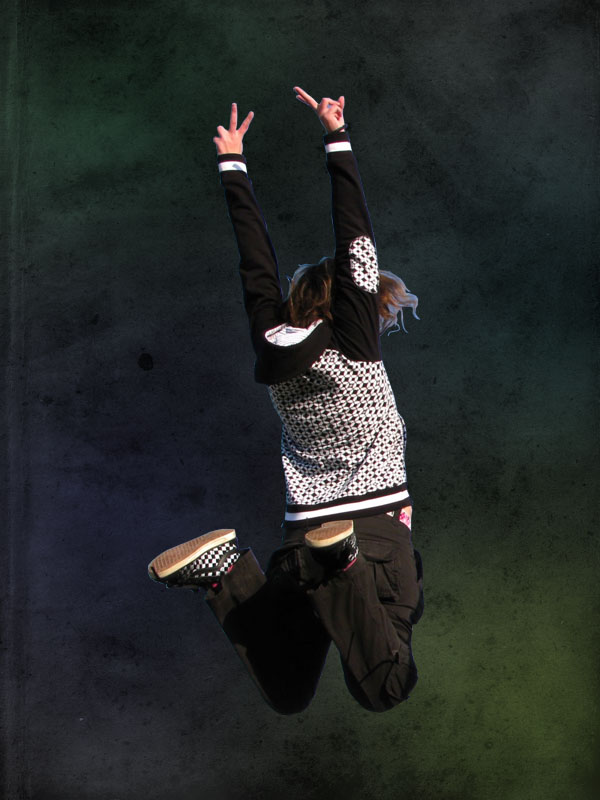
Now paste in a photo of your jumping woman. I cut out the woman from her original background using the lasso tool, but you can use whatever selection method you like. Don't worry too much about cutting out her hair perfectly for now.
Call this layer 'jumping woman'.
Step 6
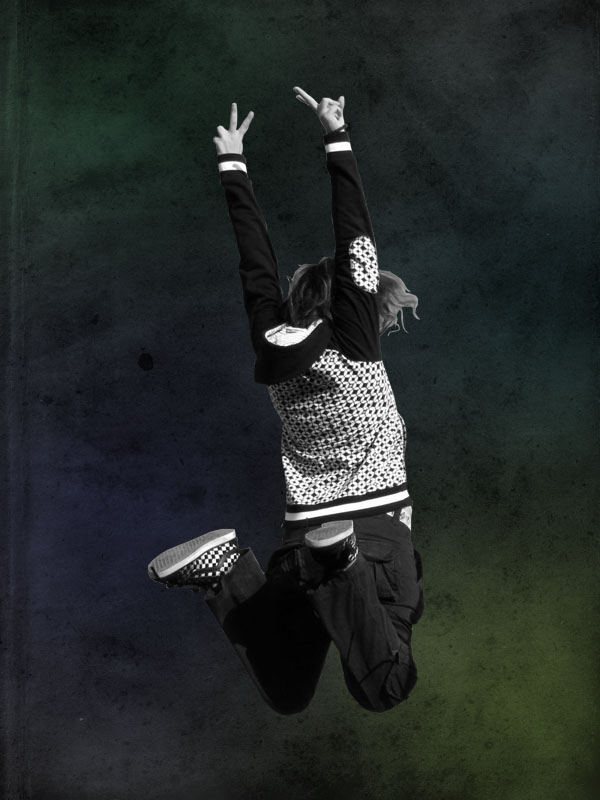
Now duplicate your jumping woman layer and hide the original. This is so that if anything goes wrong we can retain the original image. Select your duplicate layer and go to image>adjustments>desaturate to grayscale it.
Step 7
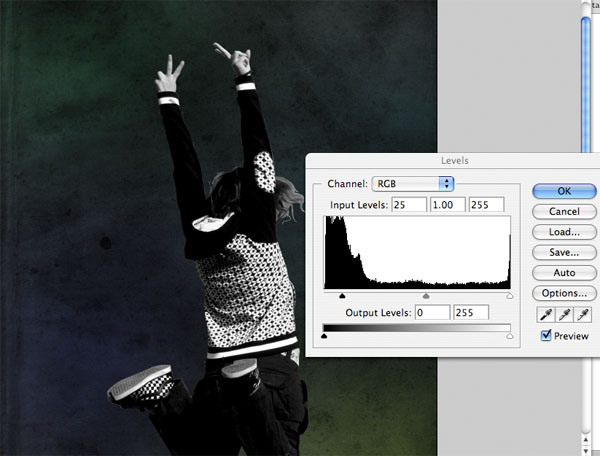
Now we want to make our woman layer more intense. To do this go to image>adjustments>levels and input the settings shown below.
Step 8
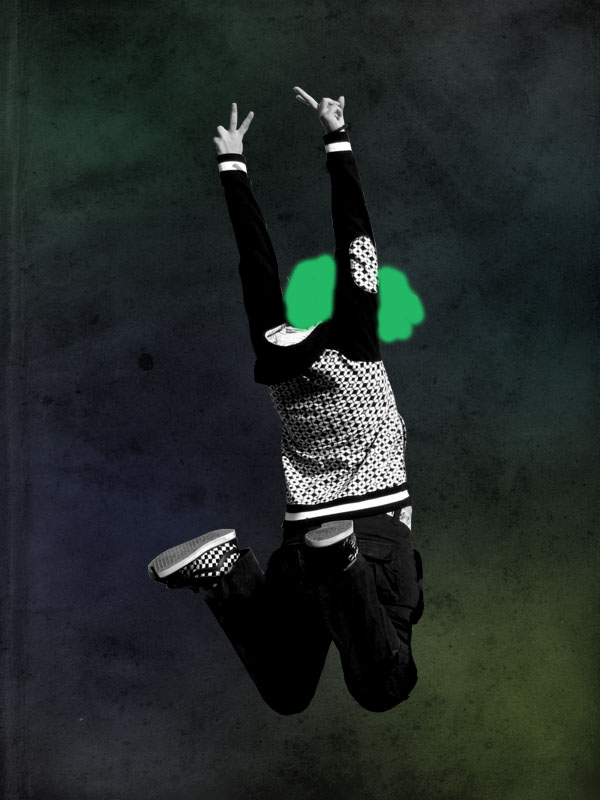
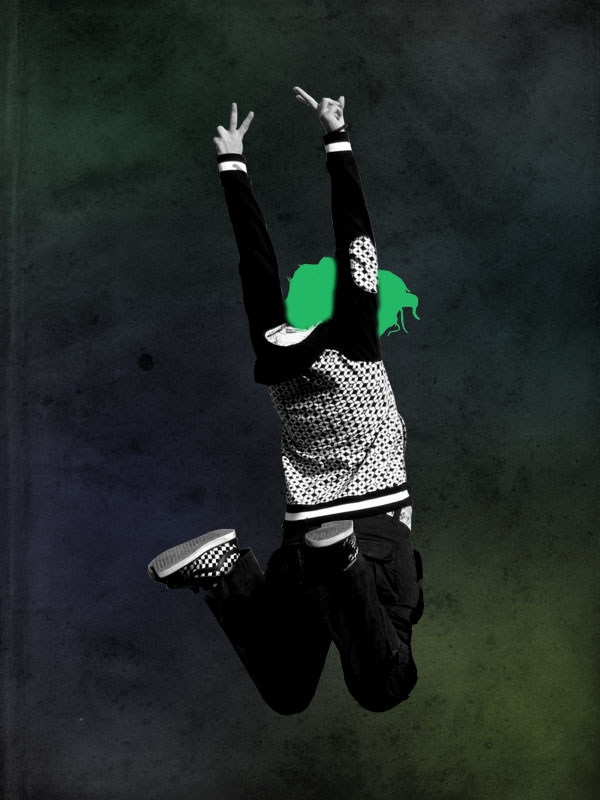
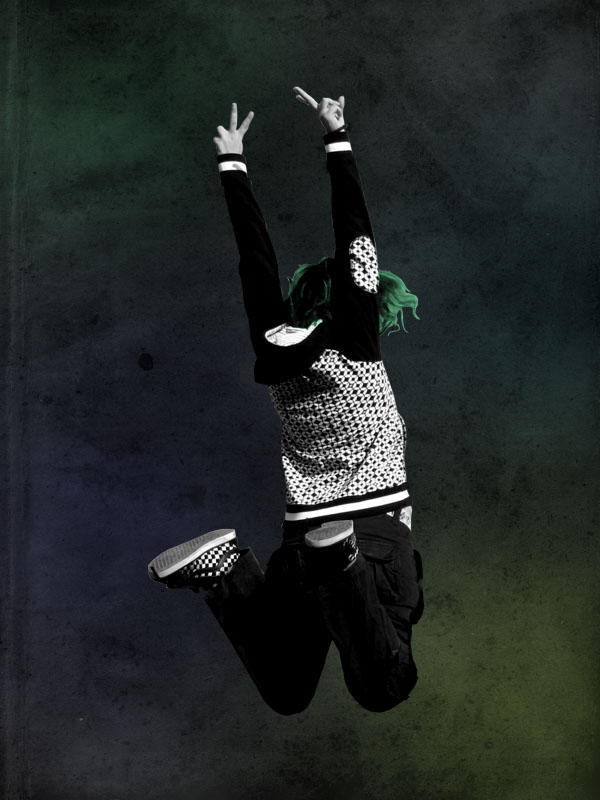
Now create a new layer called 'hair color'. Grab a small, soft, bright green paintbrush and paint over your woman's hair. It doesn't matter if you overlap into your main background, but try not to overlap the woman's arms.
Next, option click on your 'jumping woman' layer in your layers palette. This will select the shape of your woman. Then, return to your 'hair color' layer and go to layer>add layer mask>reveal selection. This will hide any parts of your green paintbrush marks that overlap into your main background, making the color fit nicely to your woman's hair.
Next change your 'hair color' layer's blend mode to 'overlay' and reduce it's opacity to 50%.
Step 9
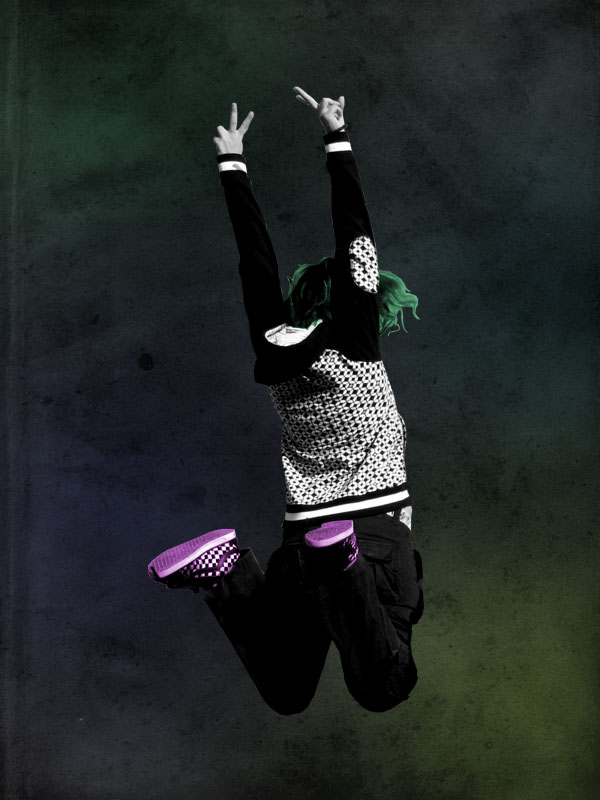
Repeat this same technique, this time turning your shoe's pink.
Step 10
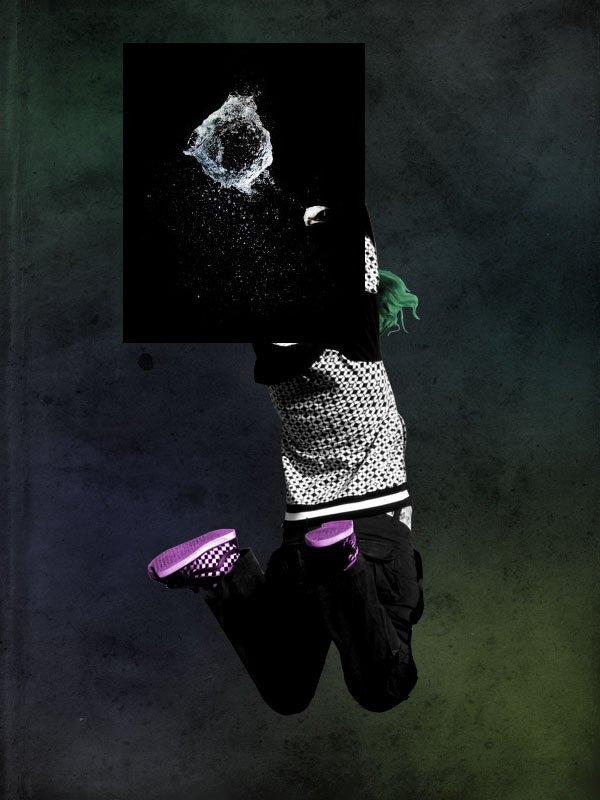
Now, paste in an image of some splashing water on a black background. Change this layer's blend mode to 'screen' and the black background will vanish, giving the impression of the water splashing over your woman.
Use a soft eraser brush just to tidy up the effect a little.
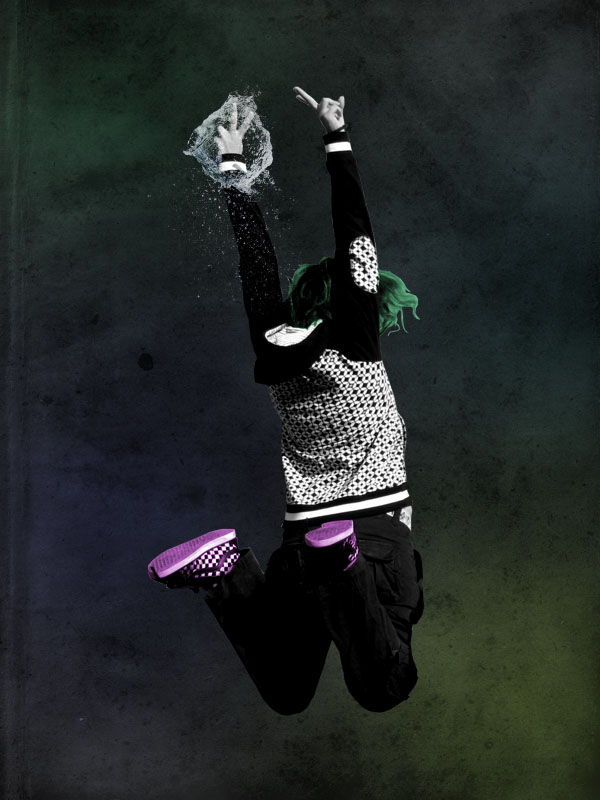
Step 11
Now repeat this exact same technique with several more water splashes. It may be a good idea to desaturate your water images so that they don't distract too much from your main image.
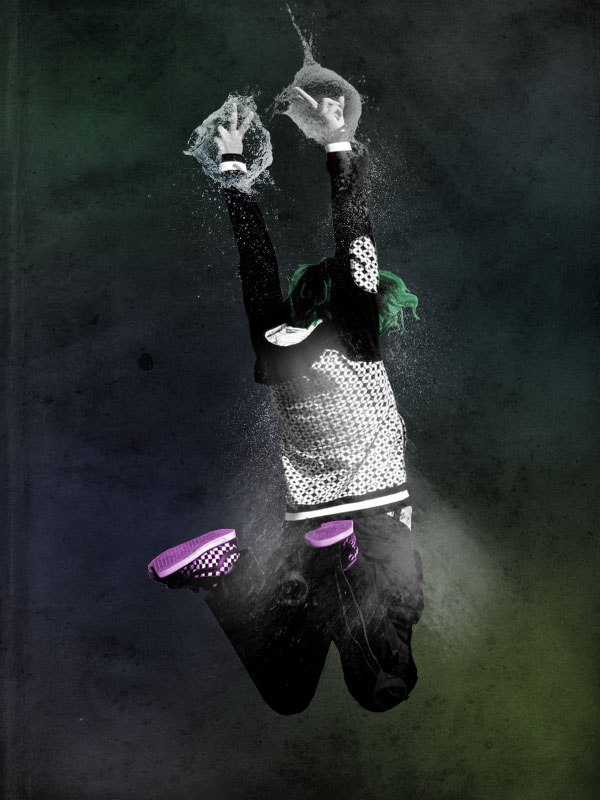
Step 12
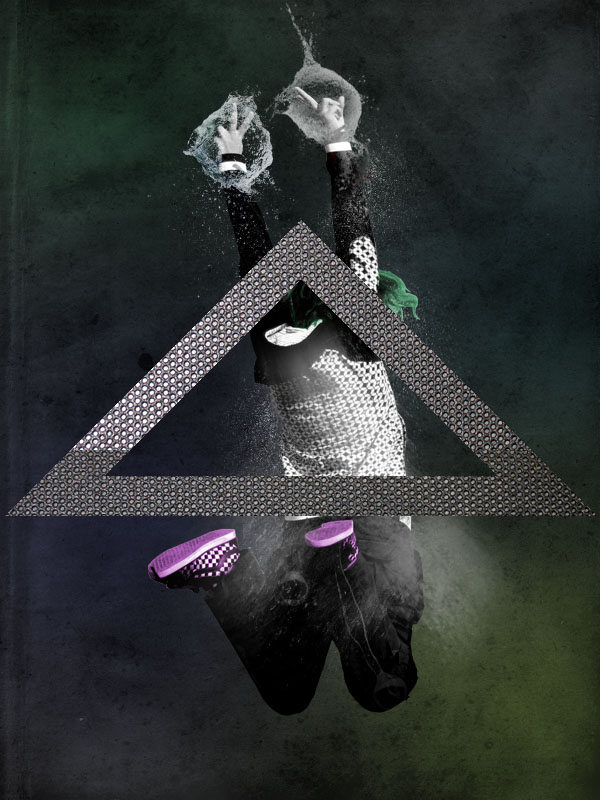
Create a new layer called 'triangle'. Use your lasso tool to draw out a perfect triangle. To do this, hold shift, to draw your selection lines at either 45 or 90 degrees. One you've drawn out your triangle selection, fill it with light gray. Then go to select>modify>contract and contract your selection by 40px. Then hit delete.
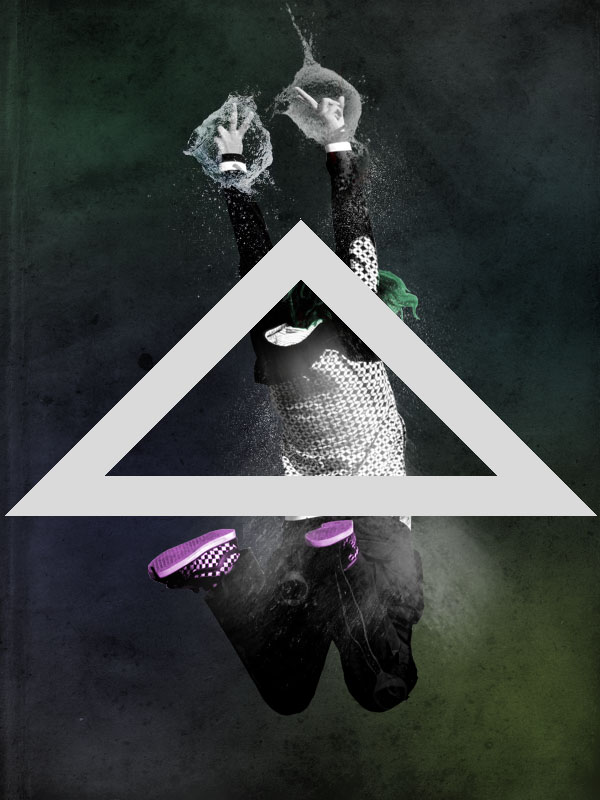
Step 13
Open a metal texture photo in a new document, and resize it to be 600px wide. Then go to edit>define pattern and define your pattern as 'metal texture'.
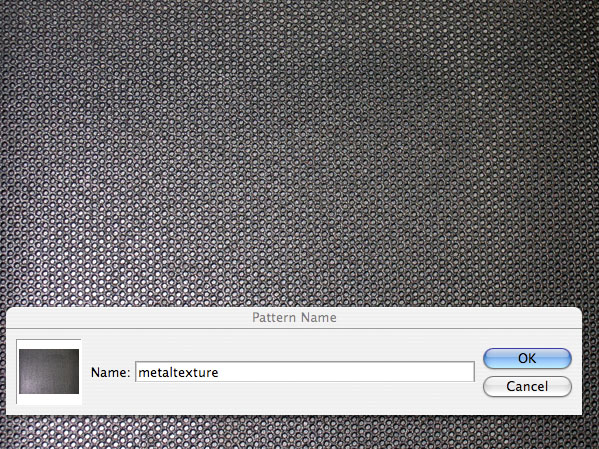
Step 14
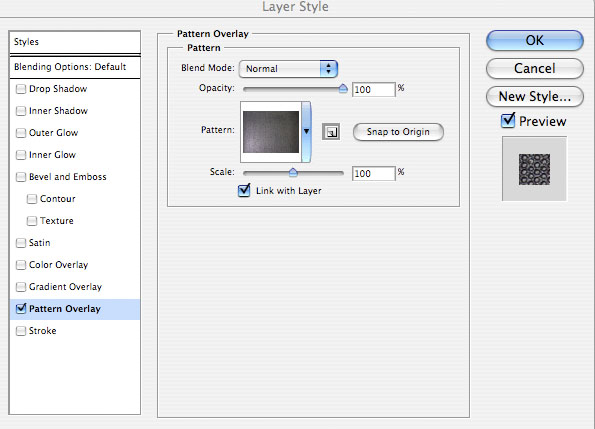
Now return to your original document. Go to the blending options for your triangle layer and apply a pattern overlay, using your newly created 'metal texture' pattern.
Step 15
Now create a new layer beneath your triangle layer called 'metal triangle'. Merge your triangle layer down with this layer. This will allow you to modify your triangle shape, as your pattern overlay effect will now be part of your object, rather than a consistent overlay effect.
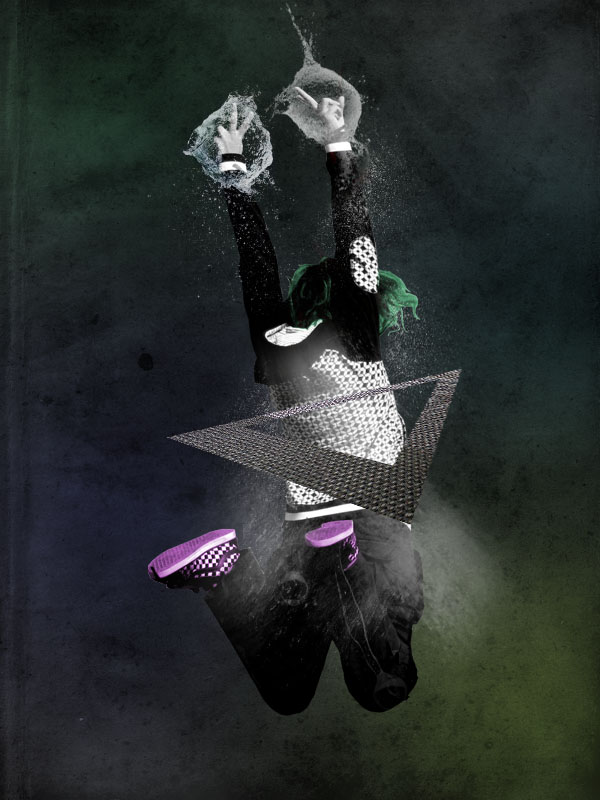
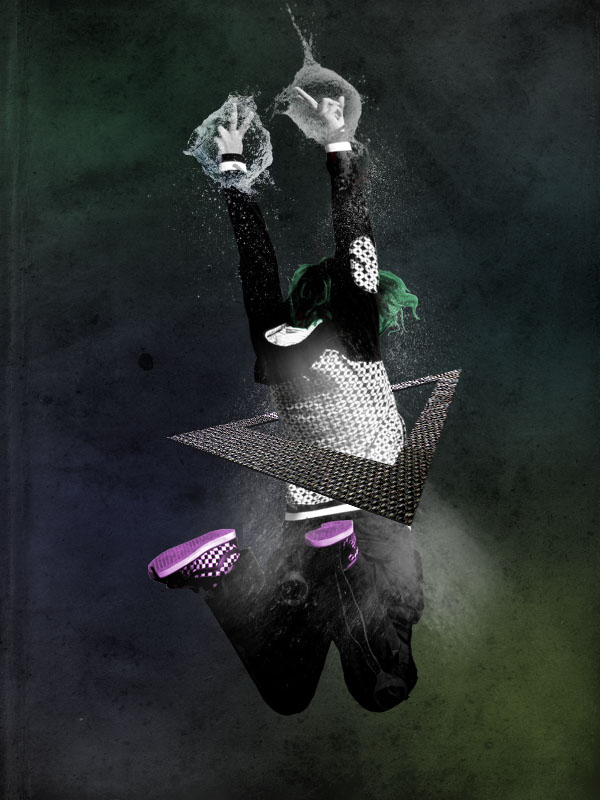
Now go to edit>transform>distort and distort your triangle until it looks like the image below:
Step 16
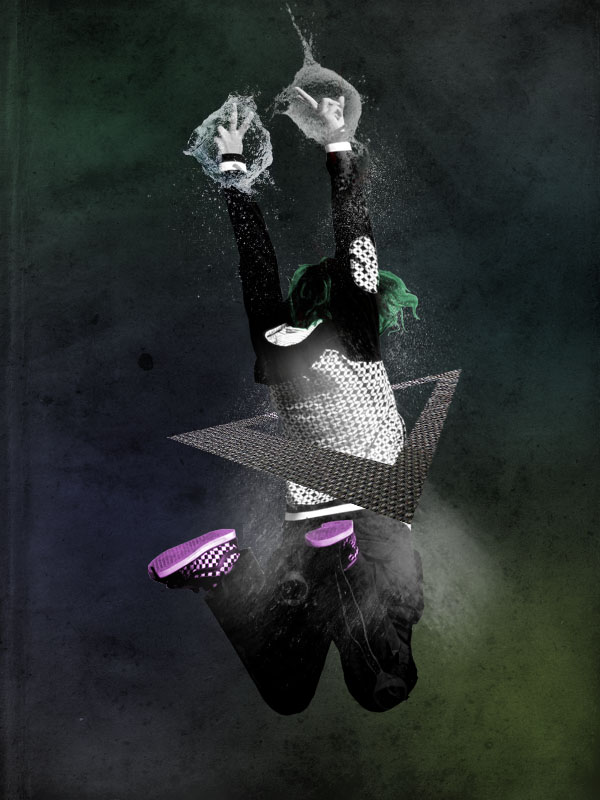
Use your lasso tool to cut away part of the triangle so that it appears to be going behind the woman.
Step 17
Now go to image>adjustments>levels and apply the settings shown below:
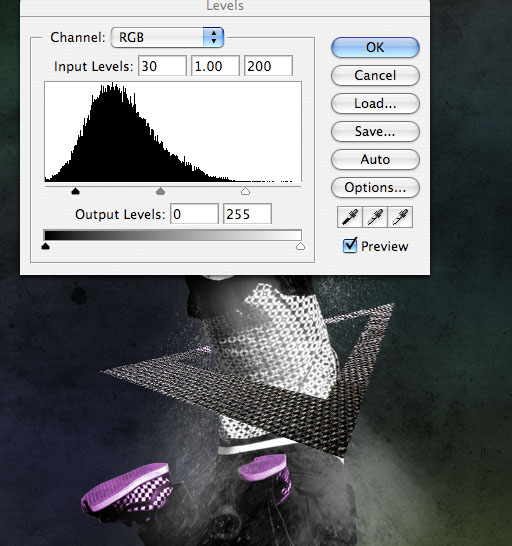
Step 18
Now go to the blending options for your triangle layer and apply a dark gray drop shadow (settings below):
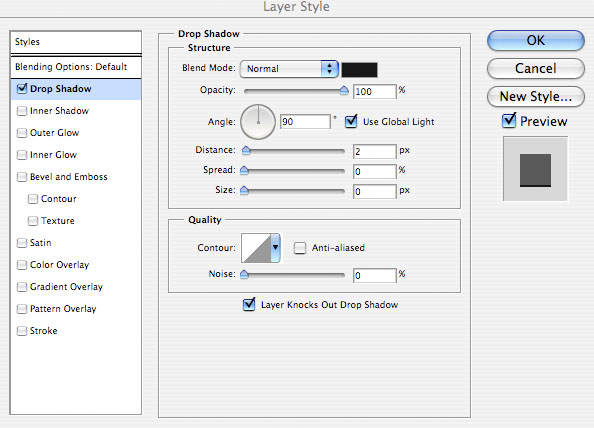
Step 19
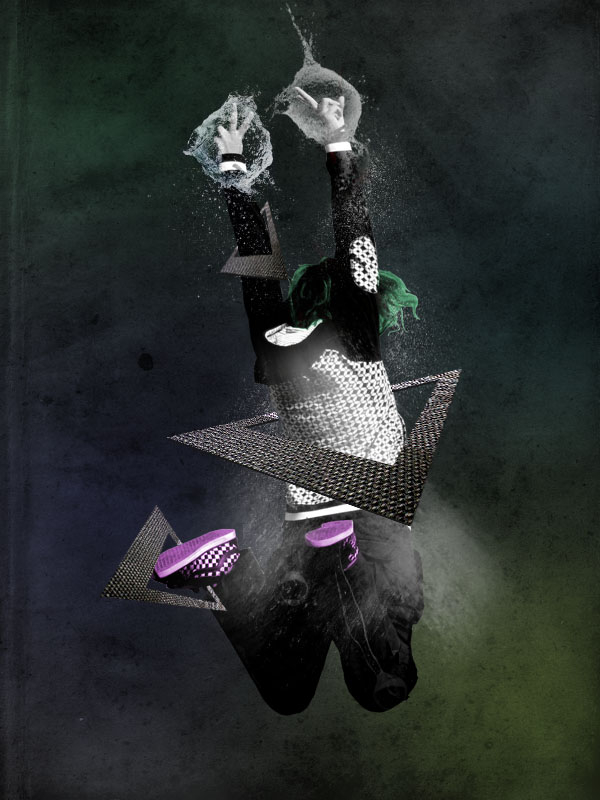
Now duplicate your triangle layer and fit it over one of the woman's shoes, and over one of her arms. You'll need to rotate/resize these duplicate triangles to ensure that the gap (the bit going behind your woman) lines up correctly. If needed you can tidy up this part using the lasso tool.
Step 20
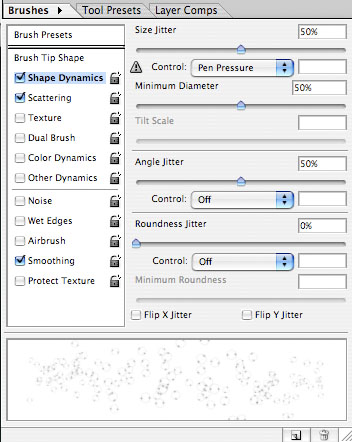
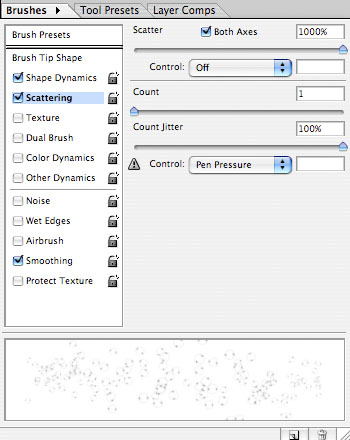
Now download this awesome bubbles brush set. Go to the brush settings and apply the shape dynamics and scattering settings shown below.
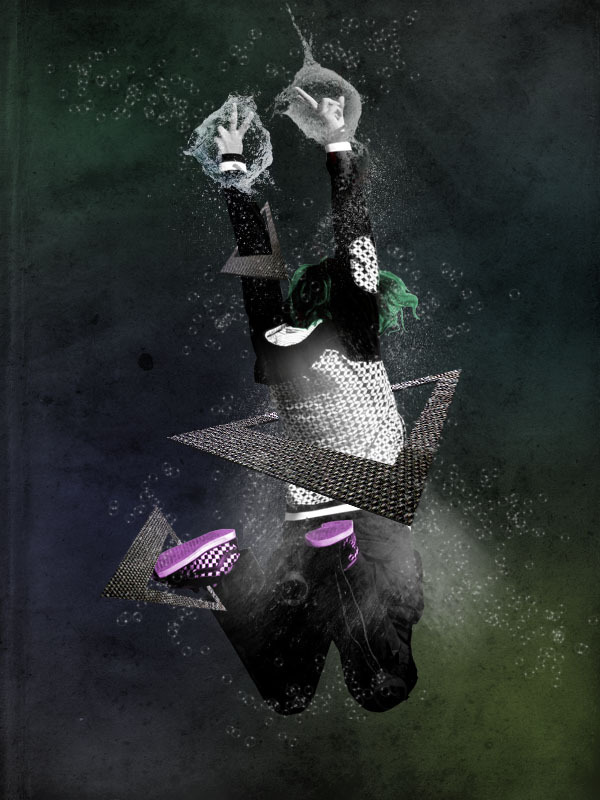
Then paint in bubbles over your piece. The bubbles were looking a little faint, even at 100% opacity, so I duplicated my bubbles layer and merged the two layers together. Then I reduced the opacity of this layer to 80%.
Step 21
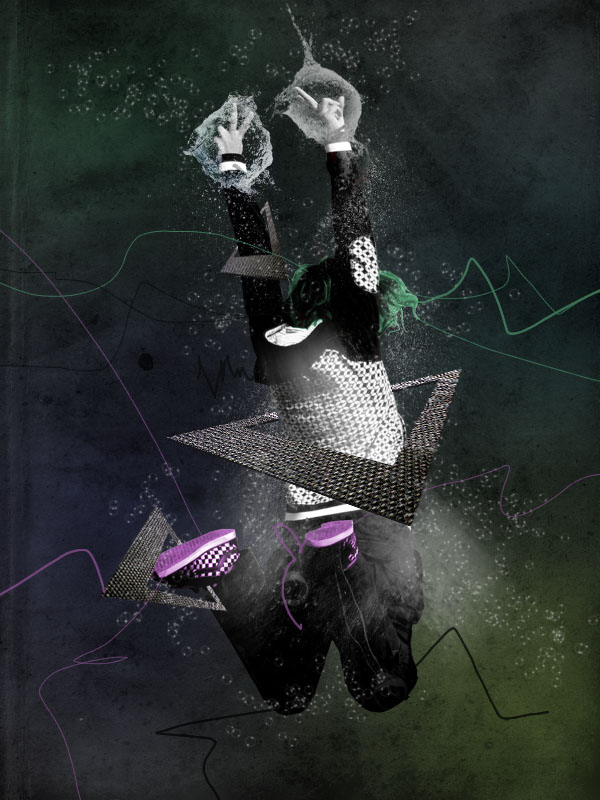
Now create a new top layer called 'pen lines'. Select a very small paintbrush, and then use your eye dropper tool to select the colors of various parts of your image. Then simply draw out very rough lines from these areas of your woman. You can afford to be very messy, as we're going for a sketchy look. However, try to maintain a sense of balance in your overall composition, and don't overdo it. I reduced this layer's opacity to 70% to make the effect slightly more subtle.
Step 22
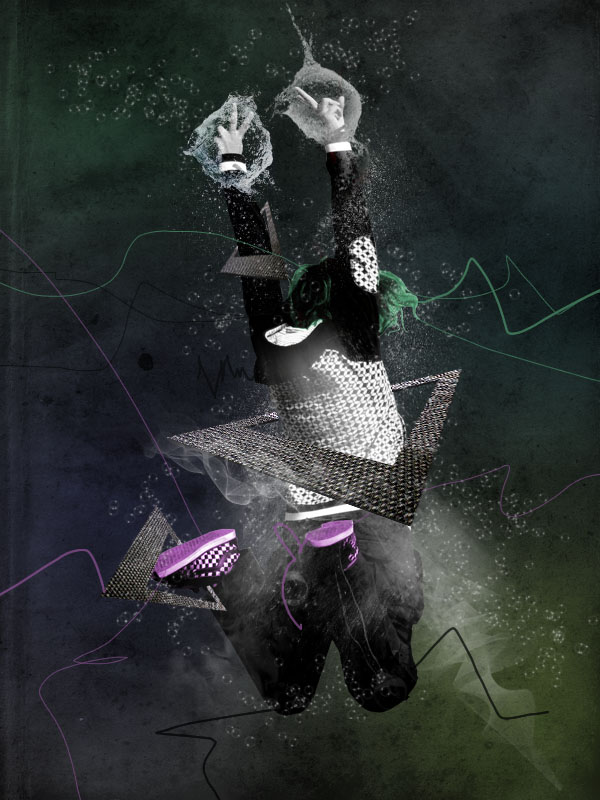
Now start pasting in photos of smoke, beneath your pen lines layer. Use the same technique that you used to blend your water (set your layer's blend mode to screen). Use your eraser tool and play with layer opacity until your smoke looks right.
Step 23
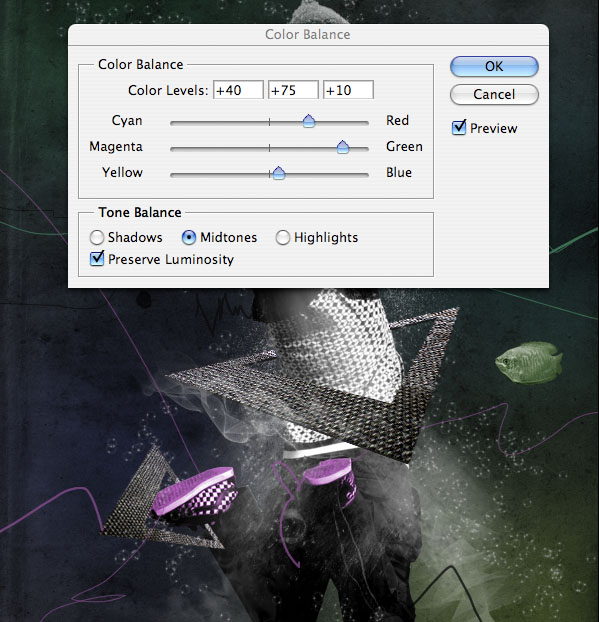
Now to finish off our piece I we need to add in some fish to our underwater scene. Paste in your first photo of a fish, and then go to image>adjustments>desaturate. We grayscale the fish photo so that we can then go in and add our own color. To add color go to image>adjustments>color balance and apply the settings shown below:
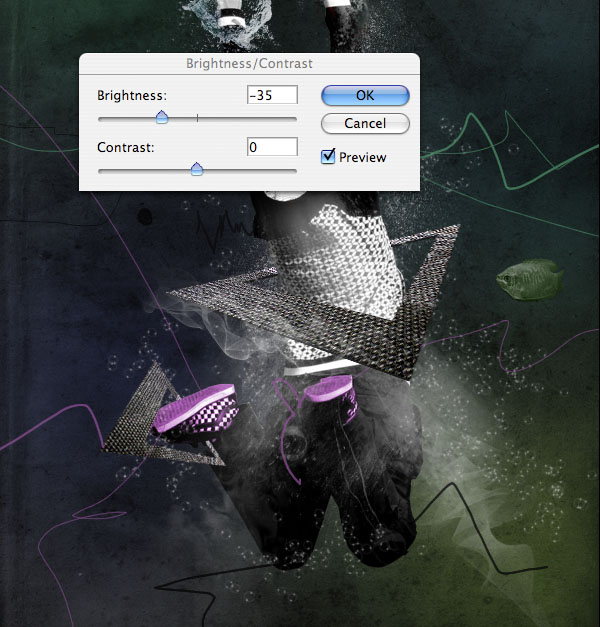
Then reduce your layer opacity to 60%, and go to image>adjustments>brightness/contrast and reduce your brightness to -35.
Step 24
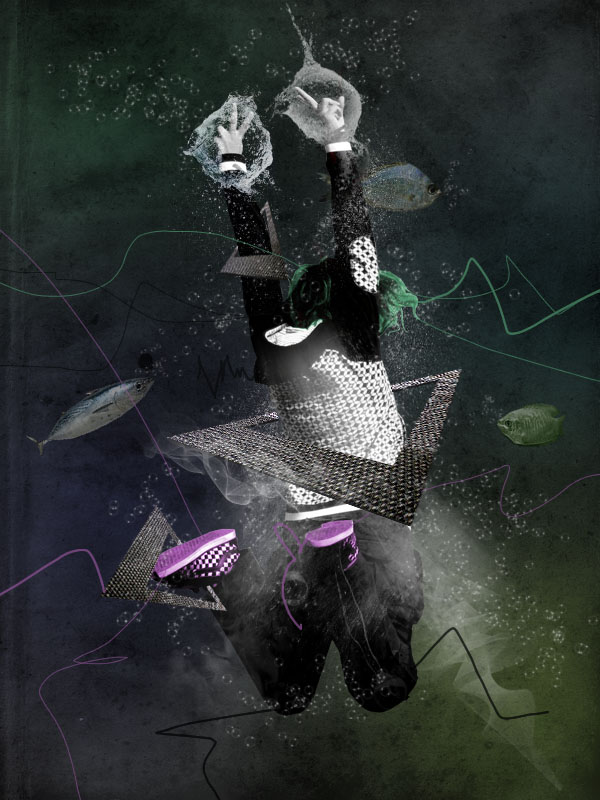
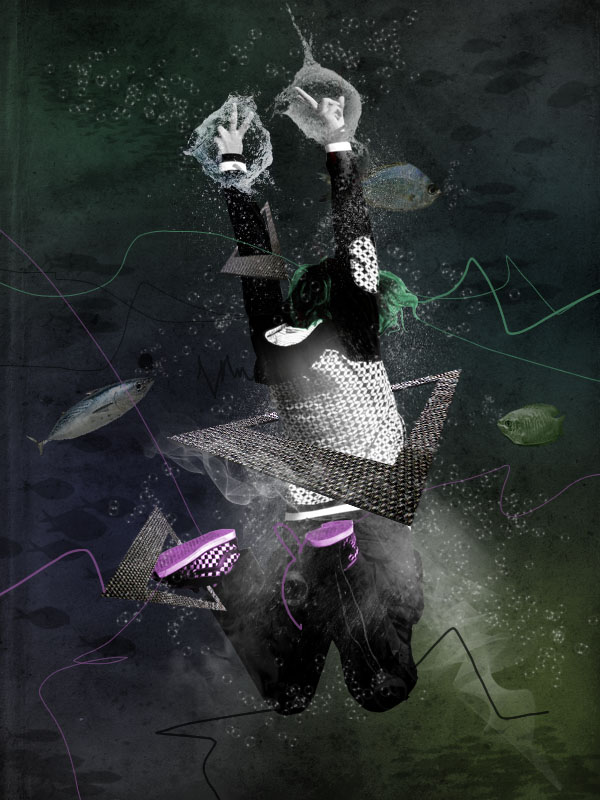
Now add in a couple more fish, and then use your bubbles brush to apply some smaller bubbles coming out of the fish's mouths.
Step 25
Now download this great School of Fish brush set from PSDTUTS. Create a new layer beneath your 'jumping woman' layer called 'School of Fish'. Then paint in your schools of fish using a black paintbrush. Finally, reduce this layer's opacity to around 30% in order to make the fish seem far away in the water.
Step 26
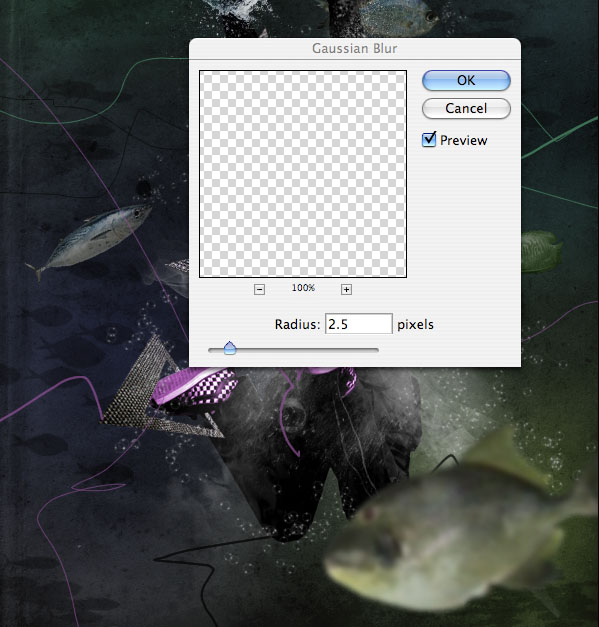
Finally, paste a larger photo of a fish into the bottom right of your canvas. Then go to filter>blur>gaussian blur and apply a 2.5 strength gaussian blur. This should give the impression of a fish being closer to you than the rest.
Step 27
Then give your big fish some bubbles coming from his mouth, and be sure to apply a gaussian blur to the bubbles also.
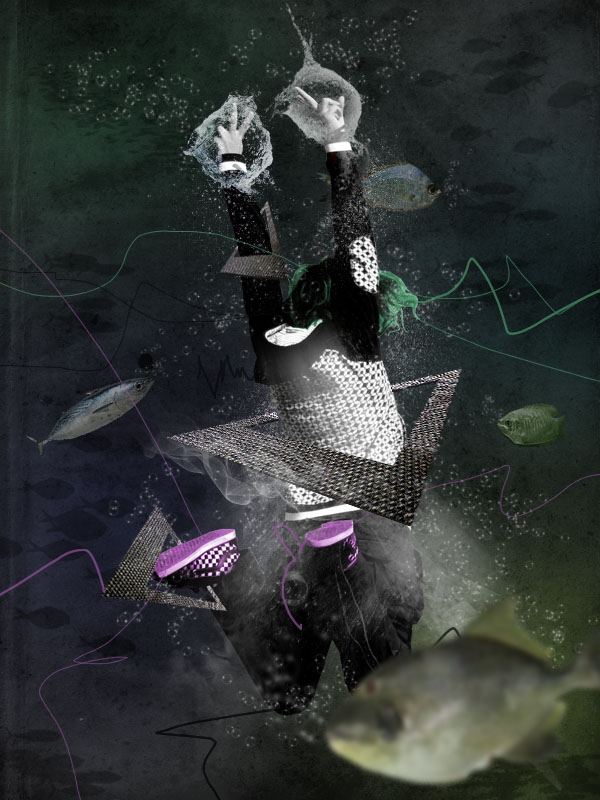
And We're Done!
I really hope that you enjoyed this tutorial and as always would really appreciate your comments.
 PSD.FanExtra is a blog centered around design and Photoshop. We provide in depth Photoshop tutorials, articles, inspiration, freebies and more. Our goal is to help teach and inspire creatives around the world,and contribute to the design community.
