Here is a super-simple way to make a cool-looking water text effect in Photoshop! Let's get started.
First, Click File-New. The size can be any size you want, but if you're just testing out the tutorial, you can use what I'm using- 284x150.
Fill the background with a dark color. Black is good.

Add in text. You want to make the text color #00b4ff. When using this effect, I normally use the font Arial Rounded MT Bold.

Now we want to set the blending options for the text. Then we'll be done. Right-click on the text layer and click "Blending Options".
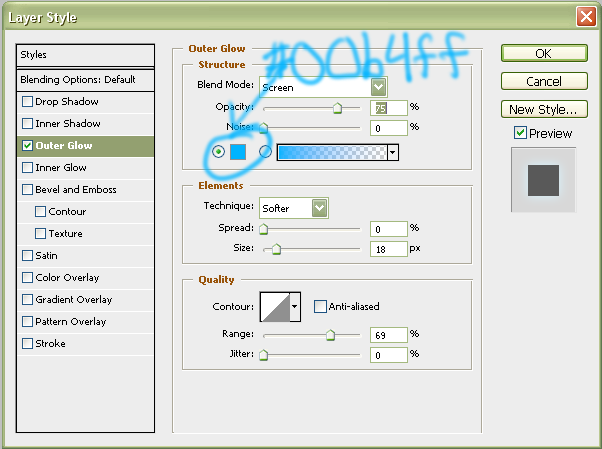
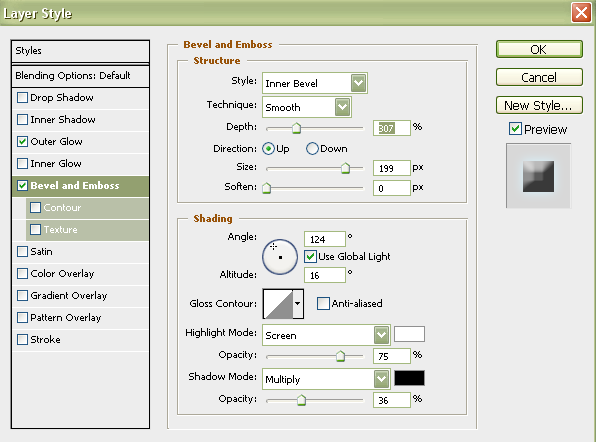
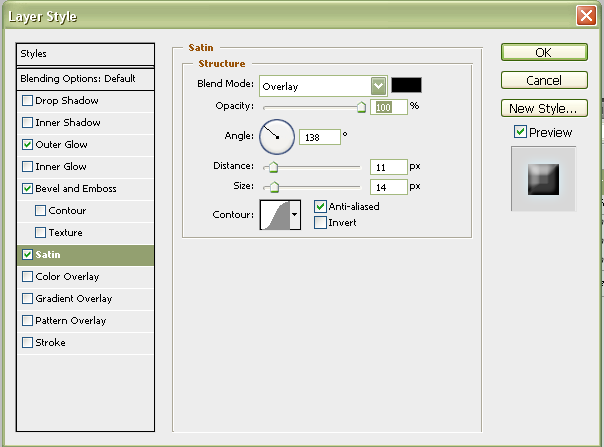
Here are the options we want:
Outer Glow:
Bevel and Emboss:
Satin:
And now, we have our finished product. Taa-daa!