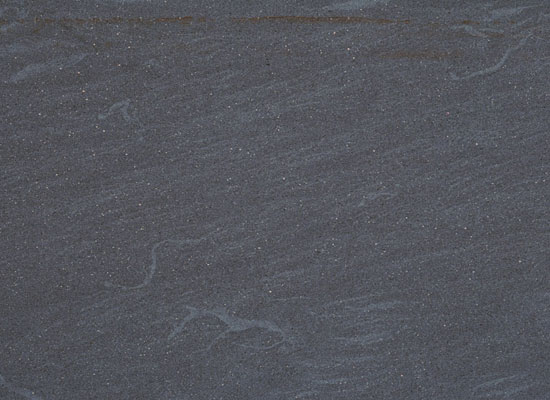
1. Lets start. At first create new layer 550*400. Add to this layer marble texture. Set of Marbles textures you can download here.
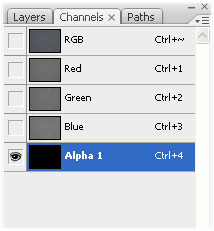
2. Now go to Channels and below all channels and new one.:
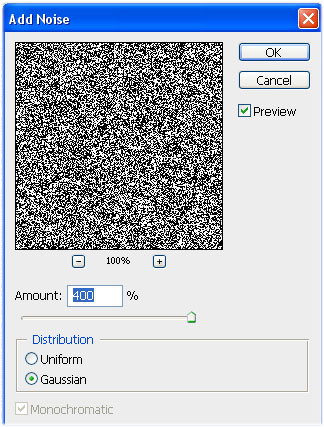
3. Now go to Filter -> Noise -> Add noise. Select following options:
4. Go to Filet -> Blur -> Gaussian blur. Select following options:
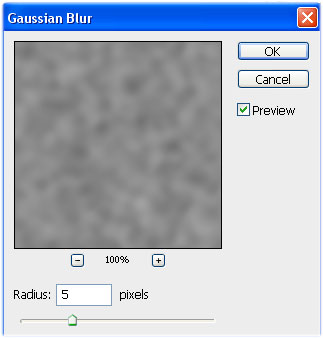
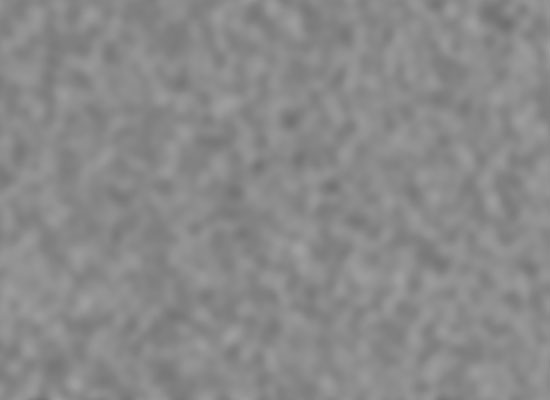
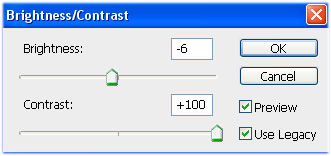
5. Go to Image -> Adjusments -> Brightness/Contrast. Select following options:
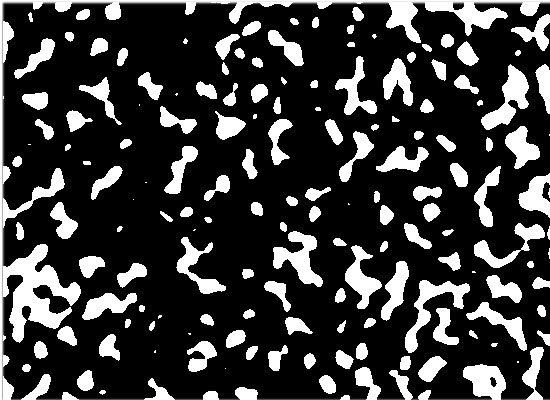
6. Again go to Filet -> Blur -> Gaussian blur. Select radius: 1,5 px:
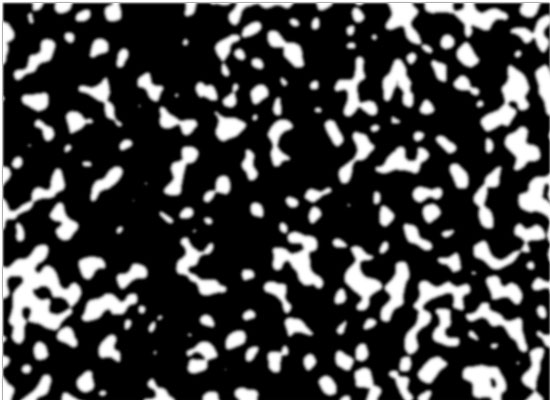
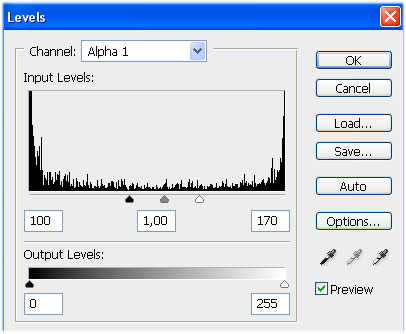
7. Now go to Images -> Levels. Select following options:
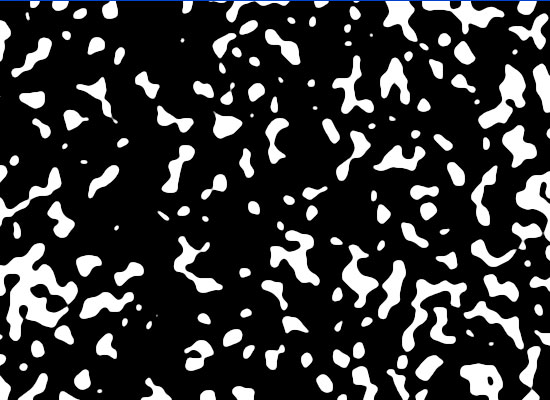
8. Holding Ctrl key, click on our new cannel, this will select all whites areas. Now go to Layers. Add new layer and fill these selections with white color.
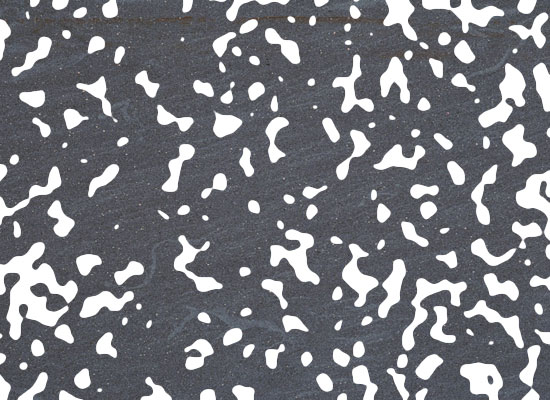
9. For next step we need Disgusting Behavior font. You can find it on urbanfonts.com. When you download and install this font, simply write your text.
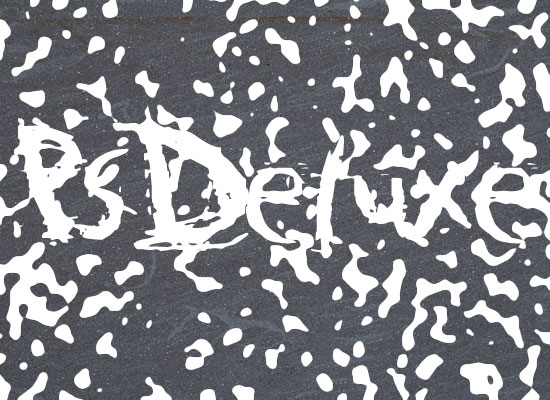
10. Now click Ctrl+E. Now we need add some blending options. At first open Bevel and Emboss. Select following options:
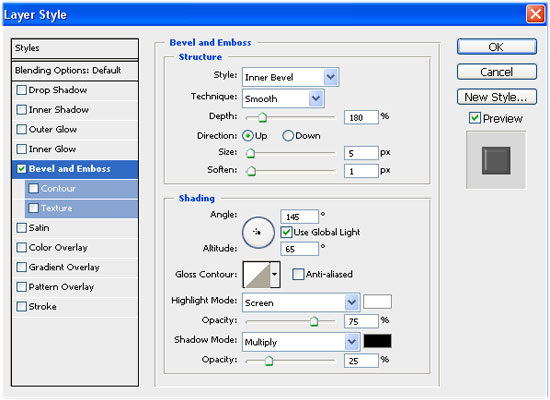
Next in Contour select Raounded steps contour. Click Ok.
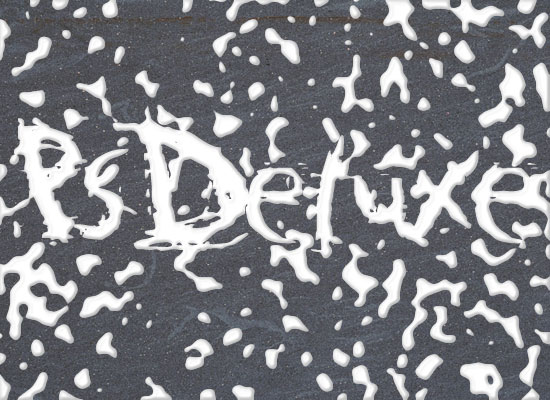
11. And last step. Now all you need to do is set text layer Fill to 10%.
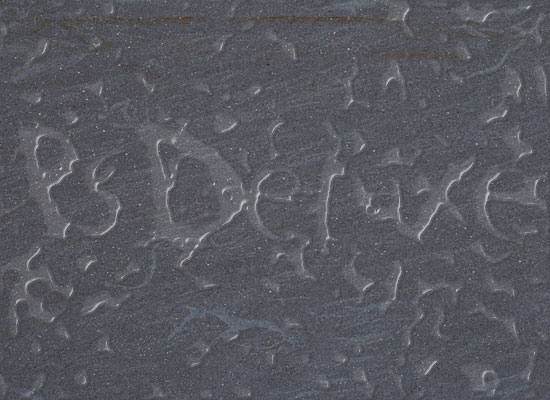
And we get realistic water drops text effect..