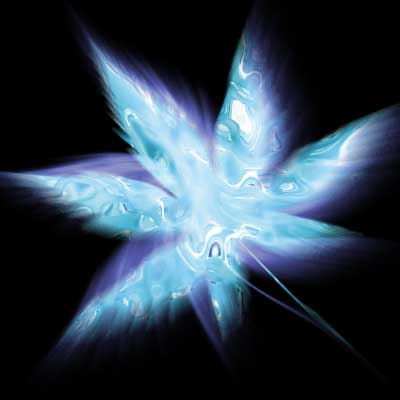
1. Create new layer: size: 500 * 500 Pixels, resolution: 72.
Fill background with black color.
2. Take Custom Shape tool. In shapes options, take shape of leaf.
Use parametrs like below:

3. Draw Leaf:

4. Push Ctrl and then click on leaf in Layers palette.
Next go to Filter -> Render -> Clouds. And Click Ctrl + D

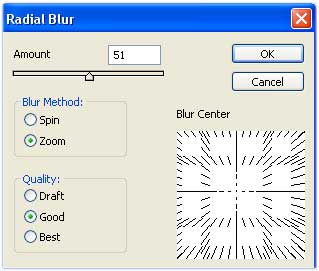
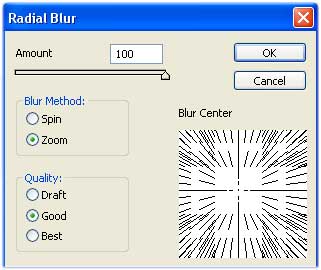
5. Next go to Filter -> Blur -> Radial Blur.
Use paramatrs like below:
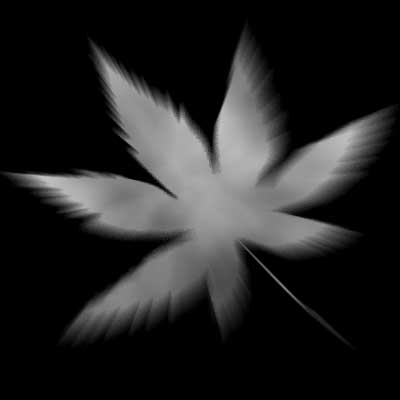
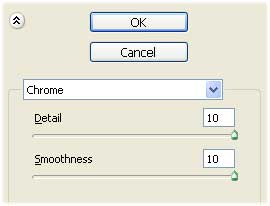
6. Next go to Filter -> Sketch -> Chrome
Use paramatrs like below:
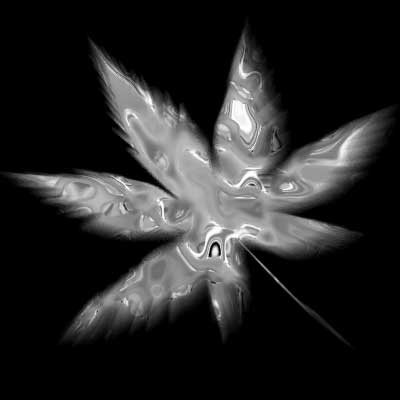
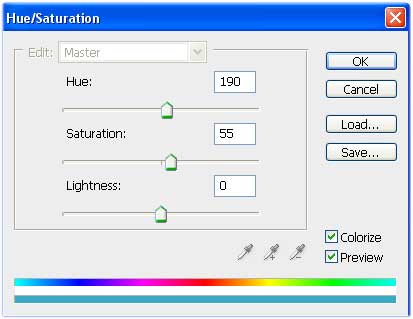
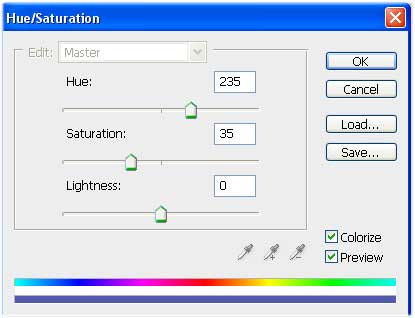
7. Now we colorize leaf. Go to Image -> Adjusments -> Hue/Saturation. Parametrs:
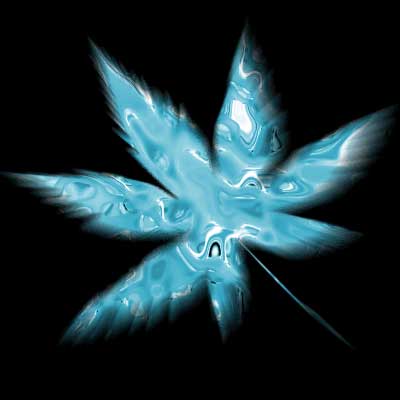
8. Now dublicate layer with leaf and change blanding mode to Screen.
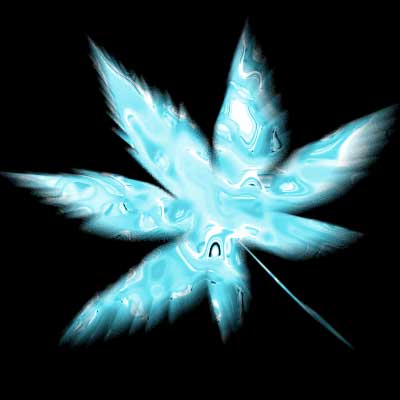
9. To second layer Apply filter Radial Blur
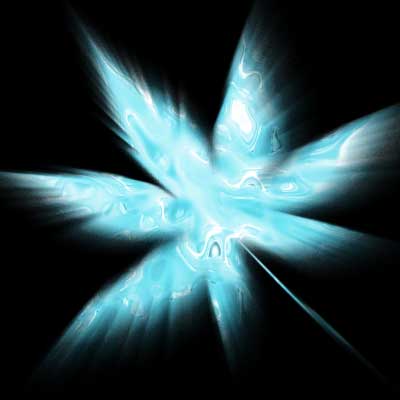
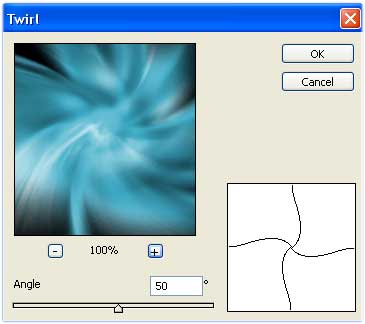
10. Now go to Filter -> Distrot> -> Twirl.
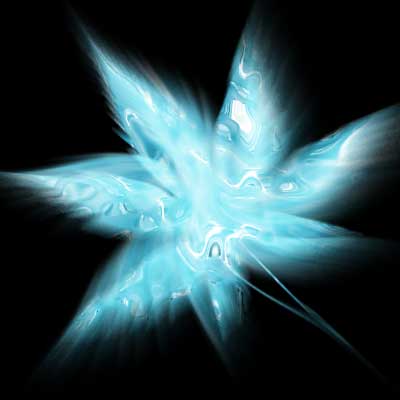
11. Again go to Image -> Adjusments -> Hue/Saturation. Parametrs:
And we will get Result: Magic Leaf: