Step 1:
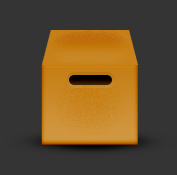
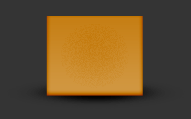
Let's start out by creating a new file. I used a 400x400 pixels canvas set at 72dpi, and I filled my background with #343434 color shade. Now in a new layer draw a black spot on your canvas. Then in another new layer draw a rectangle with #D19843 color shade and 97 x 80 px dimensions on the spot.

Step 2:
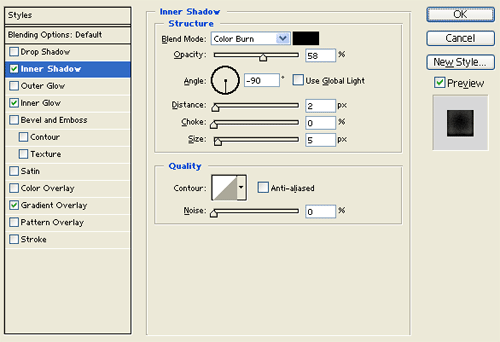
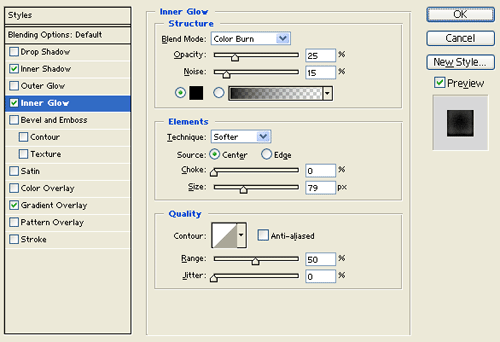
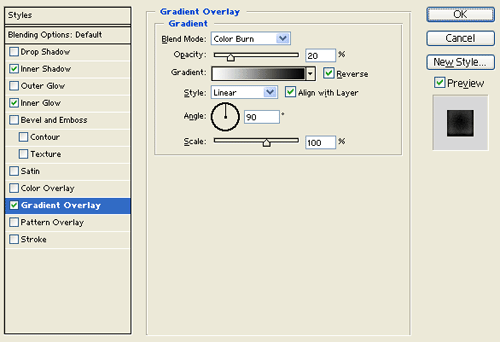
Under Layer Style(Layer > Layer Style) add an Inner Shadow, Inner Glow and Gradient Overlay blending options to your rectangle layer.
Step 3:
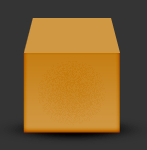
Create a new layer, using the Polygonal Lasso Tool draw the top cover of the box with #D19843 color shade and 96 px 35 px dimensions.
Step 4:
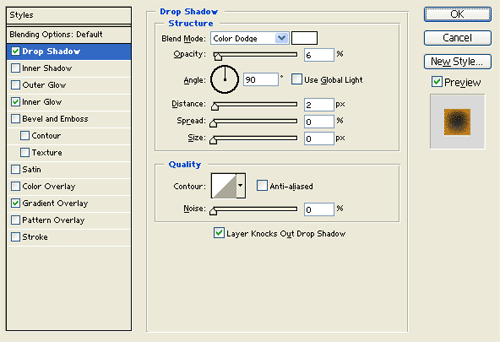
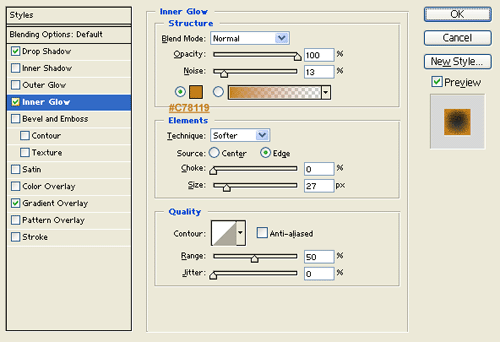
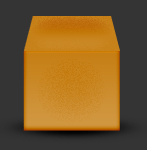
Under Layer Style(Layer > Layer Style) add a Drop Shadow, Inner Glow and Gradient Overlay blending options to the cover of the box layer.
Step 5:
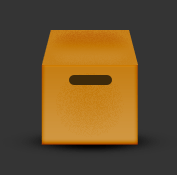
In a new layer draw a small rounded rectangle with #3E2A0B color shade and 43 x 10 px dimensions on the center of the box.
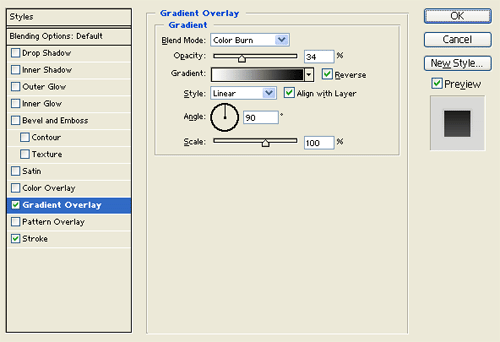
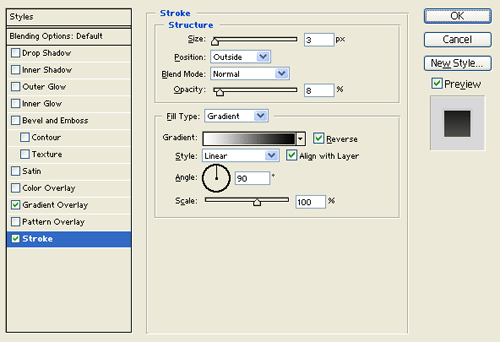
Step 6:
Under Layer Style(Layer > Layer Style) add a Gradient Overlay and Stroke blending options to the rounded rectangle layer.