Step 1:
Let's start out by creating a new file. I used a 1000x300 pixels canvas set at 72dpi, and I filled my background with #FFF2B4 color shade. Now create a new layer then draw a large rectangle with #2E2E2E color shade and 900 x 150 px dimensions.

Step 2:
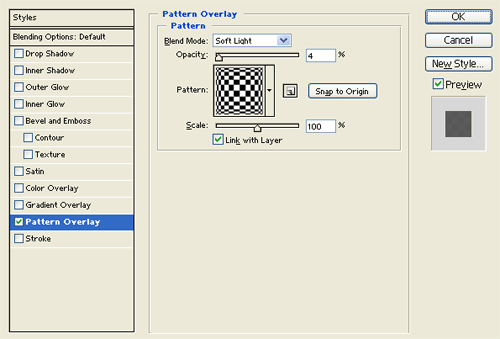
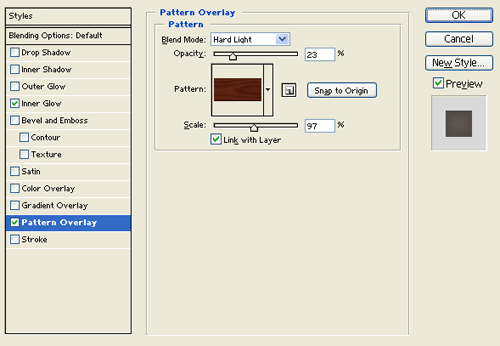
Under Layer Style(Layer > Layer Style) add a Pattern Overlay blending option to the large gray rectangle layer.

Step 3:
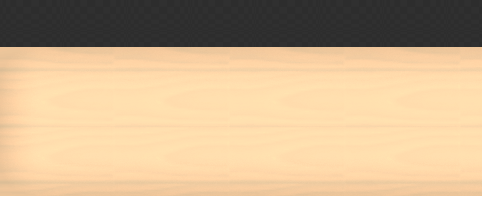
In a new layer draw a large light brown rectangle with #FFEDC1 color shade and 900 x 150 px dimensions.

Step 4:
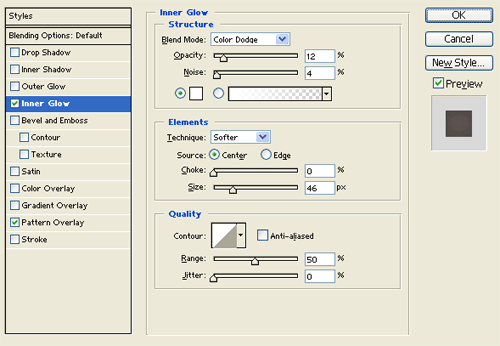
Under Layer Style(Layer > Layer Style) add an Inner Glow and Pattern Overlay blending options to the light brown rectangle layer.
Step 5:
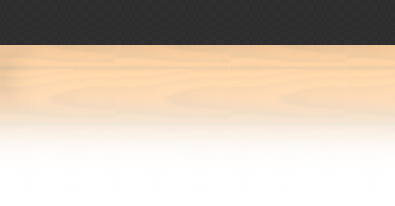
Grab the Eraser Tool with a large soft brush and erase the bottom half of the light brown rectangle design layer.
Step 6:
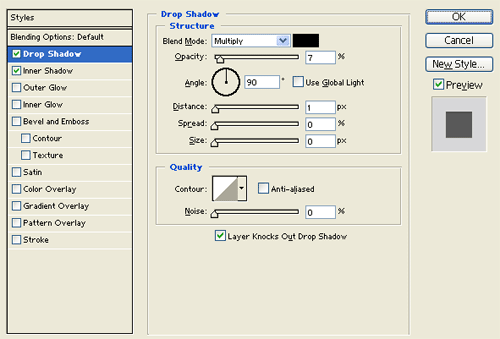
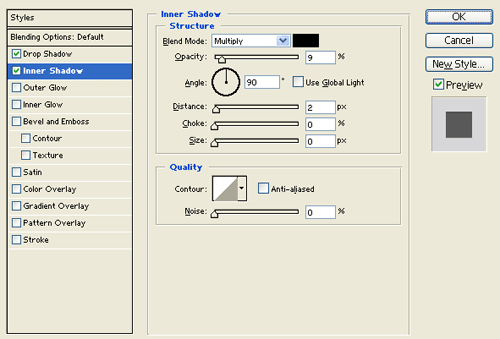
In a new layer draw a long white rectangle with 900 x 31 px dimensions between the large gray and light brown rectangle designs. Then under Layer Style(Layer > Layer Style) add a Drop Shadow and Inner Shadow blending options.

Step 7:
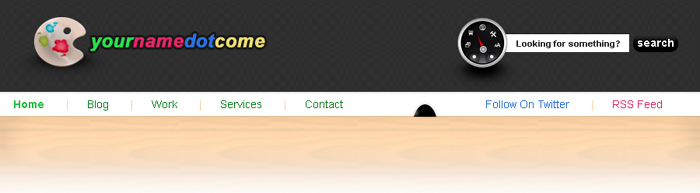
Select the Horizontal Type Tool then set the font family to Arial, regular, 14 pt, none and #007B17 color shade. In a new text layer type out your navigation links with spaces, use #F7CFA3 color shade for the bar spacer between each link.

Step 8:
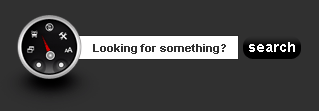
On the right end of the dark gray rectangle leave a space for a search box, grab the file here.
Step 9:
Now add a simple mouse door on the white rectangle, do this by creating a black ellipse in a new layer then cut out the bottom half of the ellipse.

Step 10:
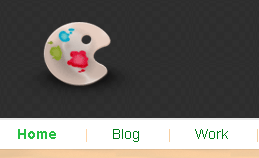
On the left side of the header add your logo or use the painting plate design on this tutorial, grab the here.
Step 11:
Select the Horizontal Type Tool then set the font family to Arial, bold italic, 24 pt, and smooth. In a new text layer type your website name next to the logo, use different color for each word on your name.

Step 12:
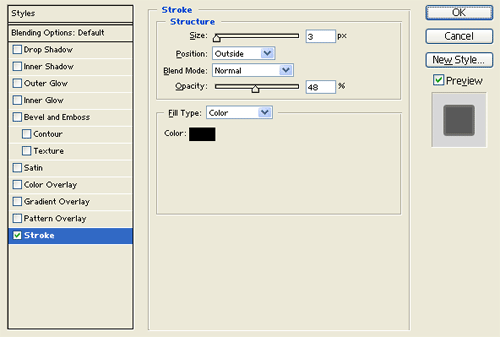
Under Layer Style(Layer > Layer Style) add a Stroke blending option to your website name text layer.