Step 1:
Let's start out by creating a new file. I used a 400x400 pixels canvas set at 72dpi, and I filled my background with white.
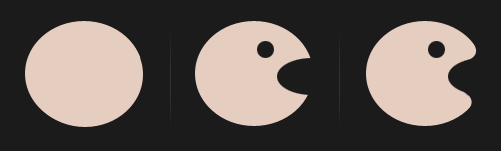
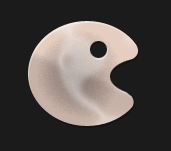
Make a new layer then draw a round ellipse with #E5CDC0 color shade and 115 px 110 px dimensions. Then use the Elliptical Marquee Tool to cut out a small circle and the half ellipse shown below. Now grab the eraser tool with a hard brush and and use it to corve the half ellipse cut.
Step 2:
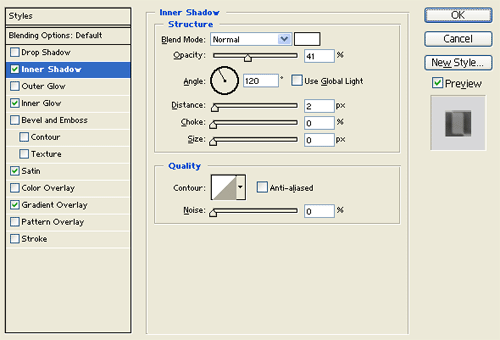
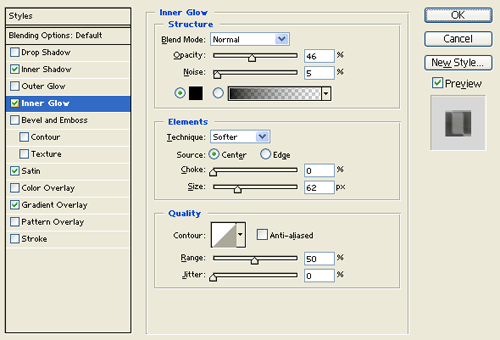
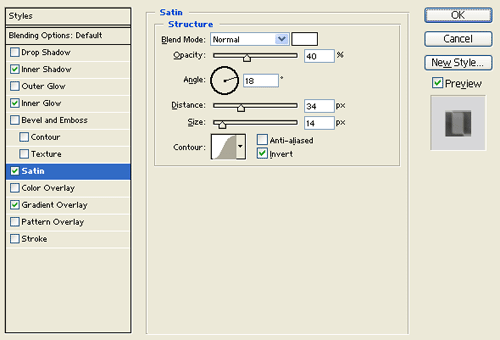
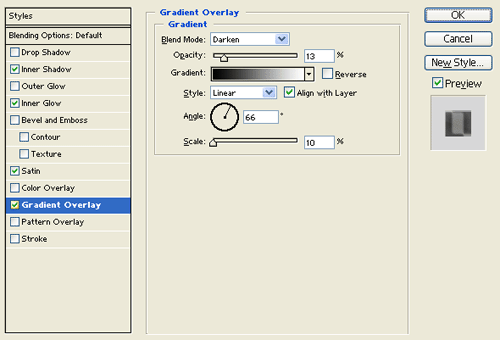
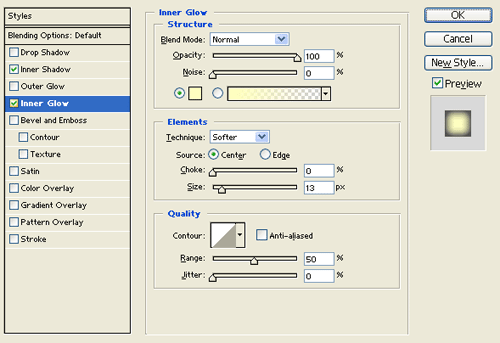
Under Layer Style(Layer > Layer Style) add an Inner Shadow, Inner Glow, Satin and Gradient Overlay blending options to the paiting plate layer.
Step 3:
Create a new layer, using the ellipse tool draw a random paint splatter with #0EA8CA color shade on the top left side of the plate.

Step 4:
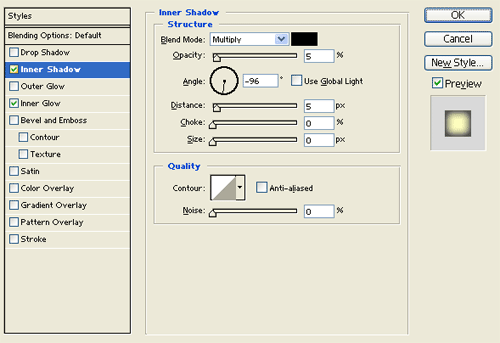
Under Layer Style(Layer > Layer Style) add an Inner Shadow and Inner Glow blending options to the blue paint splatter layer.

Step 5:
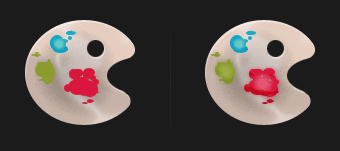
Now add more paint splatter design on the plate, you can use #8A9C2C color shade for the green and #D9173C color shade for the red.
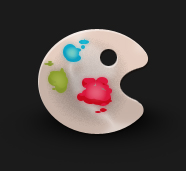
Result: