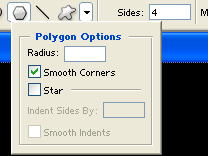
1. Let's start out by creating a new file. I used a 400x400 pixels canvas set at 72dpi, and I filled my background with black. Now make a new layer set and name it 'UFO'. Then select the polygon tool and set the sides to 4 with anti aliased checked, under polygon options use the settings below.
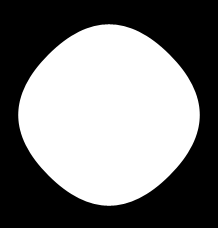
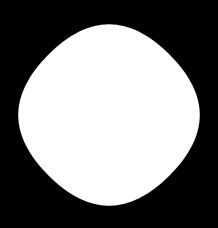
2. In a new layer draw a white polygon with 182 x 182 px dimensions.
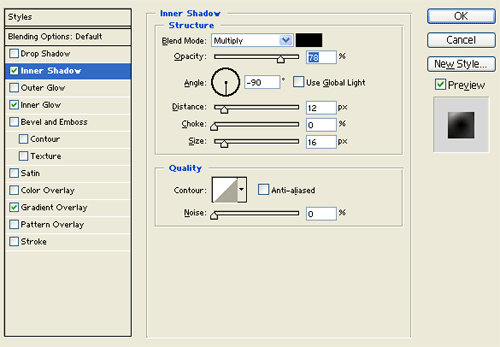
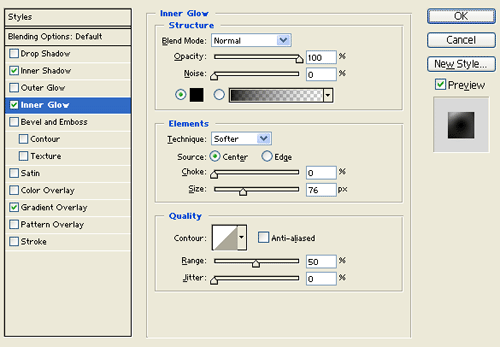
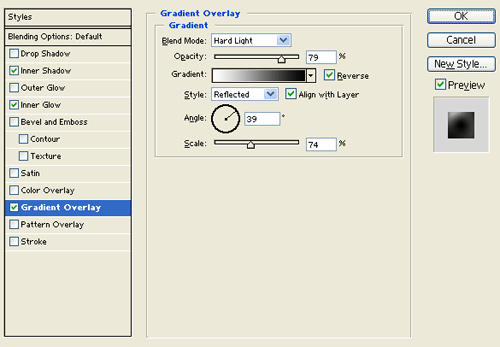
3. Under layer style (layer - layer style) add an inner shadow, inner glow and gradient overlay blending options to the white polygon layer.
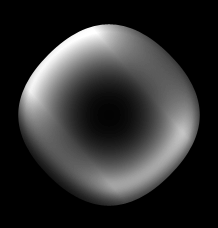
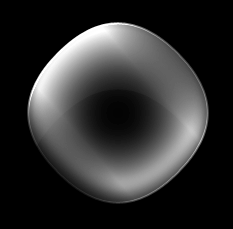
4. In a new layer draw another white polygon with the same size as the first.
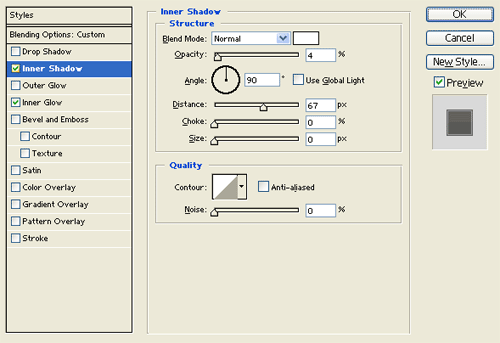
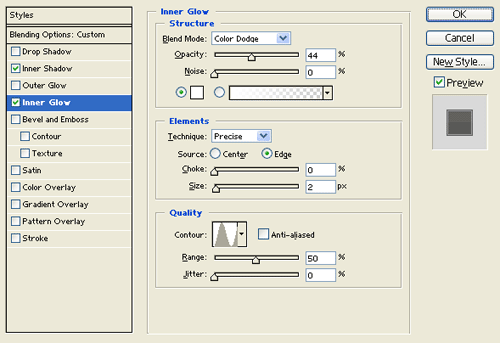
5. Under layer style (layer - layer style) add an inner shadow and inner glow blending options to your second white polygon layer. Then set the layer's blending mode to darken.
6. In a new layer draw a smaller white polygon with 112 x 112 px dimensions.

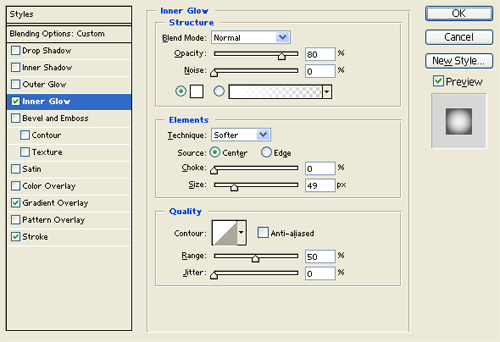
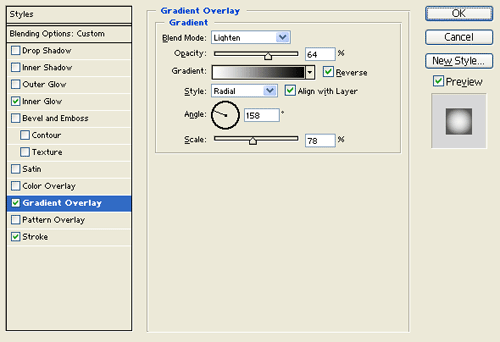
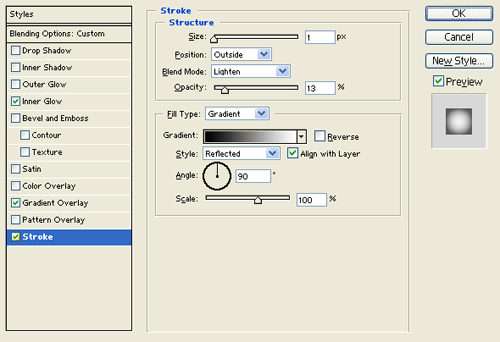
7. Under layer style (layer - layer style) add an inner glow, gradient overlay and stroke blending options to the smaller white polygon layer. Then set the layer's blending mode to darken.
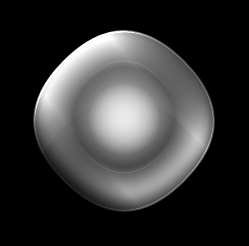
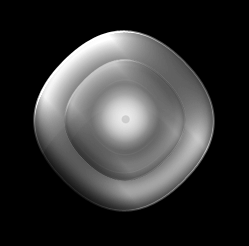
8. Duplicate your 'UFO' layer set and merge it through (layer - merge layer set). Then resize the layer through (edit - transform) by 75% and place it on the center of the design. Finish it off with a small gray circle on the center.