Step 1
Create a new document with the size 800px by 600px. Then download this photo, open it in Photoshop and move it into your document using the Move Tool (V). Right-click on this layer and select Convert to Smart Object. Then go to Edit > Free Transform, hold down the Shift key and scale this layer down.

Step 2
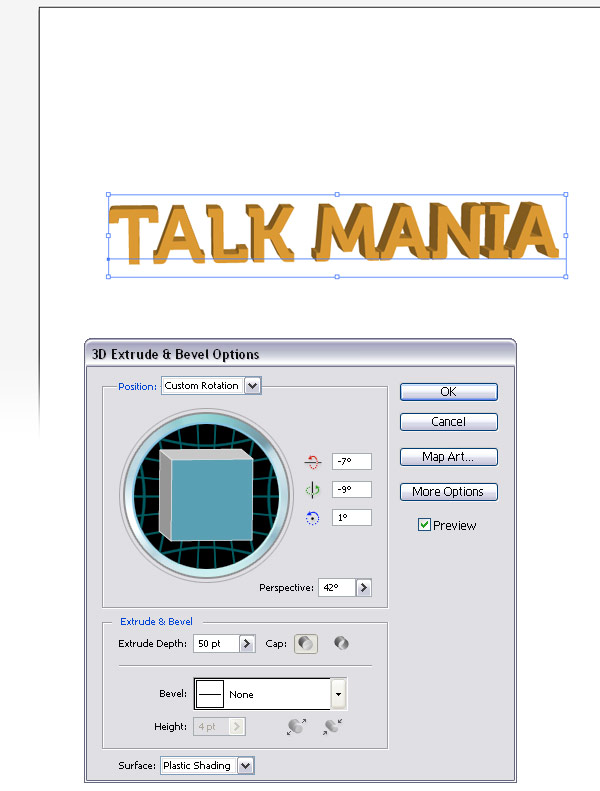
Open a new document in Adobe Illustrator. Select the Type Tool (T) and write your text using the color #FBB03B. Then select your text using the Selection Tool (V), go to Effect > 3D > Extrude & Bevel and use the settings from the following image.
Step 3
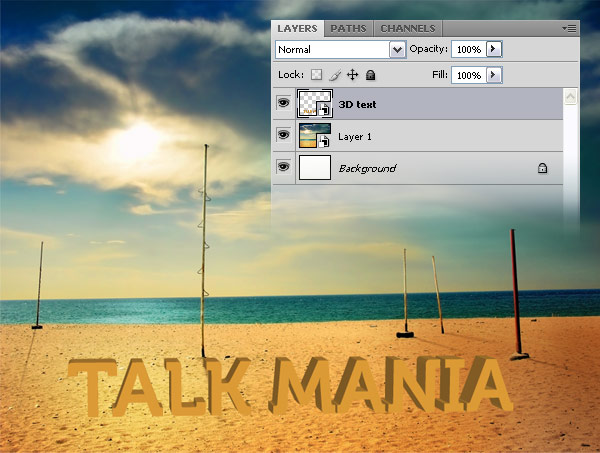
With your 3D text still selected in Illustrator, hit Ctrl+C to copy it, go back to your Photoshop document and hit Ctrl+V to paste it as a smart object. Name this layer "3D text."
Step 4
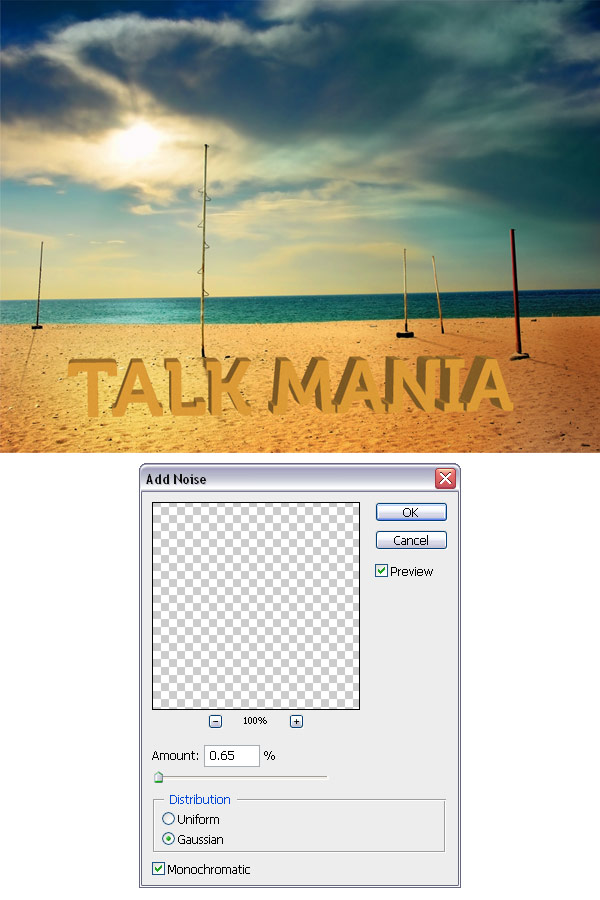
We will add some noise to our text to make it look a little bit more realistic. Go to Filter > Noise > Add Noise and use the settings from the following image.
Step 5
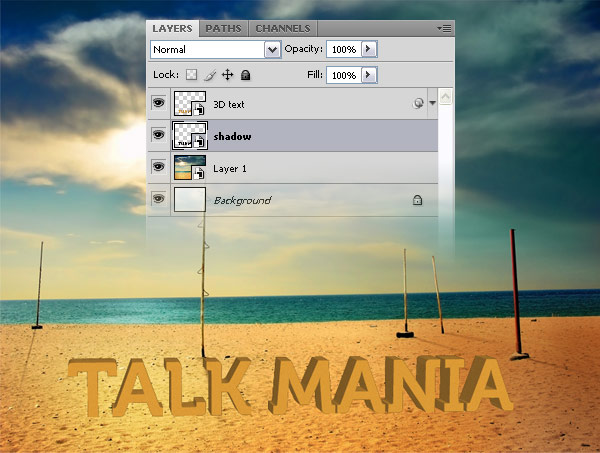
Now we are going to create a shadow for our text. Ctrl-click on the thumbnail of the "3D text" layer to select it, create a new layer beneath the "3D text" layer and fill it with black. Right-click on this layer and select Convert to Smart Object. Then name it "shadow."
Step 6
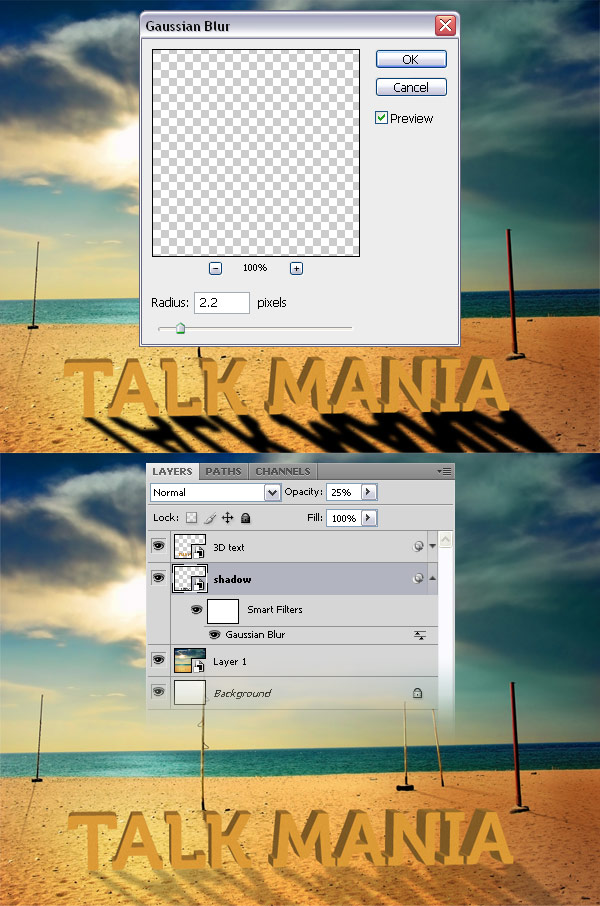
Go to Edit > Transform > Flip Vertical. Then go to Edit > Free Transform, hold down the Ctrl key and transform the shadow like I did. Go to Filter > Blur > Gaussian Blur and use the settings from the following image. Set the opacity of the "shadow" layer to 25%.
Step 7
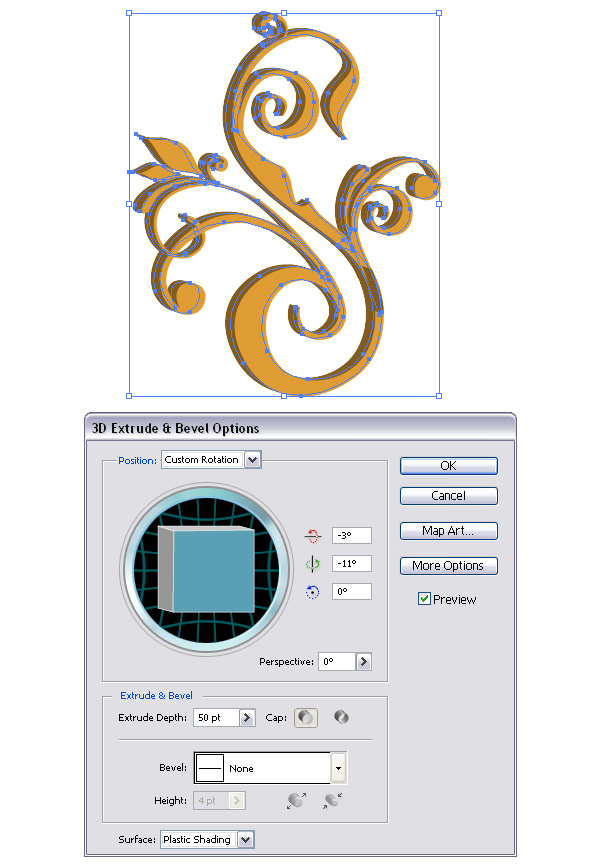
Download the Hoolander vectors from the Talk-Mania shop, open the .AI file in Illustrator and select a vector that you like using the Selection Tool (V). Change the color of that vector to #FAAF3A. Then go to Effect > 3D > Extrude & Bevel and use the settings from the following image.
Step 8
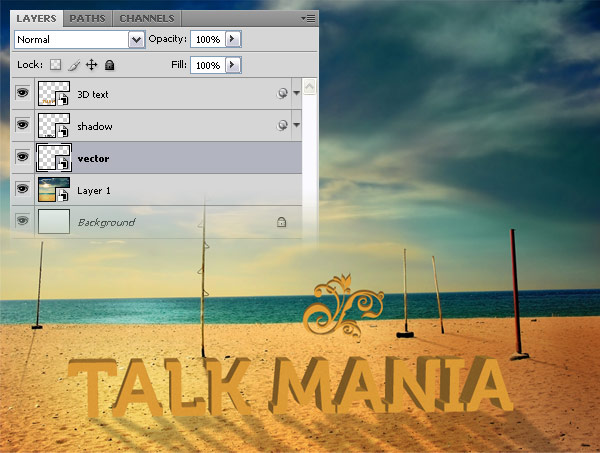
Hit Ctrl+C to copy your vector, go to your Photoshop document and hit Ctrl+V to paste it as a smart object. Name this layer "vector" and use Free Transform (Ctrl+T) to scale it down.
Step 9
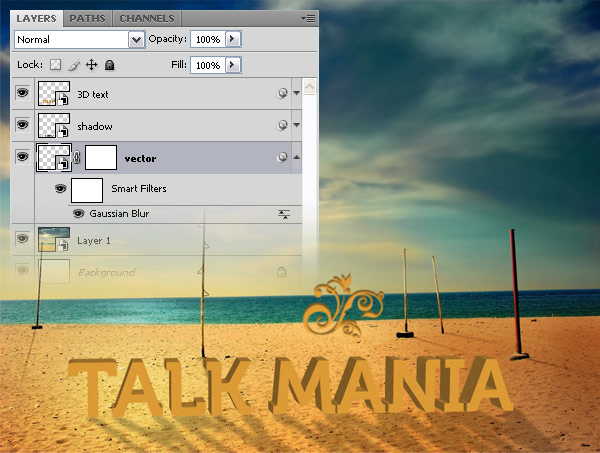
Go to Filter > Blur > Gaussian Blur and use the settings from the following image. You can also use a mask (Layer > Layer Mask > Reveal All) and a black soft brush to mask the bottom area of this shape.
Step 10
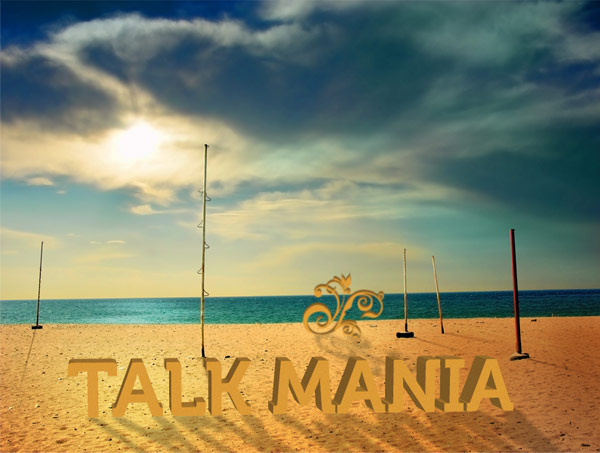
Add a shadow to your vector using the same technique which you have used for the 3D text.
Step 11
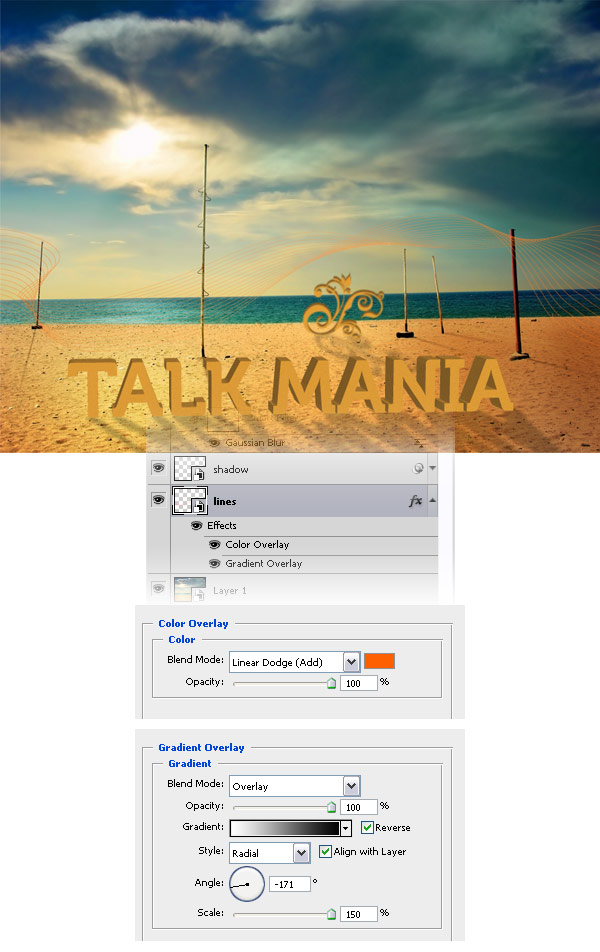
Download the Lines vector pack from the Talk-Mania shop and open the .AI file in Illustrator. Then copy some lines that you like (Ctrl+C) and paste them into your Photoshop document (Ctrl+V). Name this layer "lines", double-click on it and use the settings from the following image. Set the opacity of this layer to 85%.
Step 12
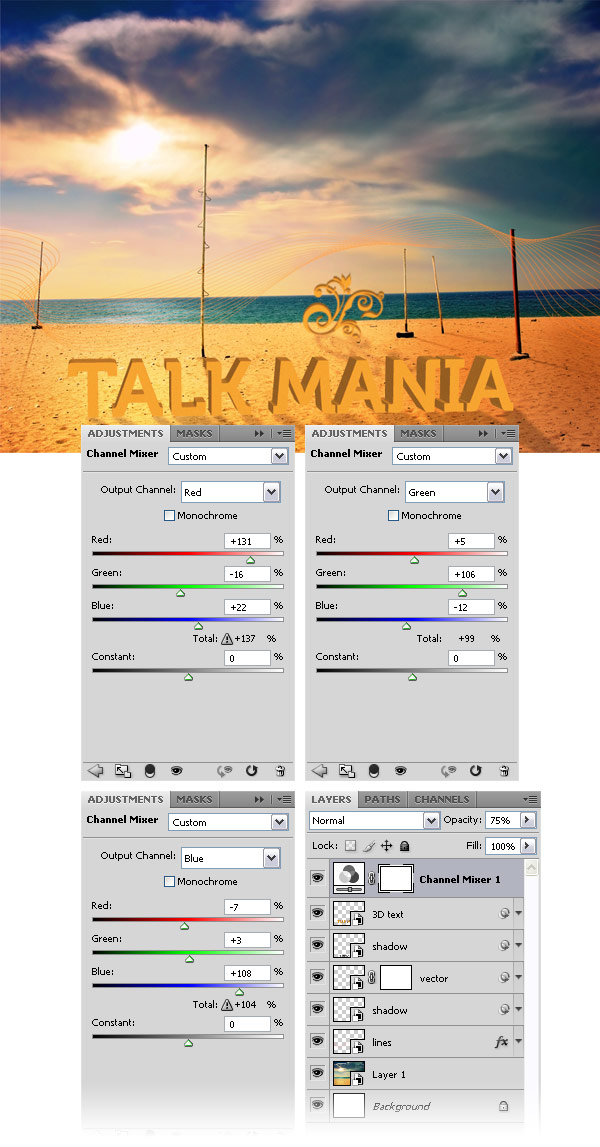
Go to Layer > New Adjustment Layer > Channel Mixer and use the settings from the following image. Set the opacity of this layer to 75% and put it above all the other ones.
Step 13
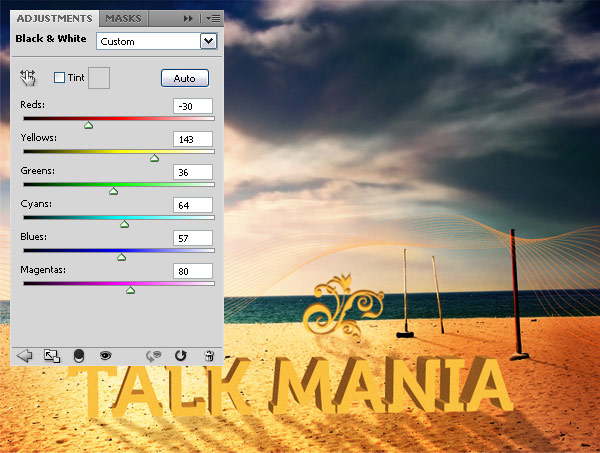
Go to Layer > New Adjustment Layer > Black & White and use the settings from the following image. Set the blend mode of this layer to Overlay 65%.
Step 14
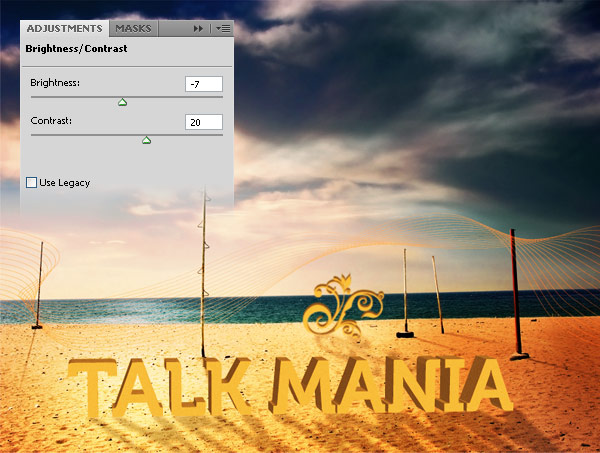
Go to Layer > New Adjustment Layer > Brightness/Contrast and use the settings from the following image.
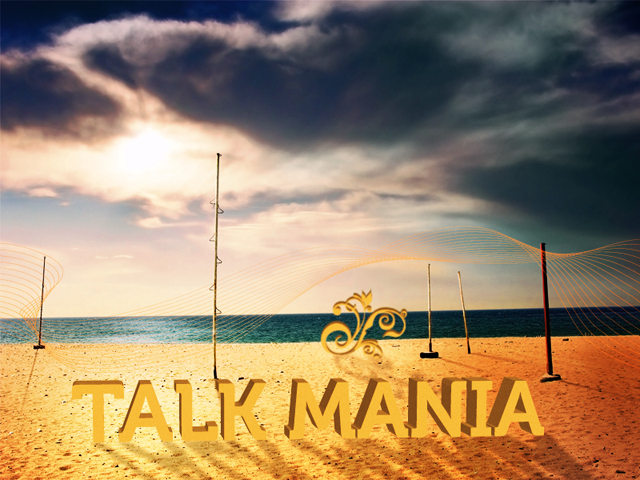
Final Result