


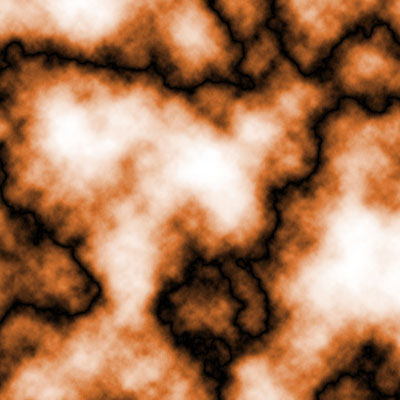
1. Start off with a good sized image. Make a new layer and call it "fire". Now set you foreground color to black and BG color to White. Do: Filter > Render > Difference Clouds. Do that a few times till you get something with a lot of variance. Now do: Image > Adjustments > Equalize. Then do: Image > Adjustments > Hue/Saturation... Check colorize and st Hue: 25 and Saturation: 65. You should get something like below.
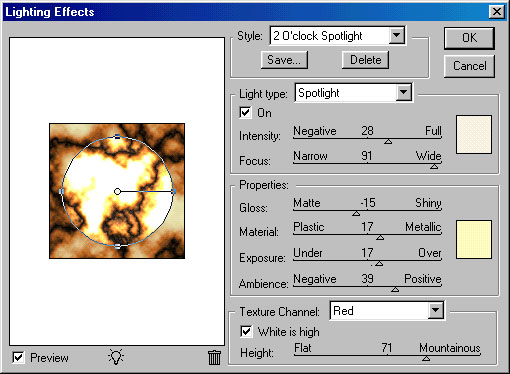
2. Now duplicate the Fire layer and name it "Burst". Duplicate the fire layer again and name it "Energy". Make sure they go from top to bottom: Burst, Energy, Fire. Click the burst layer and do: Filter > Blur > Radial Blur... Blur Method: Zoom, Quality: Good, Amount: 100. Now with the Energy layer selected, do: Filter > Render > Lighting Effects... set it up as follows.
3. Final step. Set the Fire layer and the Burst layer to lighten. now THAT's explosive energy!
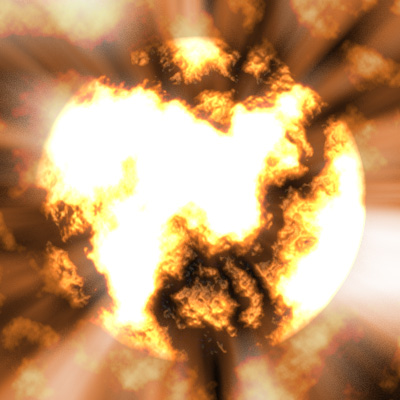 Final Result |
