

Introduction
In this tutorial, I will introduce you to navigation bars, and how to create them in Photoshop.
Preparation
Things needed- Photoshop
A desire to learn this sh*t
Step 1
Open a new document that is 500x500,RGB, and on a white background. Create a new layer and drag out the rectangular marque, to the size you want your navigation bar. Fill it with 5E5E5E

Step 2
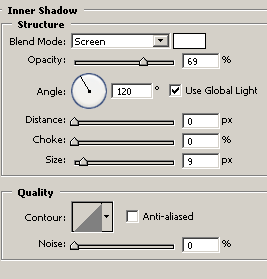
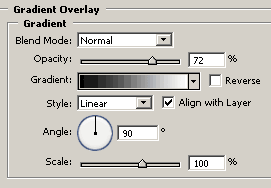
Go to layer effects, and set the following settings.
Inner Shadow
Gradiant Overlay
And a 1pixel, black stroke.
Step 3
Grab your text tool, and make 1 layer, for each button ei. Home=1 text layer, etc.
Make all your links and add any effects that you want to the text.

Now, we will do the last step and add some inset lines.
Step 4
Zoom in, grab the line tool, and pull out a line 1px in width to the same or close to the same height as the nav bar.

And then add this effect
Outer Glow
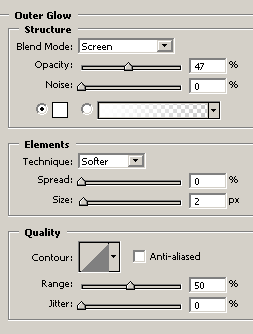
Then zoom out, duplicate the lines, and add them inbetween the text, and your result should look like this:

After some tweaking and adding things, i came up with this:

Thanks for following my tutorial. Good Luck!
