| 1.
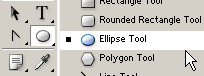
Set the foreground color to the one of your choice, I used #85CC32 for the main Ball Shape. Now select the Ellipse Shape tool on the toolbar and draw in the shape as i have captured in step #3. |
 |
|
| 2. Also, Pay attention to all the options
that are selected on the Options Bar. |
 |
|
| 3. Here's the starting point -- simple enough. |
 |
|
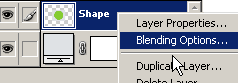
| 4. Go the Layers Palette, right click on the layer and choose 'Blending Modes' and select the options as I have captured below. |
|
 |
|
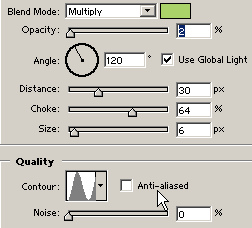
| 5. Inner Shadow Mode Options Inner Shadow Color #AAD36A |
|
 |
|
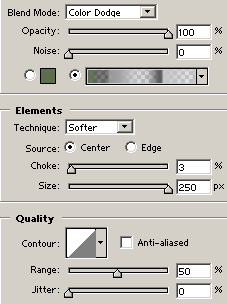
| 6. Inner Glow Mode Options I've used a Gradient here instead of a solid color. Download the Gradient File Here (zipped) and load it into the Gradient Panel. Click Here to see how to 'Load' a Gradient File. |
|
 |
|
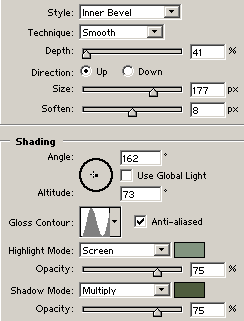
| 7. Bevel & Emboss Mode Options Highlight Mode Color #82947F Shadow Mode Color #4E5C3D |
|
 |
|
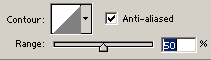
| 8. Contour Mode Options |
|
 |
|
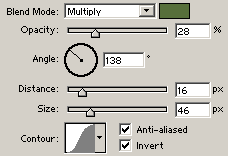
| 9. Satin Mode Options Blend Mode Color #576F3A |
|
 |
|
| 10. Color Overlay Options Blend Mode Color #3B582E |
|
 |
|
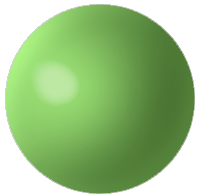
| 11. Here's the final result. Variations of the above modes are entirely up to you. Explore to find out... |
|
 |
Her
Ball Shape and Texture
Added:Nov 29, 2004 Rating:

 Level: Beginner Software:
Photoshop
Level: Beginner Software:
Photoshop
Level: Beginner Software:
Photoshop
