| 1.
Here's simple 'Texture/Pattern' affect to make your photos look like a puzzle. |
|
| |
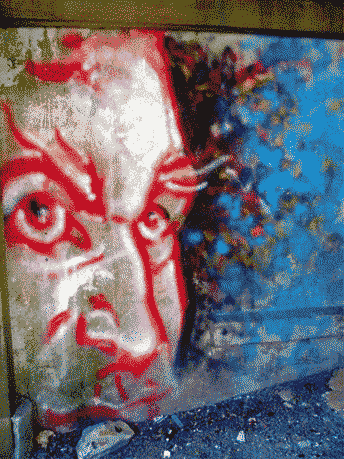
| 2. Here's the original photo of graffiti
art on a wall I found in my neighborhood. Note make sure to backup the original(Duplicate). |
|
 | |
| |
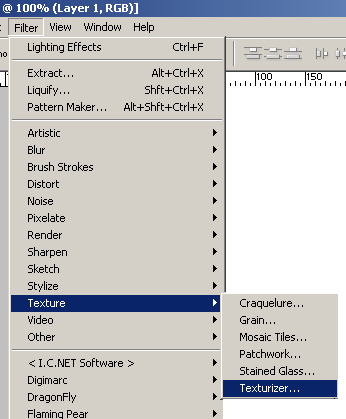
| 3. Start by going to the 'Filter/
Texture/Texturizer...' option as I have captured below. |
|
 | |
| |
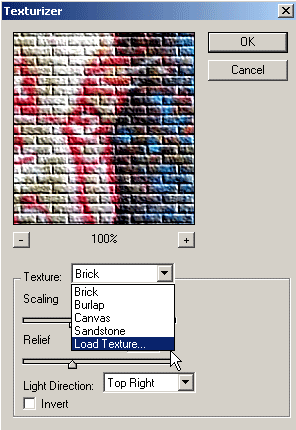
| 4. Then in the 'Texturizer' Control Panel
select 'Load Texture' from the 'Texture' drop down list. |
|
 | |
| |
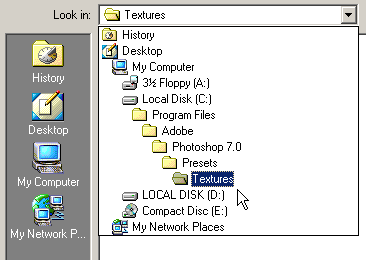
| 5. Next, browse to your Adobe Photoshop
'...Presets/Texture' folder on your hard rive, then locate and select a file called
'Puzzle.psd' that should have been installed with the original program. Selecting it automatically loads it back into the 'Texturizer' filter panel. |
|
 | |
| |
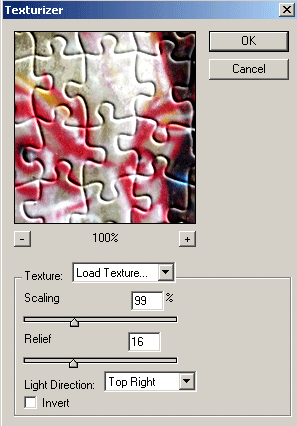
| 6. Next, toy with the additional settings
('Scaling/Relief/Light Direction')in the 'Texturizer'
control panel until your content with the result. |
|
 | |
| |
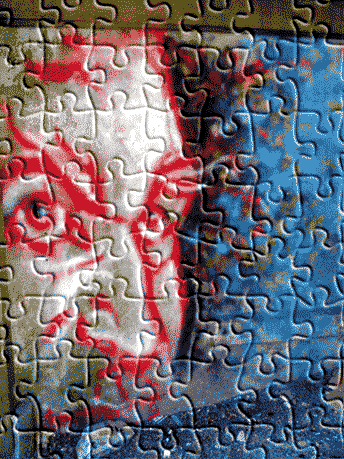
| 7. Here's the final result. . |
|
 | |
Her
Puzzle Pattern
Added:Dec 01, 2004 Rating:


 Level: Beginner Software:
Photoshop
Level: Beginner Software:
Photoshop
Level: Beginner Software:
Photoshop
