|
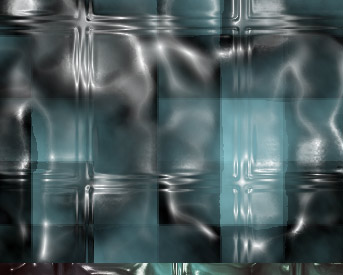
Here's a few simple steps to create this realistic glass effect pattern.
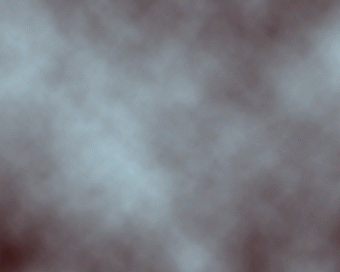
First start a new document. I started with a preset of 343 x 275. Next, create a new empty Layer and apply a 'Clouds' Filter ('Filter/Render/Clouds') to produce a result similar to the below capture.
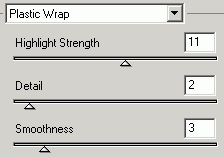
 Next, go 'Filter/Artistic/Plastic Wrap' and apply the below captured settings.
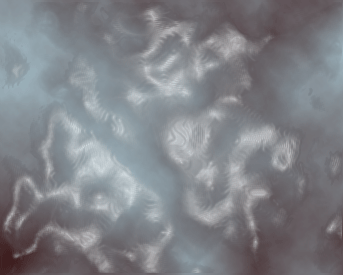
 To achieve an effect similar to the below capture.
 Next, go 'Filter/Distort/Glass' and apply the below captured settings.
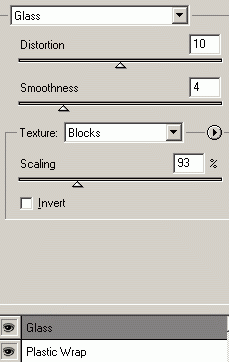
Note: As you noticed, these settings were applied using Photoshop CS Filter Gallery.
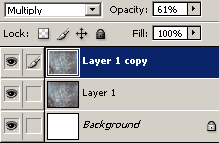
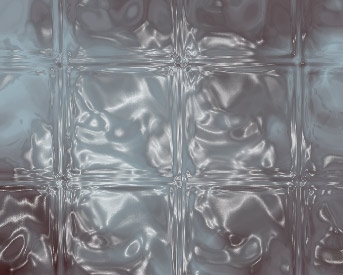 As an added effect to the tone, simply, duplicate that end result Layer, and change the Layer Mode to 'Multiply' and reduce the Opacity Level to a desired integer. (I used 61%)
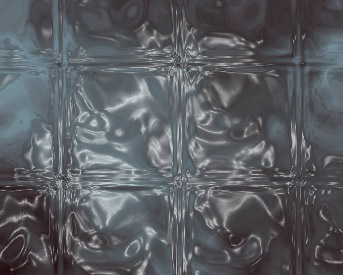
 And here is the variation.
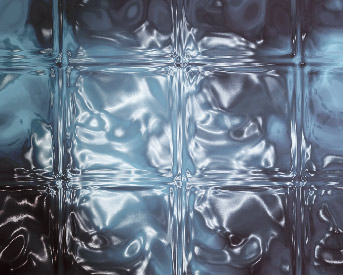
 A few more variations
 |
Her
Glass Texture Effect
Added:Dec 02, 2004 Rating:


 Level: Beginner Software:
Photoshop
Level: Beginner Software:
Photoshop
Level: Beginner Software:
Photoshop
