1. Create new file with desired size, 72 PPI and white background.
Keep black as foreground color.
2. Type the text.

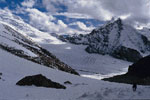
3. We have used above image as 'Day' picture

4. We have used above image as 'Night' picture

5. Drag the night image on the file
6. Layer > Group with Previous
(ctrl+G)
7. The Layer Palette will look like this. Name the layer 'Night'
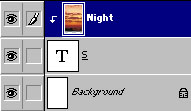
8. Drag the day image on the file. Name the layer 'Day'
9. The Layer Palette will look like this
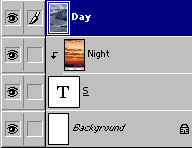
10. Drag the day below the night layer
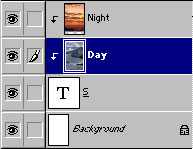
11. Select night layer. Select eraser tool. Choose soft
round brush (we used 65)
12. Erase the upper half of the night layer

13. Layer > Layer Style > Bevel & Emboss (outer bevel) + Drop Shadow