1. Create new file with 72 PPI and white background.
2. Click Channel Tab and create New Channel. The file will become black.
3. Select the Text tool and type the text. Deselect it with CRTL+D

4. Select paintbrush with hard edge and create some drops to add more spice or keep as it is.

5. Filter > Sketch > Plaster
Image Balance: 25
Smoothness: 2
Light Direction: Right

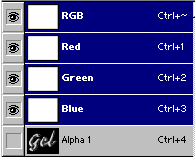
6. Channel palette will look like this.
7. Click Layer Tab and Select
the Background layer.
8. Select > Load Selection > Alpha1
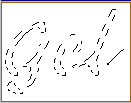
9. Select any desired color for foreground
10. Press Alt + Del once to fill foreground color into selection

11. You can press Alt + Del once more to concentrate the fill to get proper gel effect.