


1. Open Photoshop. Open an image to apply Liquify filter.
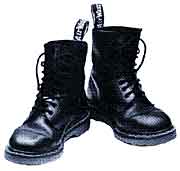
2. Filter > Liquify
3. This will open the Liquify dialogue box.
4. By default, the Warp Tool is selected if not, select the following Warp Tool at the top left of the dialogue box.

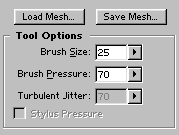
5. Input 25 for brush size and 70 for brush pressure
6. Place the cursor on the Toe of the left shoe and drag it slightly towards right.
7. Place the cursor on the Toe of the right shoe and drag it slightly towards left.
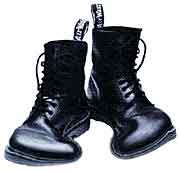
8. Click OK and save the image.
