1. Open a new project and write what ever text you want.

2.
Go
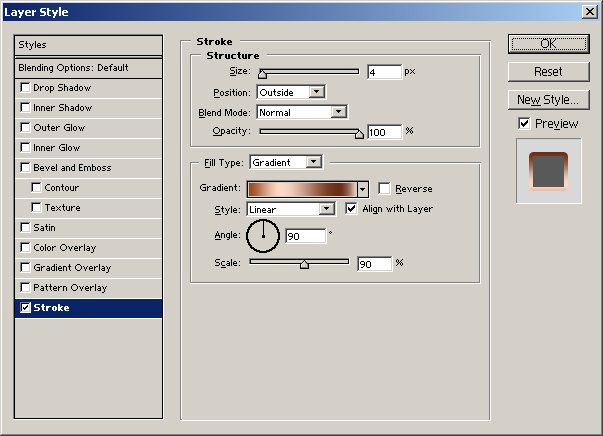
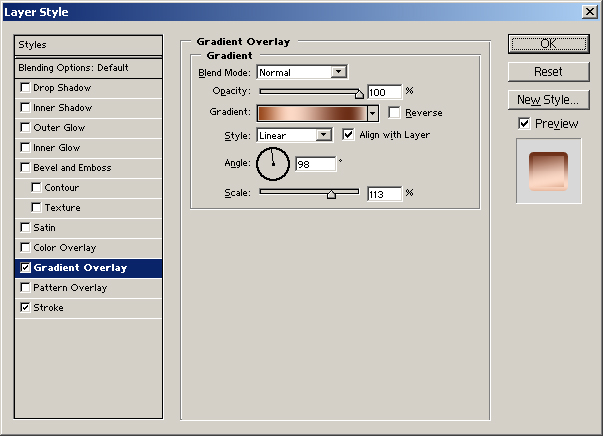
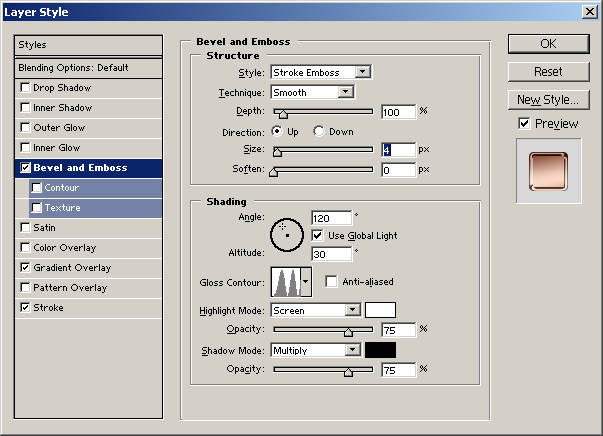
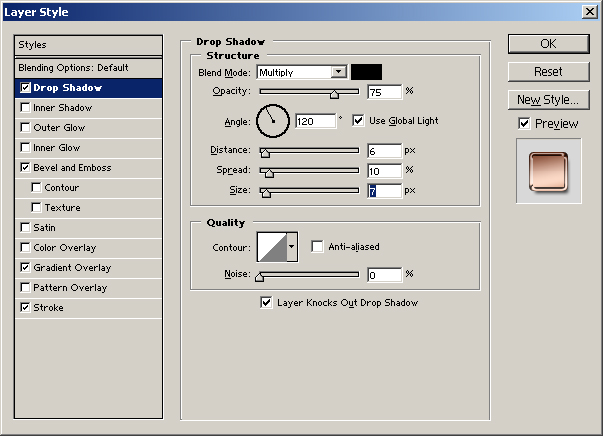
to blending options and add a stroke. To get
the gold effect we will first make it in copper
and edit it to gold later. Use the settings
on the picture.
3.
Now
we want to give our text some nicer colors,
but first we need to flatten the image. Go to:
Layer --> Flatten
Image. Now made your image in to one layer and
made it editable for adjustments. Now go to
Image --> Adjustments --> Hue/Saturation.
I have tried out what makes the best gold effect
and I have reached the conclusion that theese
is the best gold settings:
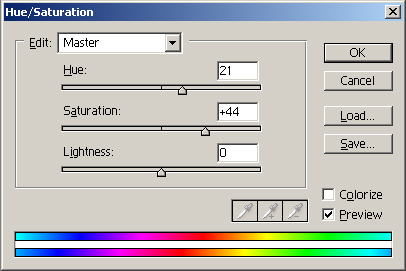
4. Now here's what we've got: