1. Create a new layer. (181x181) and add your text to it.

2. Go to blending options and change the settings to these settings.
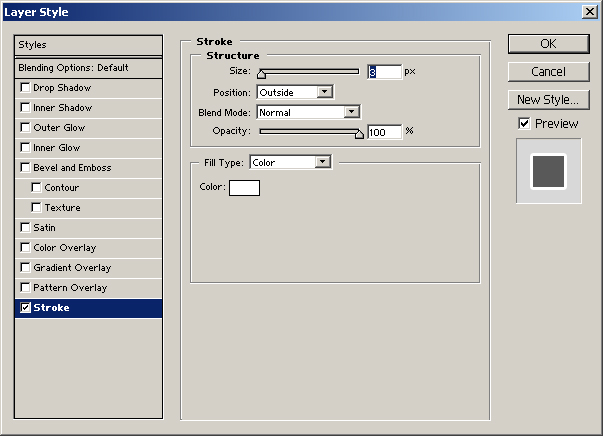
In the Drop Shadow mode its very important that you set the distance to 0, or else the second stroke will look none-centered!
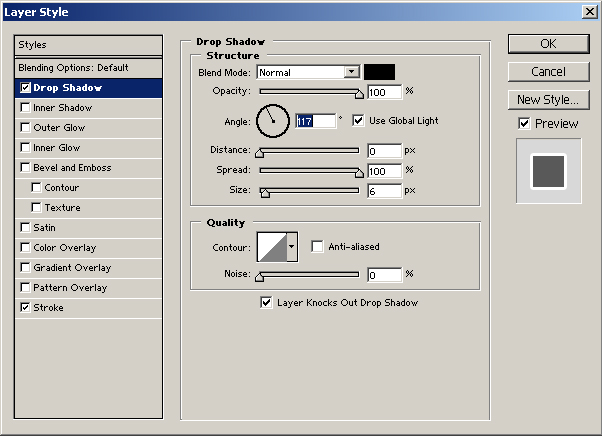
3.
This will make
your text look like you have to strokes

4.
My
Result. I only added a new background, put on an inner shaddow
and a gradient overlay. If you want to have a third stroke
you can change the Outer Glow settings just like you changed
the Drop Shadow. Remember multiple strokes can be used for
more than just text!