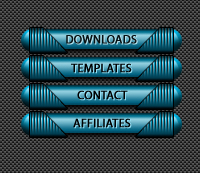
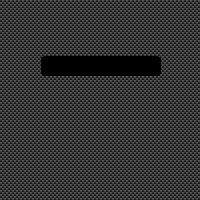
1. Ok we're gonna start out with a pattern as a background. This part is unecessary if you are using your own background pattern. With your rounded rectangle tool, with a 4 px radius create a rectangle with somewhat the same size as I did. Make it black.
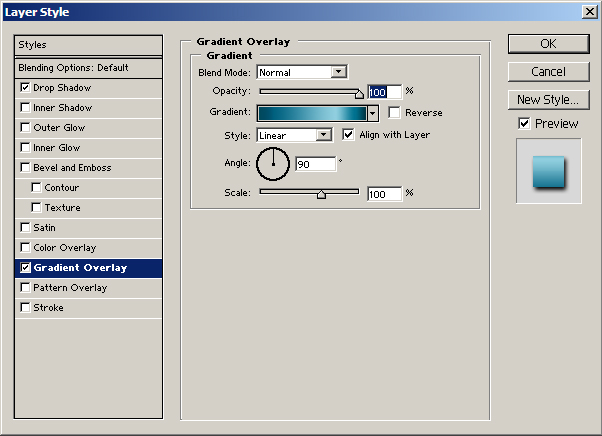
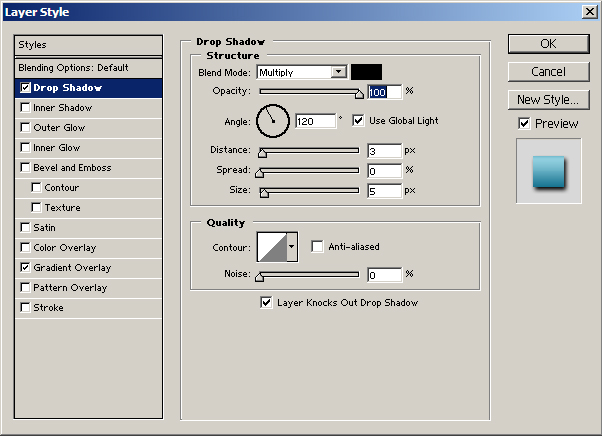
2. Now create a new gradient, similar to "pic 1" and save it. Go to layer, layer styles and go gradient overlay as in "pic 2". Apply a drop shadow as in "pic 3". Now it should look like "pic 4".
 Pic 1 |
 Pic 2 ( Click to Enlarge ) |
 Pic 3 ( Click to Enlarge ) |
 Pic 4 |
3.
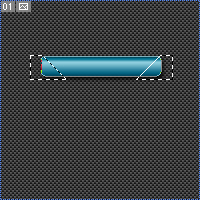
Use your polygonal
selection tool to create a selection like I did below (You
might want to create one selection, fill it and the flip it
horizontally and use it again.)
Now create a new layer, call it "top" and fill it
with black.
4.
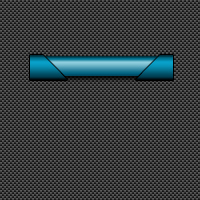
Now,
like in step 2 create a new gradient and set the layer style
to gradient overlay. You might also give this layer a drop
shadow or a 1px stroke. I gave it a drop shadow.

5.
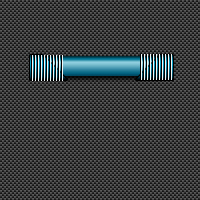
Now
create a new layer and call it "indents". Create
indents, plenty of them where I put them.
6.
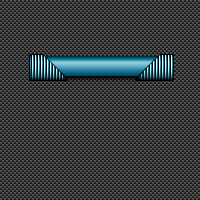
Hold
CTRL and click on your "top" layer at the layers
palette to select it. Go select - inverse to inverse it, and
on your "indents" layer hit delete.
7.
Now
on your indents layer, use the erase tool to remove some parts
of the indents at the bottom. On the top, use the burn tool,
and where the light is, you use the dodge tool. Make it look
like mine, it's important to make it realistic.
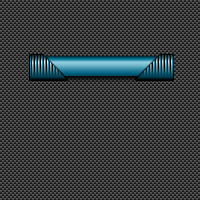
8.
Now
the rest is pretty straight forward. You wanna create some
white text.

9.
Now
hold ALT and click your arrows on your keyboard UP, then LEFT.
You will now duplicate your first layer twice, moving the
new layers up, the to the left. The top layer you should fill
inn with black. Now we have a inset text effect.

10.
Below
all your layers, create a new layer and call it "orbs".
Create, with your eliptical marquee tool, two circles like
I did below. Only parts of them will show, because they are
below your other layers. Use the orb tutorial to make the
orbs realistic. If you dont care enough, just use your dodge
and burn tools to make it dark below and light at the top.