


In this brief tutorial I will show you how to create probably one of the most easiest text tutorials you've ever taken, adding some life to your pixel text.
1. Start off with a new image, the size doesn't matter. You may want to use a darker background color, I chose a darker gray (B2B2B2).
2. Now, type your text. I chose white (FFFFFF). A lighter color would be much better to use on a darker background.
Text settings:
Font: 04b_03b
Size: 8PT
Anti-aliasing: None

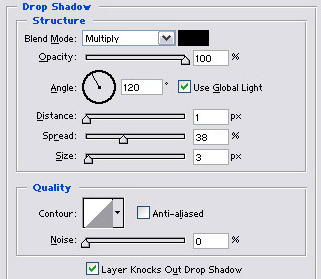
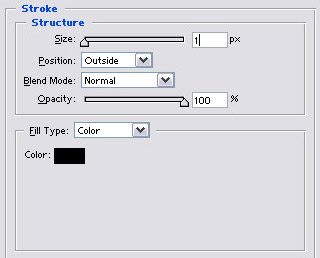
3. Now, right click on your text layer and goto "Blending Options". Put the following settings in:
Drop Shadow:
Stroke:
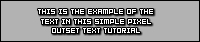
4. Now after that you should have text that looks like this:
Thank you for reading this brief, short tutorial!
