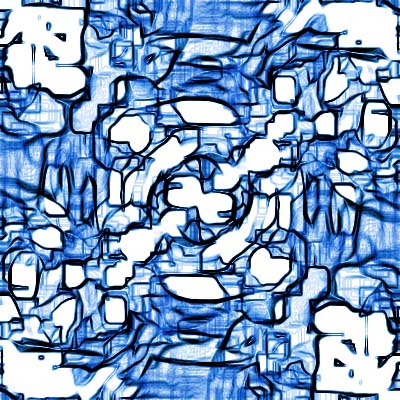
I dont know how to describe this background... i couldnt even think of a name :
1. Make a new image, ours is 400 x 400 - with a white background
2. Fill the background with Black[ we used #000000]
3. on the same layer, click Filter > Render > Lens flair - leave it on default settings, but place it near the top left hand side of the image
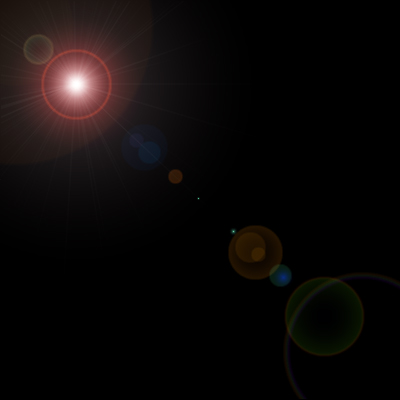
5. Place more lens flairs, on the top right, bottom right, bottom left and middle - but dont put them perfectly alligned:

6. next click Filter > sketch > chrome - and leave it at the default settings

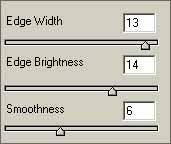
7. Once ok has been clicked, click Filter > stylise > Glowing edges -and give it the following settings:
8. Next Filter > Stylise > Find edges
9. Click Image > Adjustments > Hue/saturation - and check the colorize box. then give the following settings: Hue - 110 ... saturation - 75 ... lightness - 0
10. click layer > duplicate layer... and rename it anything you like, it dosent matter.
11. click Edit > transform > Flip horizontal
12. click Edit > transform > Flip Vertical
13. on the layers palate, set the blending options to multiply