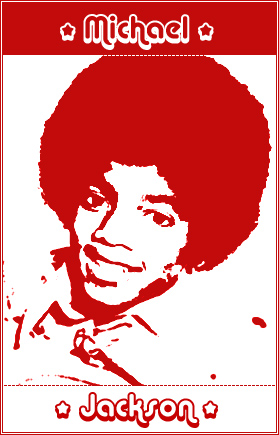
This is a professional looking, one colour effect.
1. Open your picture, in this example we used Mr. Michael Jackson!
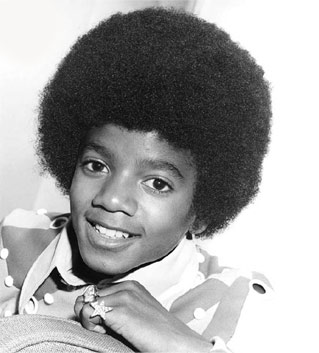
2. First, we need to take away the colours and to reduce it to a two tone picture. So, click Image > Adjustments > Threshold. Give this a setting of 125 and hit ok.
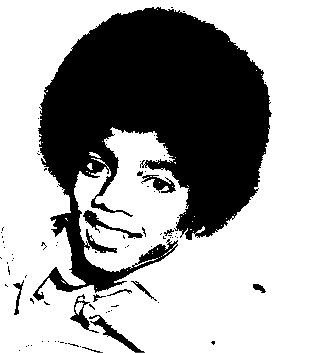
3. Next we need to click: Filter > Stylise > Diffuse
- Anisotropic - which... is a little bit at this stage like blurring it and
taking away the rough edges
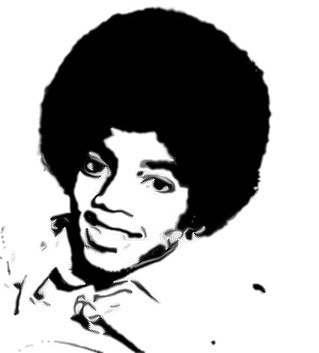
5. Now, Lets hit Filter > Sharped > Unsharped mask - which will sharpen it more, but give us less hard edges than the threshold.
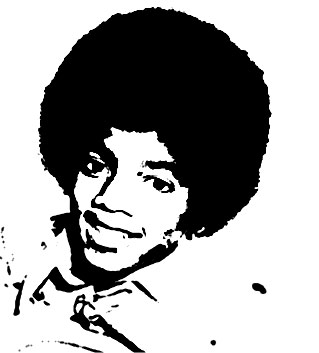
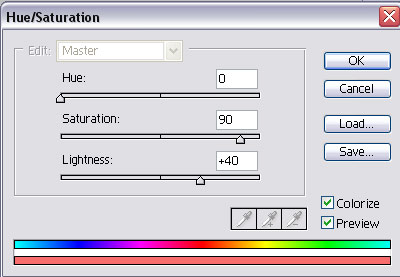
6. Finally, we will need to colourize it: Image > Adjustments >
Hue/saturation and give it the following settings:
7. Thats basically the effect we were after. Obviously you
will need to spice this up by adding other effects and text!