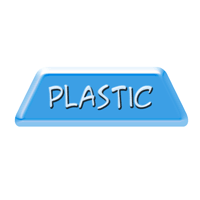
1. This tutorial is very quick and simple - an ideal way to make an attractive interface.
Start off with a blank canvas of any size - this tutorial uses 800x800 pixels. Create any shape you like as the basis for the button; I'm using a rounded rectange that I've transformed by changing the perspective. You can change the colour too, I'm using #3C9FE5.

2. Now go Layer || Layer Style || Bevel and Emboss, and use settings similar to these.
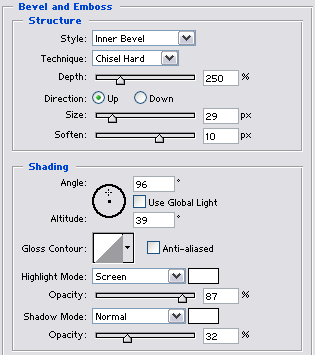
The size of the bevel will depend on your image size - this one was for an 800x800 canvas.

3. Now apply an unsharp mask (Filter || Sharpen || Unsharp Mask) with the settings 500, 5 and 21.
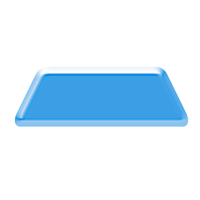
4. Finally, add some text. I've used another bevel and emboss (Layer || Layer Style || Bevel and Emboss) with these settings to make it look like it's been set into the button.
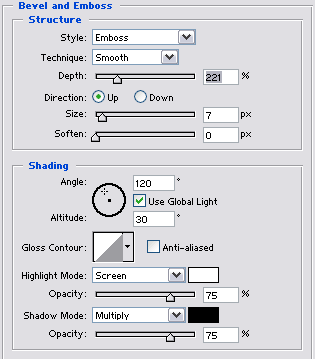
I set the text colour to light blue to match the button, and used the A.C.M.E Secret Agent font.