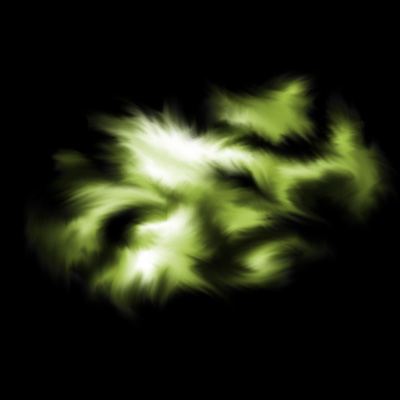
1) Make a new document, anysize doesn't matter. Now press "D" on your keyboard to reset the foreground and background colors to black and white.
2) Apply Filter>Render>Clouds.
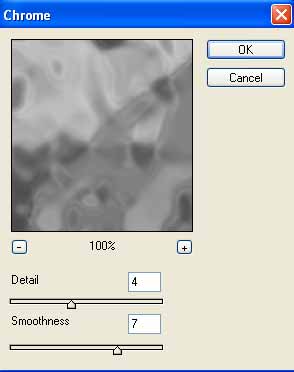
3) Apply Filter>Sketch>Chrome with these settings:
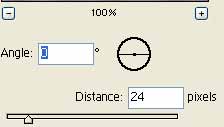
4) Apply Filter>Blur>Motion Blur with these settings:
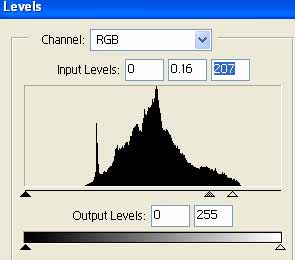
5) Go to Image>Adjustments>Levels and use these settings:
6) Your graphic should be looking similar to the one below:
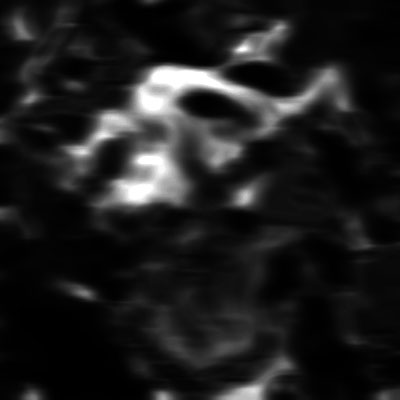
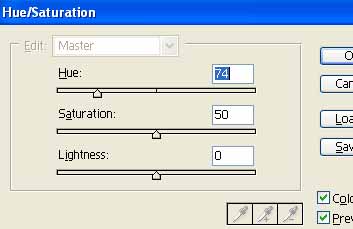
7) Apply the Hue/Saturation settings now (CNTRL+U):
8) Select the whole canvas Select>All:
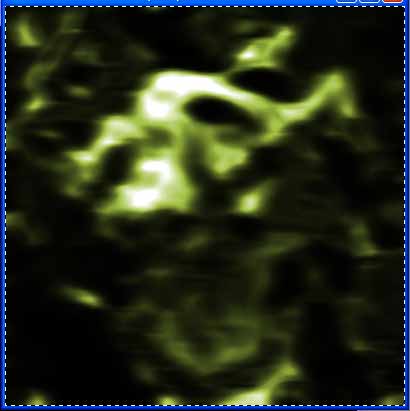
9) Copy the selection CNTRL+C. File>New. Paste the copied file CNTRL+V.
10) Select the Eraser tool and erase around the image to get the part you want for the splash page.
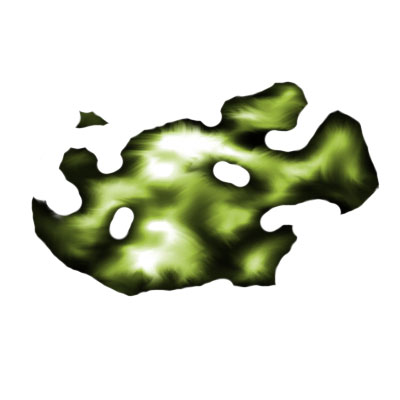
11) Paint your background layer to BLACK. Select the Smudge Tool and go and set these brush settings in the brush menu above:
With 75% size.
Now start smudge out on the edges of your image untill. Keep practicing and smudging about.