1) Make a new document, anysize doesn't matter. Now press "D" to reset the foreground and background colors to black and white. Make sure your background is BLACK.
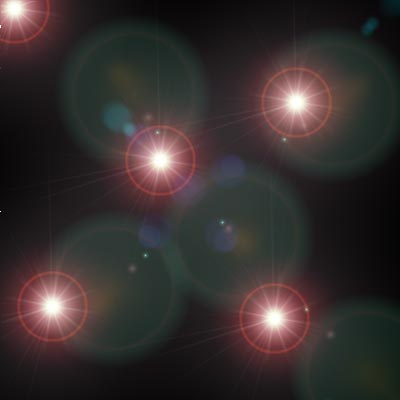
2) Apply 4 to 6 lens flares, I used 35mm prime and scattered them on my canvas:
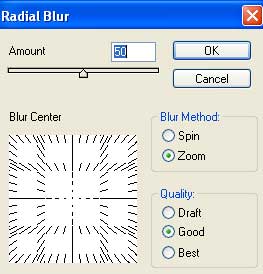
3) Apply Filter>Blur>Radial Blur with these settings:
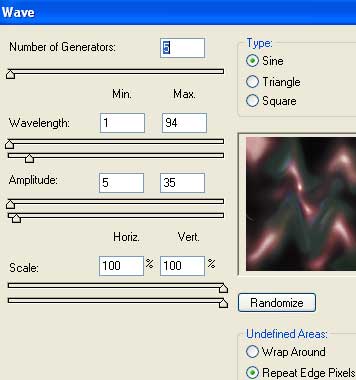
4) Distort the graphic now, go to Filter>Distort>Wave and use these settings or your own:
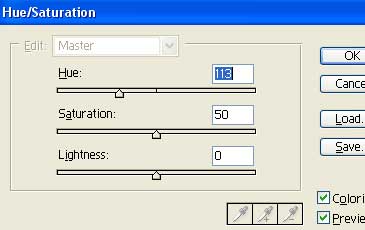
5) Apply color now, CNTRL+U:
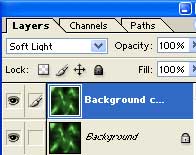
6) Duplicate the layer and set the top layer blending mode to Soft Light.
7) Emerge the layers together by pressing CNTRL+E.
8) Duplicate the layer once again. Go to Edit>Transform>Rotate 180 and set the layer mode to Screen.
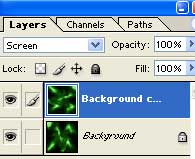
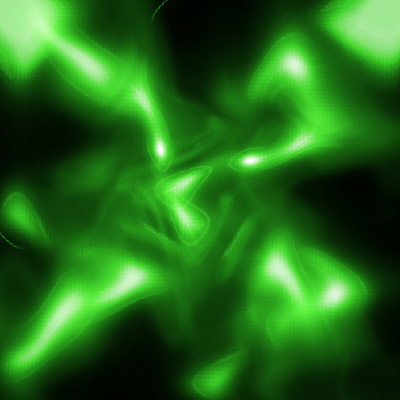
Now your done, heres my graphic: