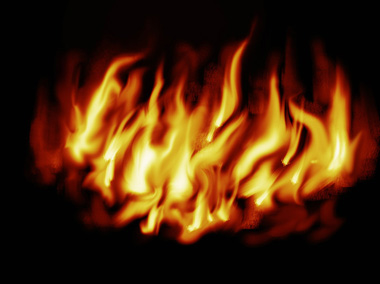
1. Create a file with black background
2. Set foreground color to white, use paint brush, set pressure to 30% or anything you like, just don't make it too high, draw some lines or dots like this
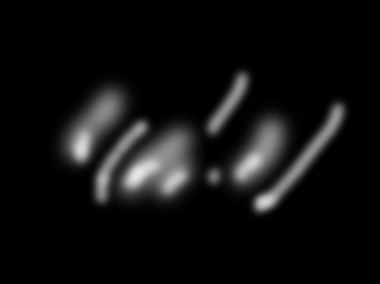
3. Use smudge tool, try to pull the lines and dots into a fire shape, if it doesn't go long enough, just set a higher pressure of the smudge tool.
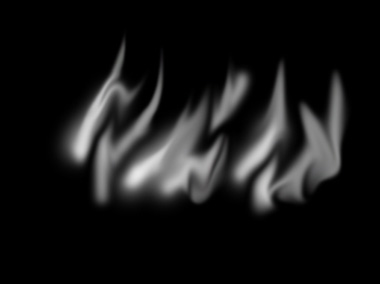
4. Continue working on it with the smudge tool, select a brush with seperate dots on it to pull out tiny flames
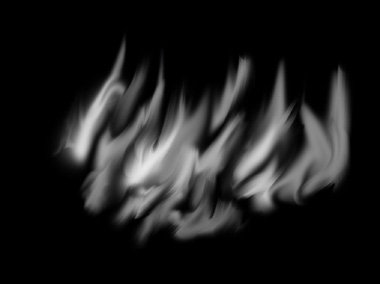
5. Now we should give it some distorted effect, apply Filter-> liquidfy, play around with it, try to get something like this
6. Use smudge tool to make it look even better
7. Now is time to colorize the fires, click on this button (at the bottom of layer panel), select gradient map, you'll see a dialog window like this.
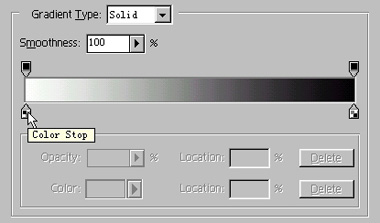
Try to make it look like this, play around with it.
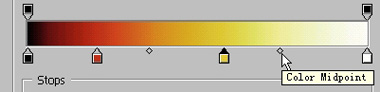
You should see something similar to this after
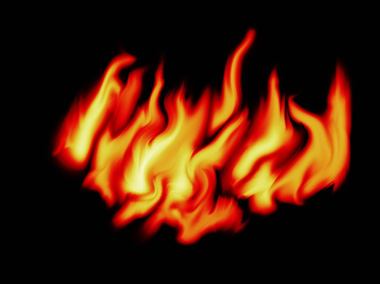
8. Now work on it and try to make it look sharp and more realistic