1. Create new file, enter text

2. Ctrl+click on the text layer, load selection of the text,
go to select---> modify --> contract, 4 pixels, create a new layer, fill in selection with a brighter color, duplicate the new layer. you should have these layers now: background, text layer, layer 1, layer 1 copy

3. Apply filter --> blur --> gaussian blur, 5 pixels, you might not see a big difference

4. Double click the currently selected layer, activate layer style dialog box, select bevel and emboss, follow the diagram below
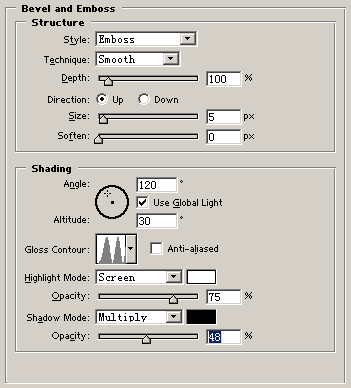
You should see something like this

5. Execute image ---> adjustment ---> curves, adjust the curve appropriately
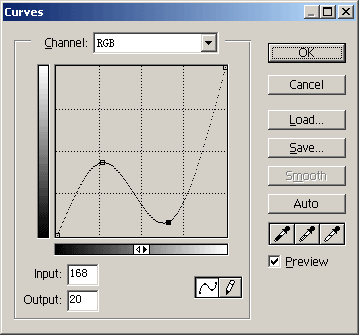
6. Here we go